Learn · Video editing
Video editing guides
This is how to edit videos, from the first cut to the export. The basics come first, in plain words, and then a step-by-step guide for each tool in Voxcene, the video editor for iPhone.
for iPhone
- Cut, merge and resize
- Captions in 60+ languages
- Music and voiceover
- Free to start
01 · The basics
How to edit a video: the basics
Most good edits follow the same order, whether you work on a phone or a desktop. If you get these seven right, most of the work is done. Under each one you'll see where it lives in Voxcene.
-
Pick the best take, then cut the start
Open on the first sentence that matters, not on you reaching for the camera. Stop as soon as the point is made.
In Voxcene Drag a clip's edges to trim, or Split at the playhead and Delete the piece.
-
Cut the dead air
Long pauses, false starts and “um”s are where people stop watching. Tighten them, but leave a breath between thoughts so it doesn't sound rushed.
In Voxcene Tap a word in the captions and Cut this word from the video. On Premium, AI Auto Trim and Filler Removal list every pause and filler first.
-
Put the clips in order
One idea per clip, in the order a viewer needs them. A straight cut is usually best; keep transitions for a change of place or time.
In Voxcene Tap +, then Clip to add footage. Hold a clip and drag it to reorder. 25 transitions.
-
Frame it for where it's going
9:16 for Reels, TikTok and Shorts, 1:1 or 4:5 for a feed post, 16:9 for YouTube. Keep faces and words away from the edges, where the apps put their buttons.
In Voxcene Scale switches the shape, and the guides show where TikTok buttons and Shorts buttons sit.
-
Get the sound right
People forgive a soft picture long before bad sound. Keep the voice clear and the music well under it. The level should stay steady from clip to clip.
In Voxcene Volume on every clip, music on its own lane with a Fade out. AI Denoise on Premium.
-
Add captions
Plenty of people watch with the sound off, and captions keep them watching. Check names and numbers before you style them.
In Voxcene Captions from the speech in 60+ languages that you can edit word by word, and 143 caption styles.
-
Colour, then export
Fix brightness and white balance before you add a look, and keep skin natural. Export in the shape you'll post: 1080p is plenty for most social posts.
In Voxcene The colour room is free on every plan. Export offers Vertical, Square, Portrait and Widescreen presets.
02 · Captions and subtitles
Captions and subtitles
Captions do two jobs: they make a video work with the sound off, and they make it readable for anyone who can't or doesn't want to listen. Voxcene makes them from the speech in 66 spoken languages, timed word by word, and you can fix any word before the video goes out.
Burned-in captions are part of the picture and show everywhere. A subtitle file is separate: YouTube and most players let the viewer switch it on. Voxcene does both.
How to add subtitles to a video
- Open the video in Voxcene and choose the Spoken language, or Detect automatically.
- Read them under Captions → Every word, in order, and tap any word to fix it.
- Pick a look under Style: 143 caption styles.
- Tap Export, then Export video to burn them in, or Export subtitle files for SRT or VTT.
Subtitle files export on every plan, Free included.
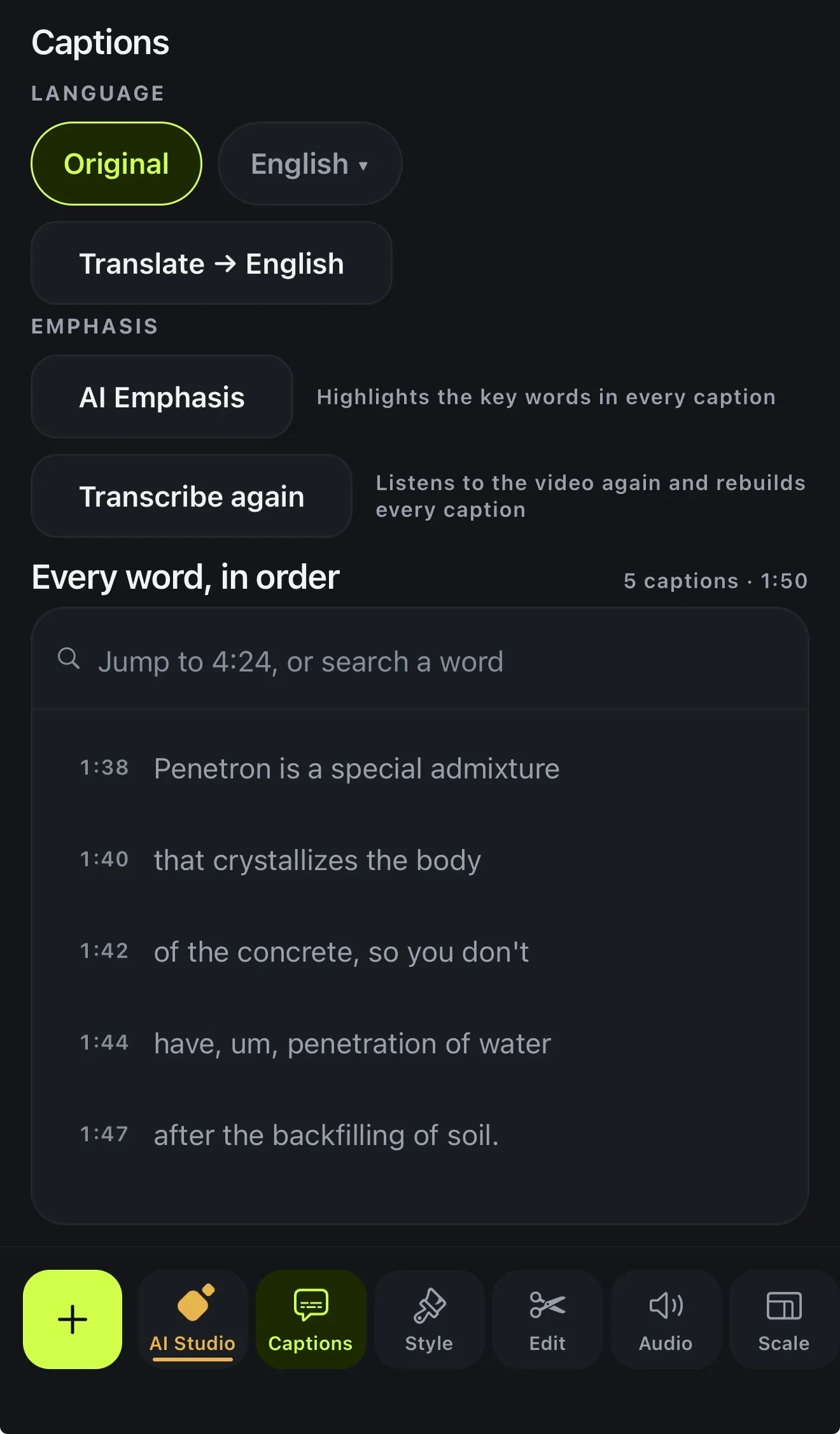
- How to add captions to a video automatically Captions from the speech, timed word by word, in 60+ languages.
- How to make word-by-word captions Every word timed to the moment it's said — and the spoken word lit up.
- How to style and animate captions 143 caption styles that move with the words — then make them yours.
- How to pick a caption style All 143 caption styles, previewed with your own words in the export's fonts.
- How to translate captions Speak one language, caption in another — then fix any line by hand.
- How to caption a video in another language Captions in 66 spoken languages, right-to-left and CJK laid out properly.
- How to add Greek subtitles to a video on iPhone, with the accents right Caption a Greek video on iPhone with correct accents, final sigma and line breaks, then translate it, cut the «εεε» and export the video or an SRT file.
03 · Cutting, merging and resizing
Cutting, merging and resizing
The timeline is where a video gets its shape. You split a clip at the playhead, delete what you don't need and drag the edges to trim. A clip's speed can go from half to double, and the whole video can switch between vertical, square and wide.
How to merge videos
- Open the first video's project in Voxcene.
- Tap +, then Clip, then Append anyway.
- Pick the next one from Video, Photo or Files, or Capture now. It joins at the end, and only the new clip is transcribed.
- Hold a clip and drag it to change the order. Tap the marker between two clips for a transition.
- Tap Export: the clips leave as one video.
Joining footage rebuilds the project, which takes a minute or more on a long recording. For a logo or animation over the video, Add as element (instant) rebuilds nothing.
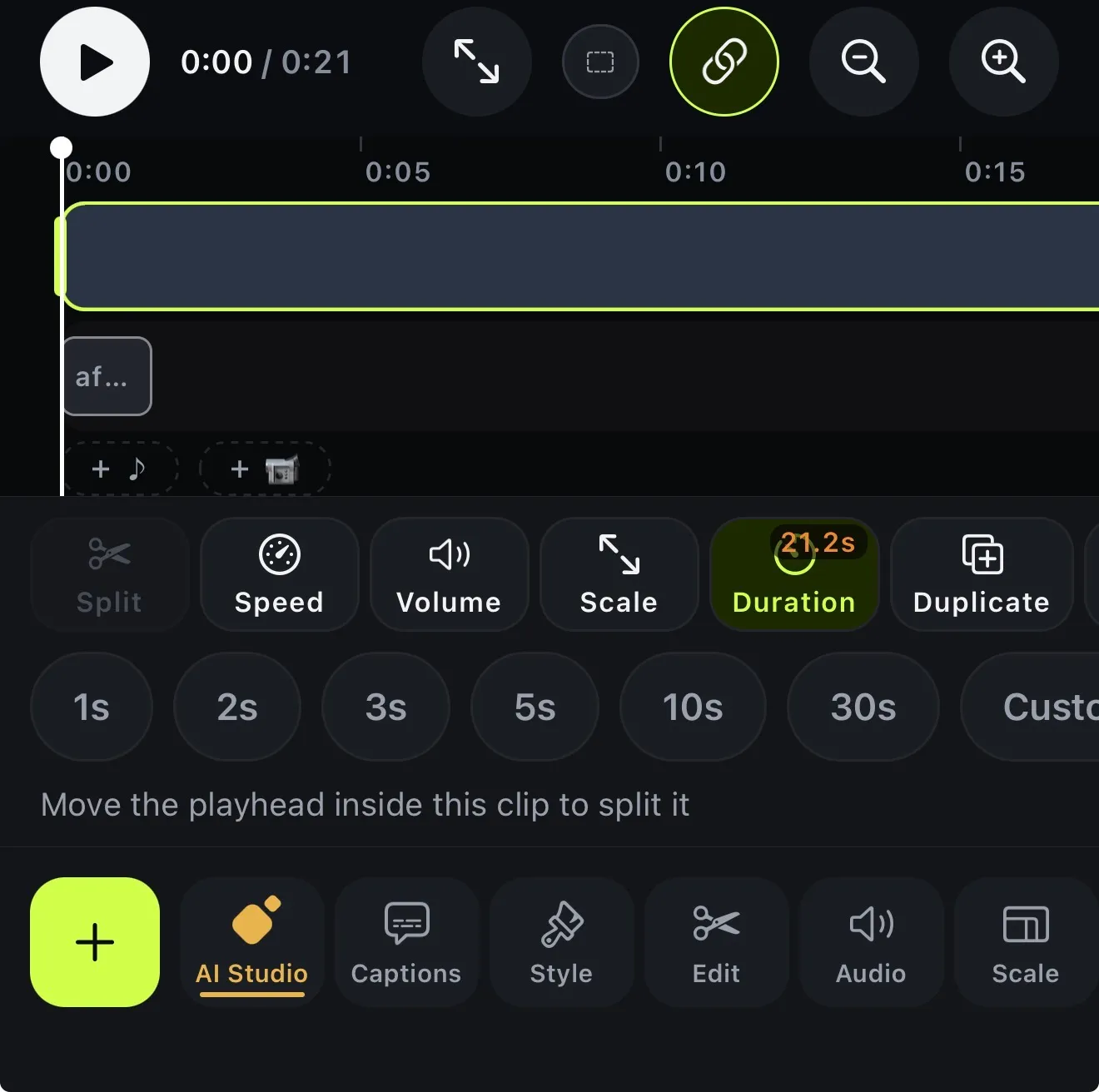
- How to trim and split a video Split at the playhead, drag to trim, cut single words, export just one part.
- How to resize a video for Reels, TikTok or YouTube 9:16, 1:1, 4:5 or 16:9, with blur, colour or a picture behind the video.
- How to add transitions between clips 25 transitions between clips, previewed on your own footage.
- How to add text and titles to a video Titles and text layers — styled, animated, timed and placed where you want them.
- How to colour grade a video on your phone Looks on your own footage, then wheels, HSL, curves and scopes.
- How to add motion graphics to a video 400 animated looks — titles, kinetic text, charts and light — over your video.
- How to turn a wide video into a vertical one Split screens and boxes that turn a wide video into a vertical one.
- How to remove silences from a video Every pause found and shown — safe, review or keep — before anything is cut.
04 · Audio and music
Audio and music
Each sound sits on its own lane: the video's own sound, music from your Files, your recorded voice and generated sound effects. You can split, loop and level each one, and fade the music out at the end.
Recording your own voiceover is free on every plan. Premium adds AI Denoise, which takes steady background noise away and leaves the voice, and Filler Removal, which lists every “um” and “uh” in English and Greek before anything is cut.
Voxcene has no stock music library: bring your own tracks, or generate music with AI credits.
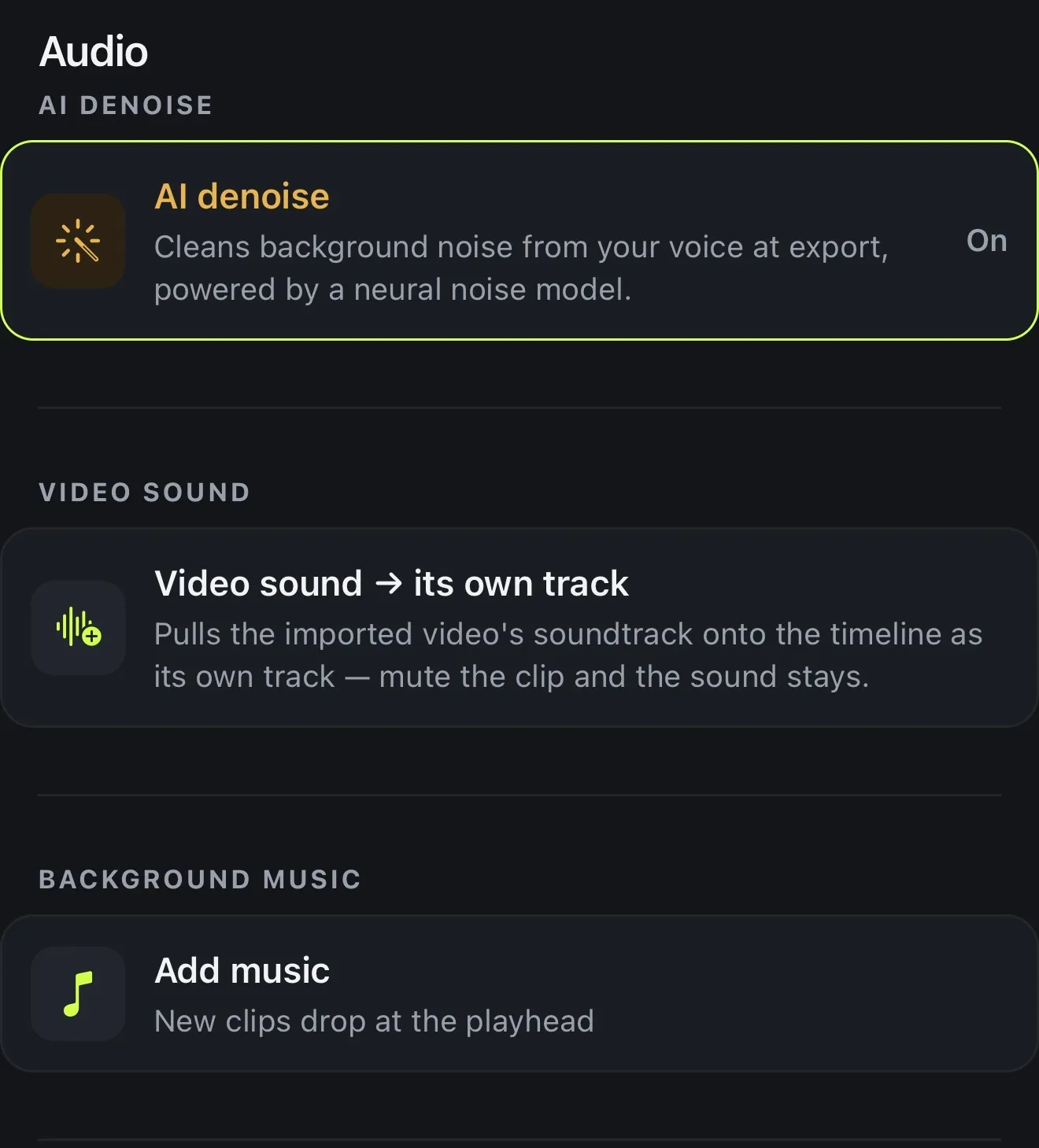
- How to add music to a video Music on its own lane — split it, loop it, cut your clips to its beat.
- How to record a voiceover Talk over your video in your own voice, or type a line for an AI voice.
- How to edit the sound of a video Every sound on its own lane: split, loop, level and clean it.
- How to remove background noise Push the room back, keep the voice — compare before and after first.
- How to remove filler words Every um and uh listed first — cut from the captions, or the video too.
- How to remove “um” and “uh” from a video automatically, in English and Greek Voxcene finds every um, uh and εεε, shows you each one, and cuts them from the captions or the video. Plus silences and swear words. Step by step.
05 · Recording and long videos
Recording and long videos
You can read a script on screen while you record and start editing as soon as you stop. If you have a long recording instead, like a podcast, a talk or a live, these guides turn it into an edited episode or a set of short clips.
- How to record with a teleprompter Read your script on screen while you record, then edit straight away.
- How to edit a video shot on several cameras Two to four cameras, lined up by their sound, cut to whoever is talking.
- How to edit a podcast video Upload the recording, get the edited episode and vertical clips.
- How to turn a long video into Reels The moments that stand on their own, each turned into its own project.
- How to turn a podcast recording into an edited episode and Reels on iPhone Upload a 2–4 person podcast and Voxcene cuts to whoever is talking, adds captions, cleans it up and makes vertical clips. The steps, the limits and the cost.
How it works on iPhone
How to edit a video on iPhone
-
Start a project
In Create, tap Import video, set the Spoken language (or Detect automatically), choose the video and tap Create & transcribe.
-
Cut it down
Tap a clip and Split it at the playhead, Delete what you don't need, and drag the edges to trim.
-
Add and order clips
Tap +, then Clip for the next video. Hold a clip and drag it into place; tap the marker between two clips for a transition.
-
Captions and sound
Check the words under Captions, pick a look under Style, and add music or your own voice from +.
-
Export
Tap Export, choose a preset such as Vertical, then Export video. If you need an SRT, tap Export subtitle files instead.
FAQ
Questions people ask
How do I edit a video on my iPhone?
Start a project from the video in Voxcene, cut it down with Split, Delete and the trim handles, add any other clips with + → Clip, then add captions, music or a voiceover. Tap Export, pick the shape you'll post in, and save it to Photos or share it.
How do I add subtitles to a video?
Open the video in Voxcene and choose its spoken language, or let it detect the language. You get captions made from the speech, timed word by word. Check them under Captions, then either burn them into the video with Export video or save SRT and VTT files with Export subtitle files, on every plan.
How do I merge two videos into one?
Open the first video's project, tap +, then Clip, then Append anyway, and pick the second video. It joins at the end, and only the new clip is transcribed. Hold a clip and drag it to change the order, then export: the clips leave as one video. Joining rebuilds the project, which can take a minute or more on a long recording.
What's the difference between captions and subtitles?
Captions write down what is said in the language it's said in; subtitles usually translate it for people who speak another language. Either can be burned into the picture or delivered as a file the viewer can switch on. In Voxcene, captions come from the speech in 60+ languages, and Translate turns them into another language for 3 AI credits a minute: the Free plan's 20 starting credits cover a few minutes, Premium includes 600 a month, and Basic has none.
Can I edit videos for free?
Yes, to try it. The Free plan makes 3 projects a month from videos up to 60 seconds, with 3 caption minutes, and exports 720p with a watermark. The timeline, the colour room, voiceover recording and subtitle files work on every plan. Basic takes videos up to 15 minutes and exports 1080p without a watermark.
Which aspect ratio should I use?
Use 9:16 for Reels, TikTok and YouTube Shorts, 1:1 or 4:5 for a post in a feed, and 16:9 for YouTube and anything watched on a screen. In Voxcene, Scale switches between them and fills the space with black, a blur, a colour or a picture.
Is there an Android or desktop version?
Not today. Voxcene is an iPhone app, so every guide here is written for iPhone.