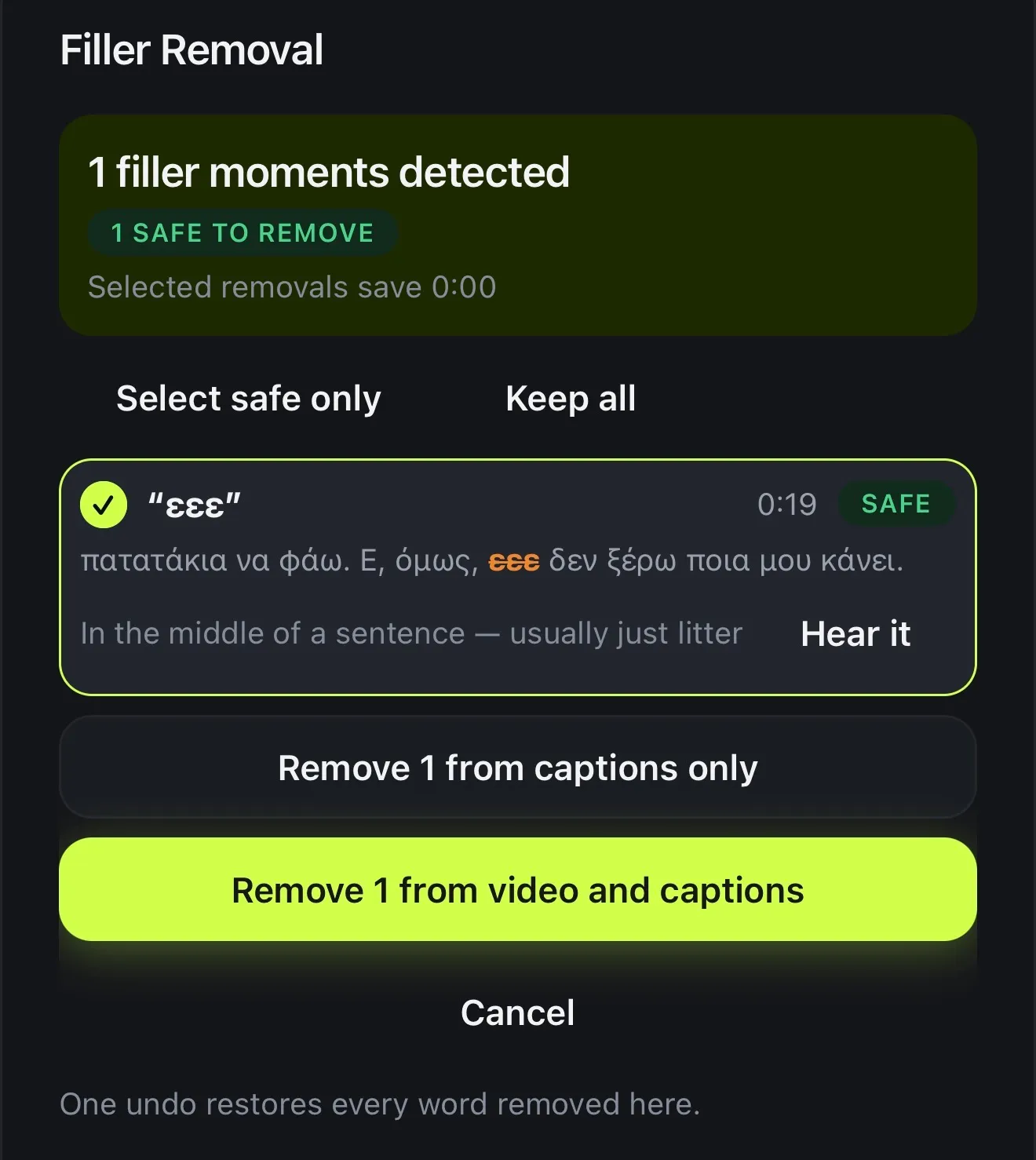
Short answer: in the Voxcene editor, open AI Studio → Filler Removal. It lists every «um», «uh», «hmm» (and «εε», «εμ», «μμ» in Greek) as Safe, Review or Keep, with only the safe ones ticked. Tap Remove from captions only or Remove from video and captions to cut them out of the video itself. For dead air, run AI Auto Trim. It’s part of Premium.
Step by step: fillers
- Open your project in the editor. It needs captions, so transcribe the video first.
- Open AI Studio and tap Filler Removal.
- Read the list. Each moment has a verdict:
- Safe: a plain hesitation. These start ticked.
- Review: probably a filler, but check it.
- Keep: the word carries meaning, so removing it would change the sentence.
- Listen if you’re unsure. Tap Hear it on any line. Select safe only and Keep all change the selection in one tap.
- Choose how far to go:
- Remove from captions only cleans the subtitles and leaves the picture untouched. This is good when a cut would jump.
- Remove from video and captions cuts the moment out of the video too.
What counts as a filler
English: um, uh, er, erm, hmm, mm, mhm, uh-huh and their longer spellings. Short sounds that are also real words (“ah”, “oh”) count only when the transcription itself was unsure about them.
Greek: εε, εεε, εμ, εμμ, μμ, χμ, αα and their longer spellings.
Never pre-ticked: well, so, anyway, actually, «λοιπόν», «δηλαδή», «βασικά» and «ουσιαστικά». “You know”, “I mean” and “like” aren’t treated as fillers at all.
Silences and dead air: AI Auto Trim
In AI Studio → AI Auto Trim, Voxcene finds the pauses longer than about 0.8 seconds and gives each one the same Safe / Review / Keep verdict, with a reason such as “Pause between sentences”. Tap Cut … from the video to remove the ones you’ve kept ticked. It costs 1 credit per video.
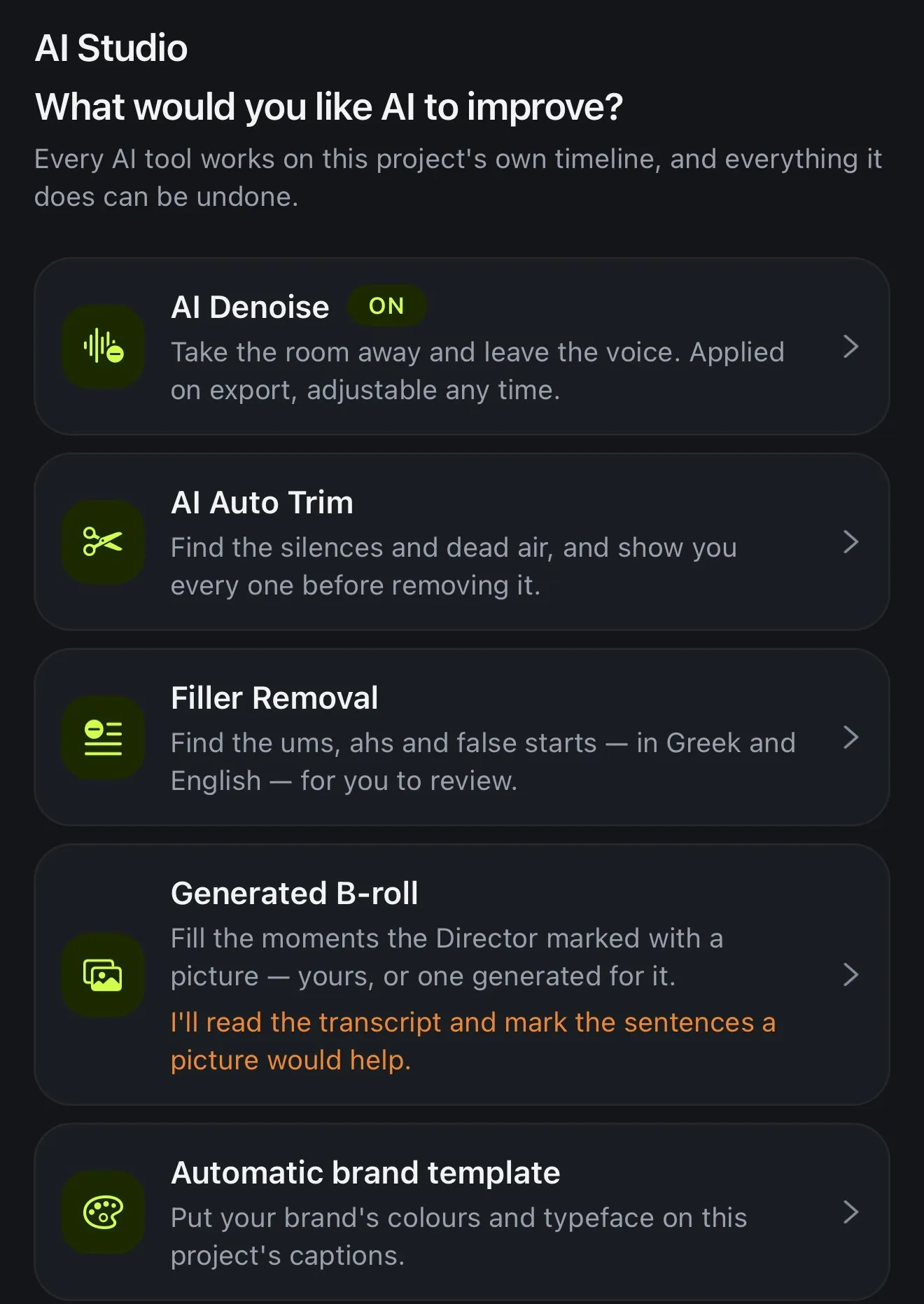 AI Studio: Filler Removal and AI Auto Trim sit together, next to AI Denoise.
Bonus: bleep the swear words
The editor’s Censor tool finds strong language in English and Greek, then bleeps or mutes it and masks the word in the captions.
Why it shows you everything first
An automatic cut you can’t see is how a sentence loses the word that made it make sense. So nothing is removed until you press the button, one undo restores the whole pass, and every cut you made stays in a list where you can put it back.