Learn · AI video
AI video tutorials
First, how AI video editing works, in plain terms. Then an AI video editing tutorial for each AI tool in Voxcene, step by step. Some tools tidy up a video you've already filmed and find the clips in it; others make something new.
for iPhone
- Proposes before it cuts
- Everything can be undone
- Nothing charged if a job fails
- AI Studio on Premium
01 · The basics
How AI video editing works
AI video editing isn't one button. It's a set of tools, and each one takes on a slow job, like finding the pauses in a recording or generating a picture. You still judge the result. Four things are worth knowing before you start.
-
It starts from the words
Most AI editing works from the transcript, which records what was said and when. Caption the video first and the tools know where each sentence starts and ends.
In Voxcene Voxcene transcribes as soon as you start a project, in 60+ languages.
-
It proposes, you decide
A good AI editor shows you the cut before it makes it. Read what it suggests, then keep the parts you agree with.
In Voxcene Every AI tool works on this project's own timeline, and everything it does can be undone.
-
Counted is not the same as read
A pause or a filler word can be measured. A summary of what the video is about is the AI's reading of it, so check it before you rely on it.
In Voxcene Analyse this video keeps the two apart: the numbers are counted, the subjects are read from the transcript.
-
Know the cost before you tap
AI tools run on credits, charged per minute of video, per video or per picture. Look at the price first, especially on long recordings.
In Voxcene What AI costs lists every tool's price, and nothing is charged when a job fails.
02 · AI StudioPremium
AI Studio walkthroughs
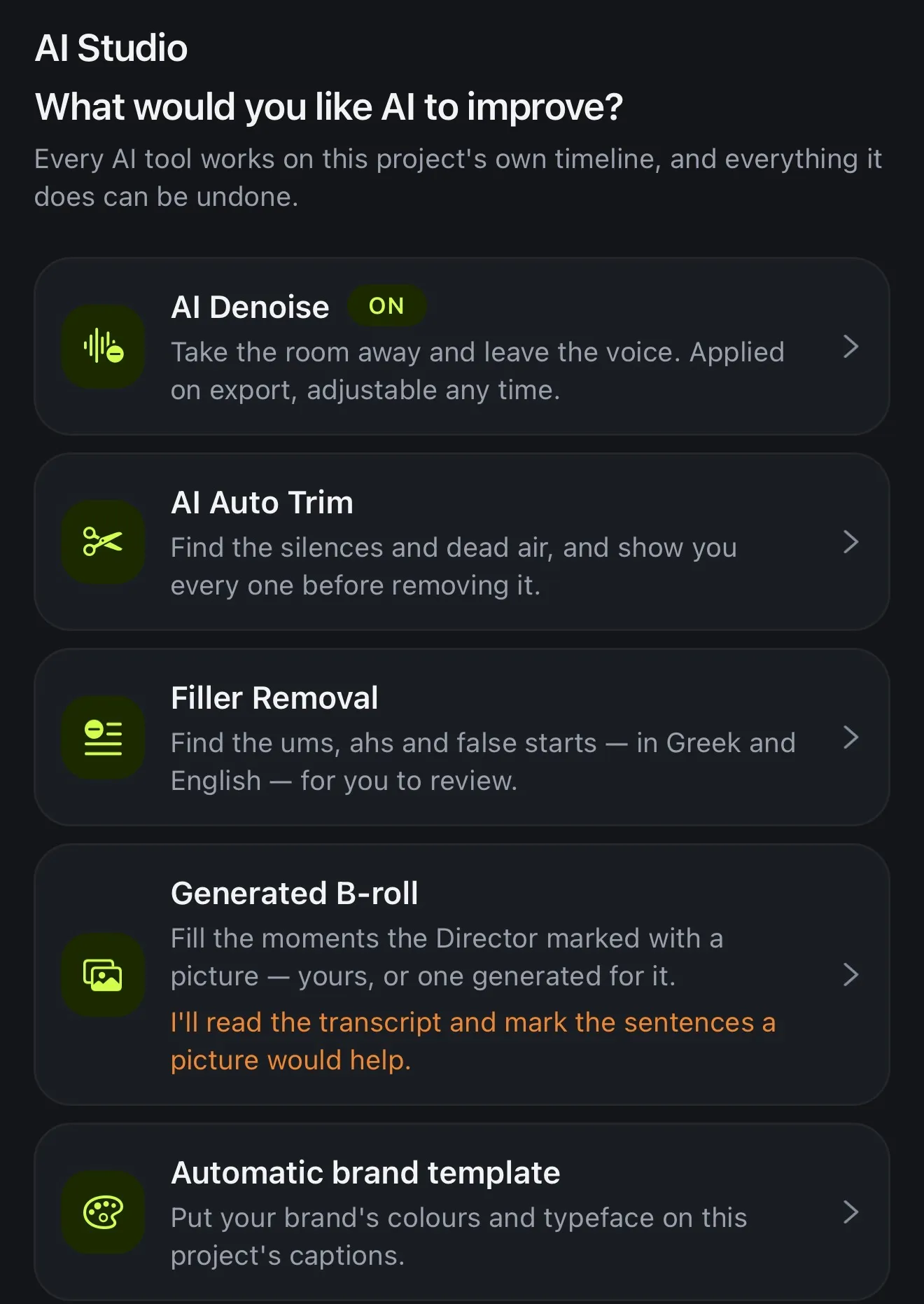
AI Studio sits in the editor's bottom bar and opens on one question: What would you like AI to improve? Every tool in it works on the project you have open, on its own timeline.
A few tools work on the recording itself. AI Denoise removes the room noise and keeps the voice, AI Auto Trim finds the silences, and Filler Removal finds the ums in English and Greek. Long Video to Reels goes through the transcript for moments that stand on their own. Two tools, AI Video Editor and Chat to Edit, propose a whole edit, and nothing from them is applied until you choose to.
AI Studio is part of Premium. On Basic it opens Motion only.
- How to edit a video with AI Pick a goal and AI Edit proposes the cut — nothing changes until you apply.
- How to get a whole edit proposed Pick a goal and get a whole edit proposed — cuts, captions, look, titles.
- How to edit a video by typing what you want Say what you want changed; it proposes, then waits for Apply.
- How to remove silences automatically Every pause found and shown — safe, review or keep — before anything is cut.
- How to remove filler words automatically Every um and uh listed first — cut from the captions, or the video too.
- How to turn a long video into Reels The moments that stand on their own, each turned into its own project.
- How to add B-roll pictures to a talking video Pictures for the moments that need one, marked from what you say.
- How to remove background noise with AI Push the room back, keep the voice — compare before and after first.
- How to make a voice sound cleaner AI Denoise pushes the room back and AI level brings a quiet voice up.
- How to dub a video into another language Your translated captions, spoken in a natural voice, in time with your edit.
- How to cut a wide video between its angles Split screens and boxes that turn a wide video into a vertical one.
- How to add motion graphics, or ask for them 400 animated looks — titles, kinetic text, charts and light — over your video.
- How to remove “um” and “uh” from a video automatically, in English and Greek Voxcene finds every um, uh and εεε, shows you each one, and cuts them from the captions or the video. Plus silences and swear words. Step by step.
- Dubbing on iPhone: the cost, the steps and the limits Translate your captions, then let Voxcene speak them in the new language, lined up with your edit. What it costs, what it does well, and what it doesn't do.
03 · GeneratePremium
Generate with AI
On the Create tab, under AI videos, Generate with AI turns an idea into a narrated, captioned video of about 20, 35 or 60 seconds. You get a script, one narration voice, a picture for each shot (or your own photos), music and captions. It lands in your projects as a normal edit, so you can still change any caption, shot or track.
Beside it are tools that make one thing well: Effects turns one photo into a 5-second clip with a camera move, Logo intro animates your logo, Genjutsu reimagines your own clip, and Create images with AI turns a prompt into a picture. Each one runs on AI credits.
- How to make a video from an idea Write an idea and get a narrated, captioned video you can keep editing.
- How to turn one photo into a moving shot One photo and a trained camera move become a 5-second clip you can edit.
- How to reimagine your own clip with AI Genjutsu re-films your clip from pictures you choose: recast it or swap one thing.
- How to make a logo intro Your logo, filmed with one of 56 camera, light or transform moves: a 5-second sting.
- How to create images with AI Describe a picture, add up to 4 photos to work from, use it in any video.
- How to make music with AI Describe a song and hear it sung — or score your video with music that fits.
- How to make a jingle for your business A short brief becomes a sung jingle with your brand name in the lyrics.
- How to make a listing video A listing link or 3–12 photos, edited into a narrated, captioned property tour.
- How to try on hairstyles from a selfie One selfie, up to four new hairstyles and a colour — your face stays yours.
- A logo intro from your iPhone: steps, cost and tips Turn your logo into a 5-second animated intro from your phone with Voxcene: 56 camera moves and effects, 16:9, 1:1 or 9:16. Steps, cost and tips.
- A jingle for your business: cost, steps and using it Turn a short brief into a sung song for your brand, in Greek, English or 60+ languages, with Voxcene's Brand Music. Cost, steps, and using it in a video.
04 · Check before you post
Check a video before you post
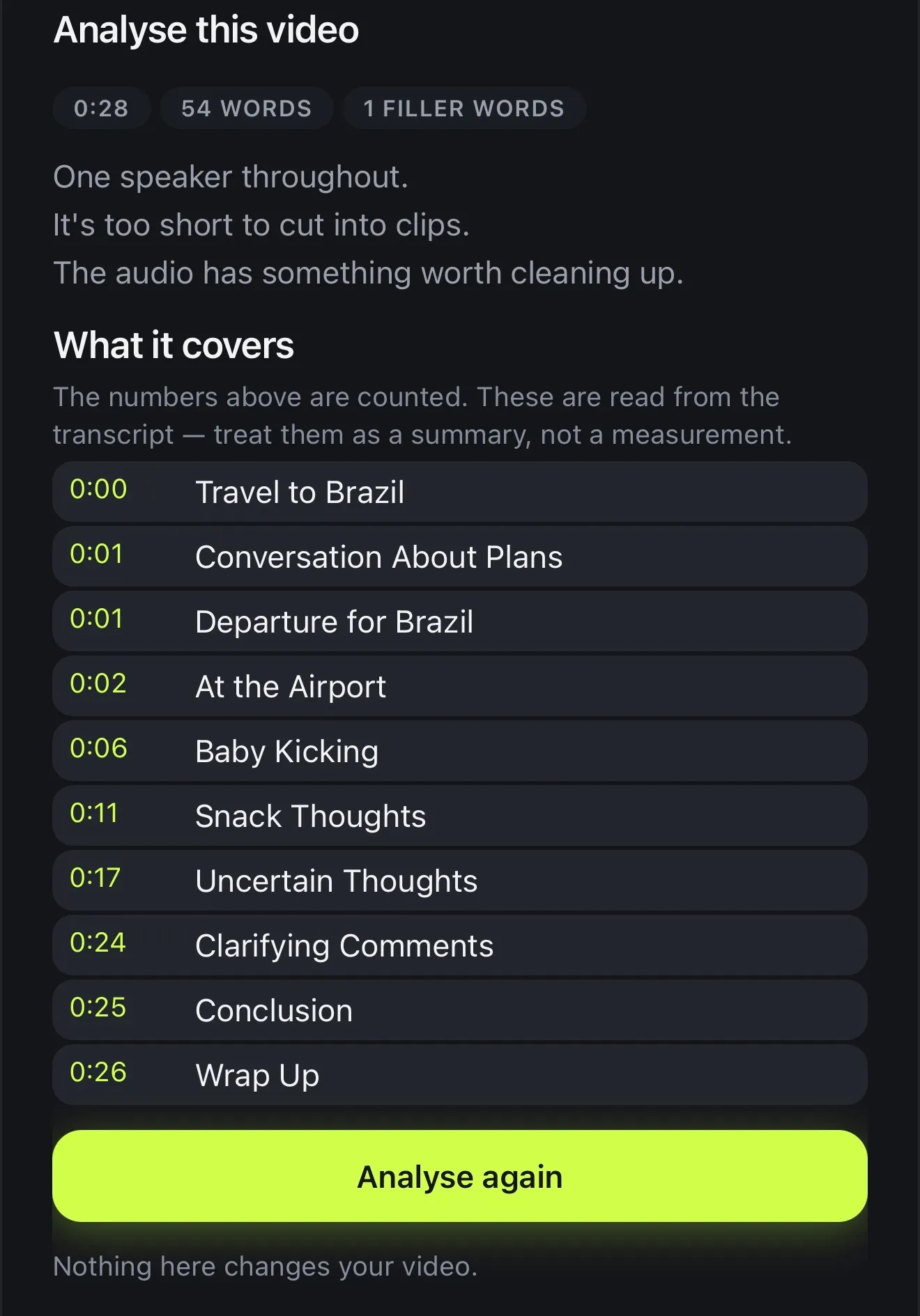
Analyse this video measures the project's length, long pauses, filler words and audio, then sums up what it found in plain sentences: “The framing isn't vertical yet.” “It's one continuous shot, so it may lose attention.” After that it goes through the transcript and lists the subjects the video covers, marked as a summary rather than a measurement. Nothing there changes your video.
Find the Best Moments ranks the 30-second stretches where the most gets said, for free, and Keep only this trims the video to one of them.
No viral score in this version: these tools measure your video, they don't predict its views.
How it works on iPhone
How to edit a video with AI on iPhone
-
Caption the video
Start a project from your video and let Voxcene transcribe it. The AI tools work from the transcript.
-
Open AI Studio
Tap AI Studio in the editor's bottom bar: What would you like AI to improve?
-
Pick a tool
AI Video Editor measures the video and suggests what to do. If you already know what you want, open AI Auto Trim, Filler Removal or Long Video to Reels directly.
-
Read the proposal
Before anything changes, you get a list of what the tool would do, such as the pauses it would cut or the clips it found.
-
Apply, then export
Apply what you want, undo anything you don't, and export as usual.
FAQ
Questions people ask
What is AI video editing?
It's editing where software does the slow parts: finding silences and filler words, cleaning the sound, picking the moments worth keeping, or proposing a whole cut from the transcript. In Voxcene the AI makes a proposal and you decide. Nothing changes until you apply it, and you can undo all of it.
How do I edit a video with AI on my iPhone?
Open your video in Voxcene and let it transcribe. Then tap AI Studio and choose a tool. AI Video Editor suggests what to do. AI Auto Trim looks for silences, Filler Removal for the ums and Long Video to Reels for clips. Each one shows you its proposal first, so you apply the parts you want and then export.
Which AI tools are free?
AI Studio is part of Premium. Inside it, Filler Removal, Find the Best Moments, Automatic brand template and Layout use no credits. Others use AI credits, priced per video, per minute or per picture, and nothing is charged when a job fails. On every plan, the Edit panel's Highlight finds the strongest 30 seconds of speech for free.
Can AI make a whole video from a text prompt?
Yes, on Premium. Generate with AI turns an idea into a narrated, captioned video of about 20, 35 or 60 seconds: a script, one narration voice, a picture per shot or your own photos, music and captions. It arrives as a normal project you can keep editing.
Can it tell me if my video will go viral?
Not in this version. Analyse this video measures length, pauses, filler words and audio, and says things like “The framing isn't vertical yet”, and Find the Best Moments ranks the stretches where the most gets said. Neither predicts views.
Do I need Premium?
For AI Studio and Generate with AI, yes. Premium is €17.99 a month and includes 600 AI credits a month, with top-up packs if you need more. Basic has no AI credits; in AI Studio it can open Motion only. The Free plan's 20 starting credits can translate captions.
Does the AI work in my language?
Captions, translation and dubbing work across 60+ languages. Filler Removal is built for English and Greek.