Resize & crop video
Resize and crop video for any platform
Shot it wide and need it vertical? Crop video or reframe it for Reels, TikTok, Shorts or YouTube in one tap. Voxcene can fill the empty space with your own footage instead of black bars.
for iPhone
- 9:16 · 4:5 · 1:1 · 16:9
- Fit or Fill
- Blur behind the video
- Safe-zone guides
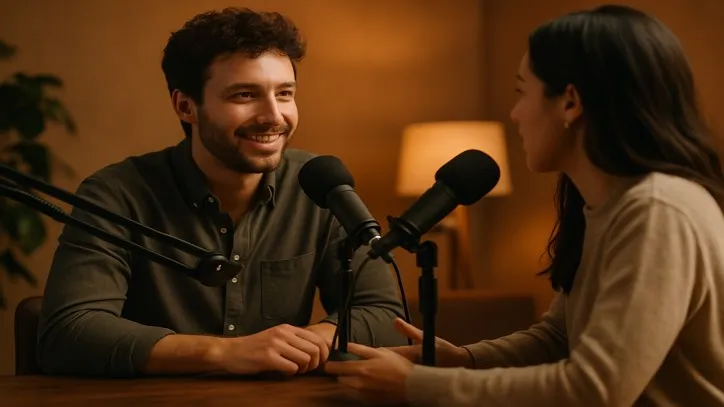
Canvas
Content fit
Behind the video
The bars fill with your own footage, blurred.
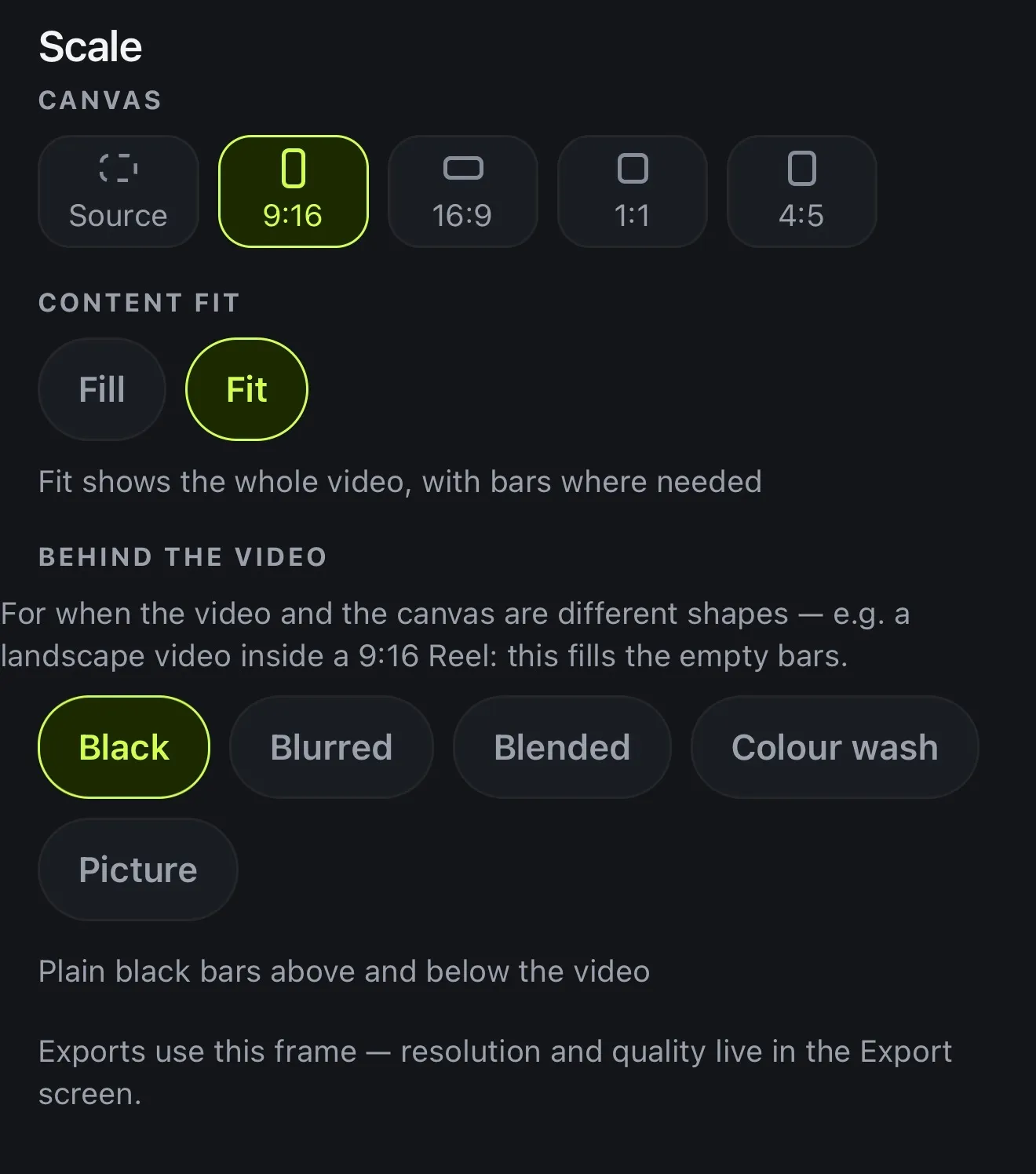
01 · Canvas
Aspect-ratio presets: 9:16, 1:1, 4:5, 16:9
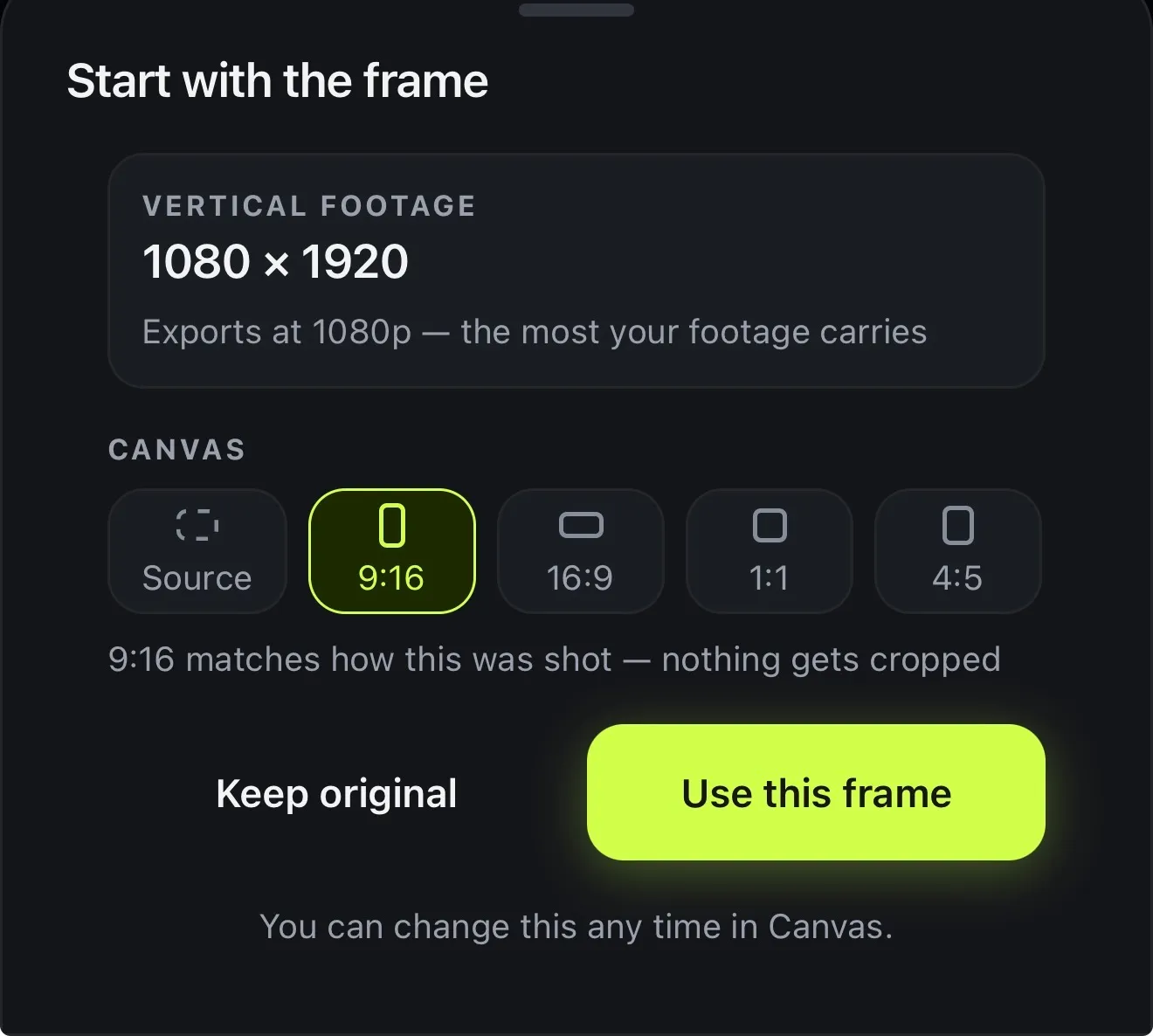
When a project opens, Voxcene checks the shape of your footage and offers a frame to match. Vertical footage stays 9:16 with nothing cropped, and wide footage gets the choice to keep its shape or move to a new one.
You can change it at any time under Scale, and the export follows the frame you chose. There's no separate crop tool and no need to import the video again.
02 · Behind the video
Blur or colour behind the video, not black bars
When the video and the canvas are different shapes, something has to fill the gap. You get five ways to fill it, and the preview updates as you tap each one.
A picture of your own can drift slowly in or out, so the backdrop never sits frozen while the video plays.
- Black: plain bars above and below
- Blurred: your own footage, blurred
- Blended: the video's edge dissolves into the blur
- Colour wash: the frame's own colours, moving with it
- Picture: a photo of yours behind the video
03 · Framing
Framing gestures and safe zones
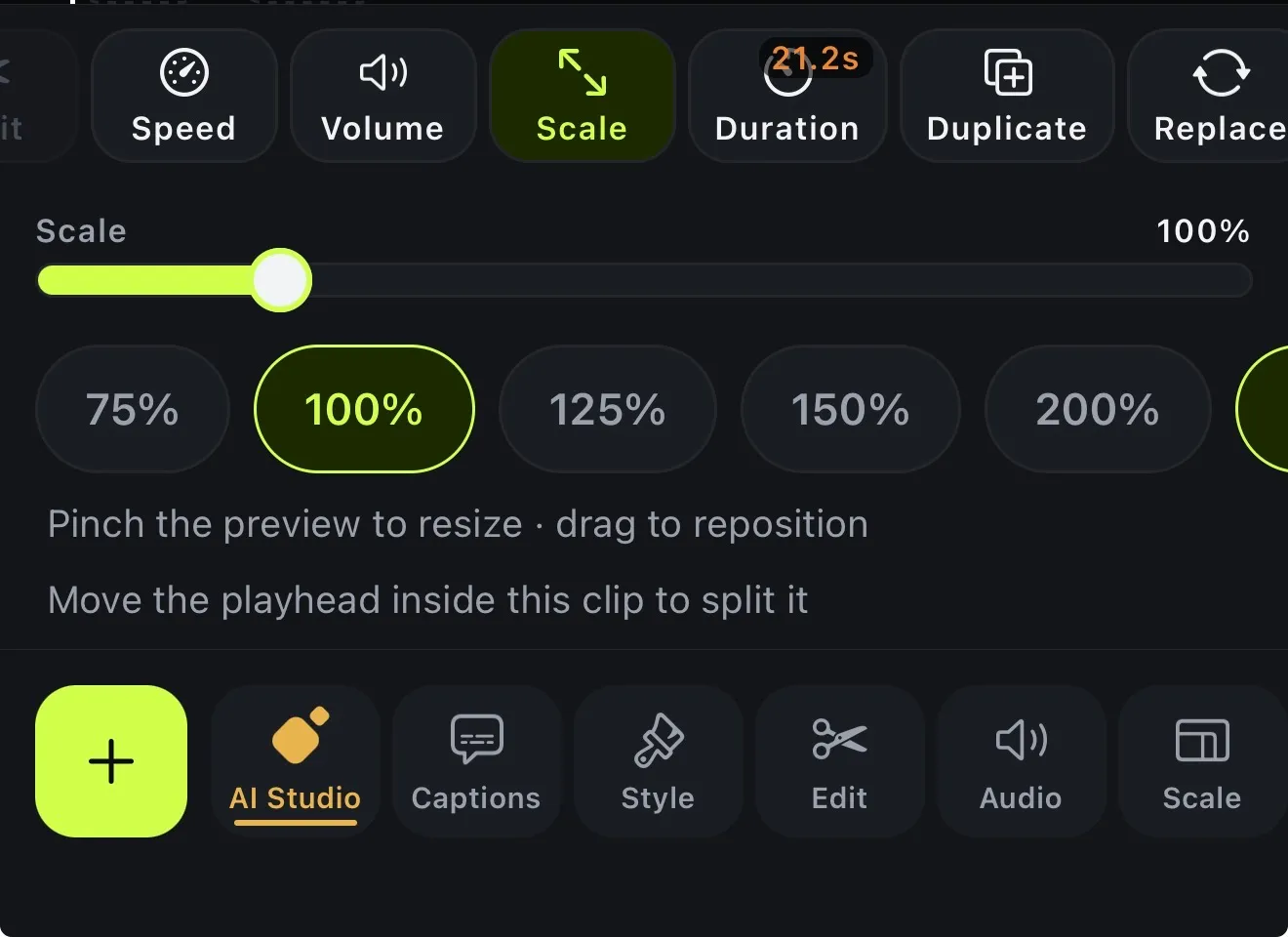
Fit shows the whole video with space where it's needed. Fill crops the video to cover the frame. Then frame the shot by hand: pinch the preview to resize and drag to reposition, or use a clip's Scale steps from 50% to 200%.
TikTok and YouTube Shorts put buttons over the right side and the bottom of your video. Tap the guides button above the preview to see where they'll sit, for TikTok, Shorts or both, and keep your captions and your face in the clear.
04 · Export
Export the size each platform wants
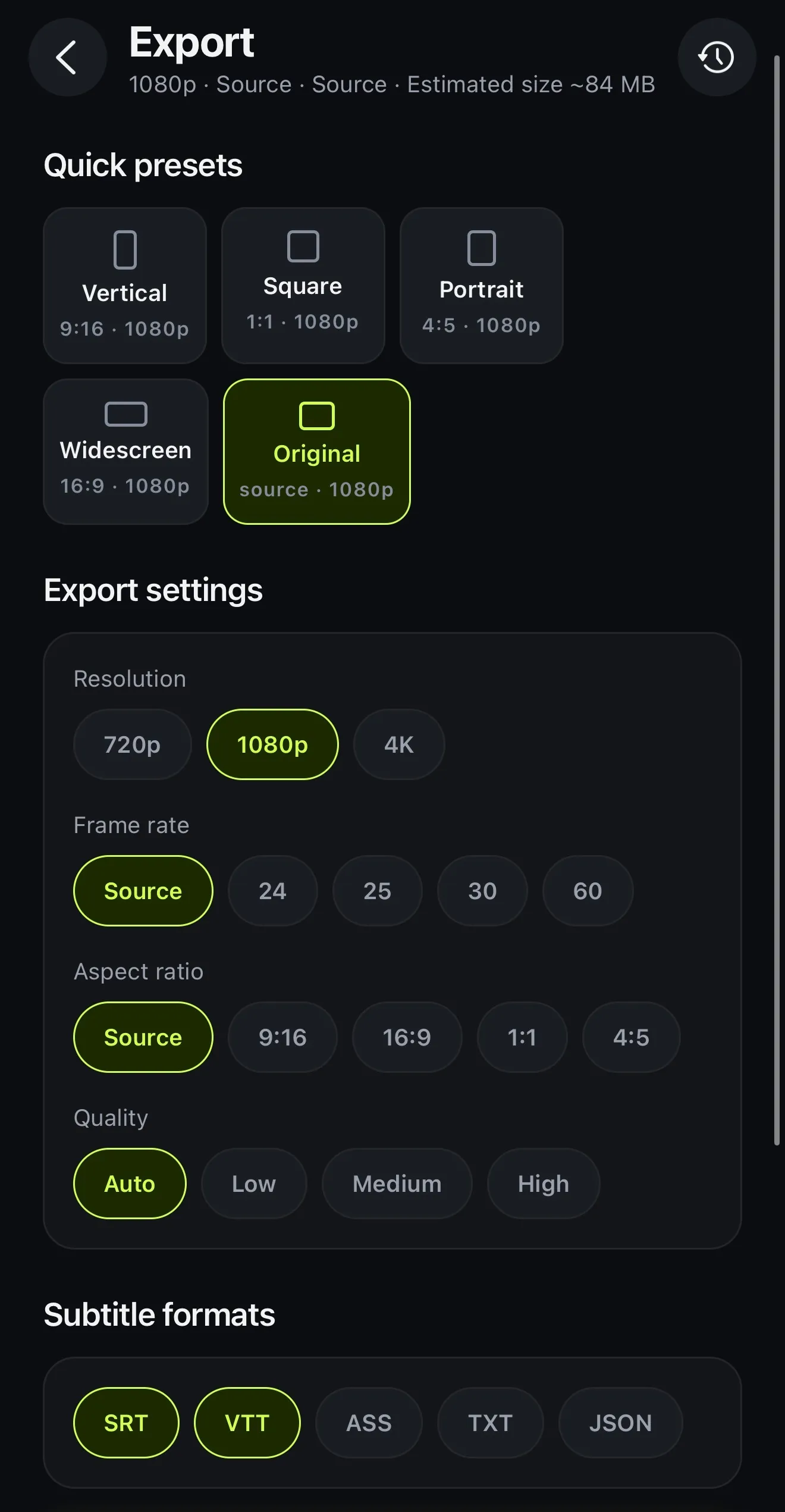
The Export screen has a preset for each shape, so a project framed for Reels can also go out as a square post or a widescreen cut. You pick the resolution and frame rate there, and the estimated file size updates as you go.
- Vertical 9:16, Square 1:1, Portrait 4:5, Widescreen 16:9
- 720p, 1080p or 4K, by plan
- Frame rate: source, 24, 25, 30 or 60
How it works on iPhone
How to resize a video on iPhone
-
Open your video
Start a project from a video in your Photos. Voxcene checks its shape and offers a matching frame. Tap Keep original or Use this frame.
-
Tap Scale
In the editor's bottom bar, tap Scale. The canvas row sits at the top: Source, 9:16, 16:9, 1:1 and 4:5.
-
Pick Fit or Fill
Fit keeps the whole picture with space around it, while Fill crops the video to cover the frame.
-
Fill the space
Under Behind the video, choose Black, Blurred, Blended, Colour wash or a Picture of your own.
-
Frame it and export
Pinch the preview to resize, drag to reposition, then tap Export and choose the resolution.
FAQ
Questions people ask
How do I change a video's aspect ratio on iPhone?
Open the video in Voxcene, tap Scale and choose a canvas: 9:16, 16:9, 1:1 or 4:5. The preview changes straight away, and the export uses the frame you picked.
Can I turn a horizontal video into a vertical one without cutting people out?
Yes. Choose 9:16 and Fit, and the whole wide shot stays in view. Then fill the space above and below with Blurred, Blended or Colour wash, so it reads as one picture instead of a video floating on black.
What size is a 9:16 video for Reels, TikTok and Shorts?
1080 × 1920 pixels at 1080p. Voxcene's Export screen has a Vertical preset for it, alongside Square (1:1), Portrait (4:5), Widescreen (16:9) and Original.
Does resizing lower the quality?
No more than your footage allows. When a project opens, Voxcene tells you the most your footage carries, for example “Exports at 1080p”. The Free plan exports at 720p with a watermark, Basic at up to 1080p and Premium at up to 4K.
Can I see where TikTok and Shorts buttons will cover my video?
Yes. The guides button above the preview shows where app buttons cover your video: TikTok buttons, Shorts buttons, or both. Keep captions and faces clear of them.
Is it free?
Voxcene is free to download, and resizing and cropping work on every plan. The Free plan takes videos up to 60 seconds; paid plans take longer videos and export without a watermark.