Audio editing
Edit the sound of your video
Edit audio in video the way you edit the picture. The video's own sound, your music and your voiceover each get a lane with a waveform, so you can cut, level and fade them without touching the picture.
for iPhone
- A lane per sound
- Waveforms
- Split · loop · fade out
- AI level
01 · Lanes
Separate lanes for clips, music and voiceover
Every sound in your video has a place of its own: the video's own sound under the picture, one or more music lanes, and the voiceover lane. Each is drawn as a waveform, so you can see the loud bits and the silences before you play anything.
Each sound lane has its own menu. You can Mute a lane to hear the rest, Hide it to clear the view, Lock it so it can't be moved by accident, or delete it.
- The video's own sound, as a waveform
- Music lanes: add one with + ♪
- A voiceover lane for every take
- Lane menu: Mute, Hide, Lock, Delete lane
02 · Shape
Split, extend and fade out a sound
Select any sound and cut it at the playhead with Split. Too short? Loop repeats an imported sound to fill the gap, and a sound you made with AI has Extend. When it has to end on a cut, set an exact Duration.
Finish with a Fade out of a few seconds, or any length you like, so the sound doesn't end on a click.
- Split at the playhead
- Loop an imported sound; Extend an AI one
- Duration for any sound
- Fade out with Even, Smooth or Quick
03 · Levels
Waveforms and levels
Set any sound from 0% to 200%, or move all the music clips (or all the voiceovers) together. On a video clip, AI level measures the speech and sets the level so the voice comes through clearly.
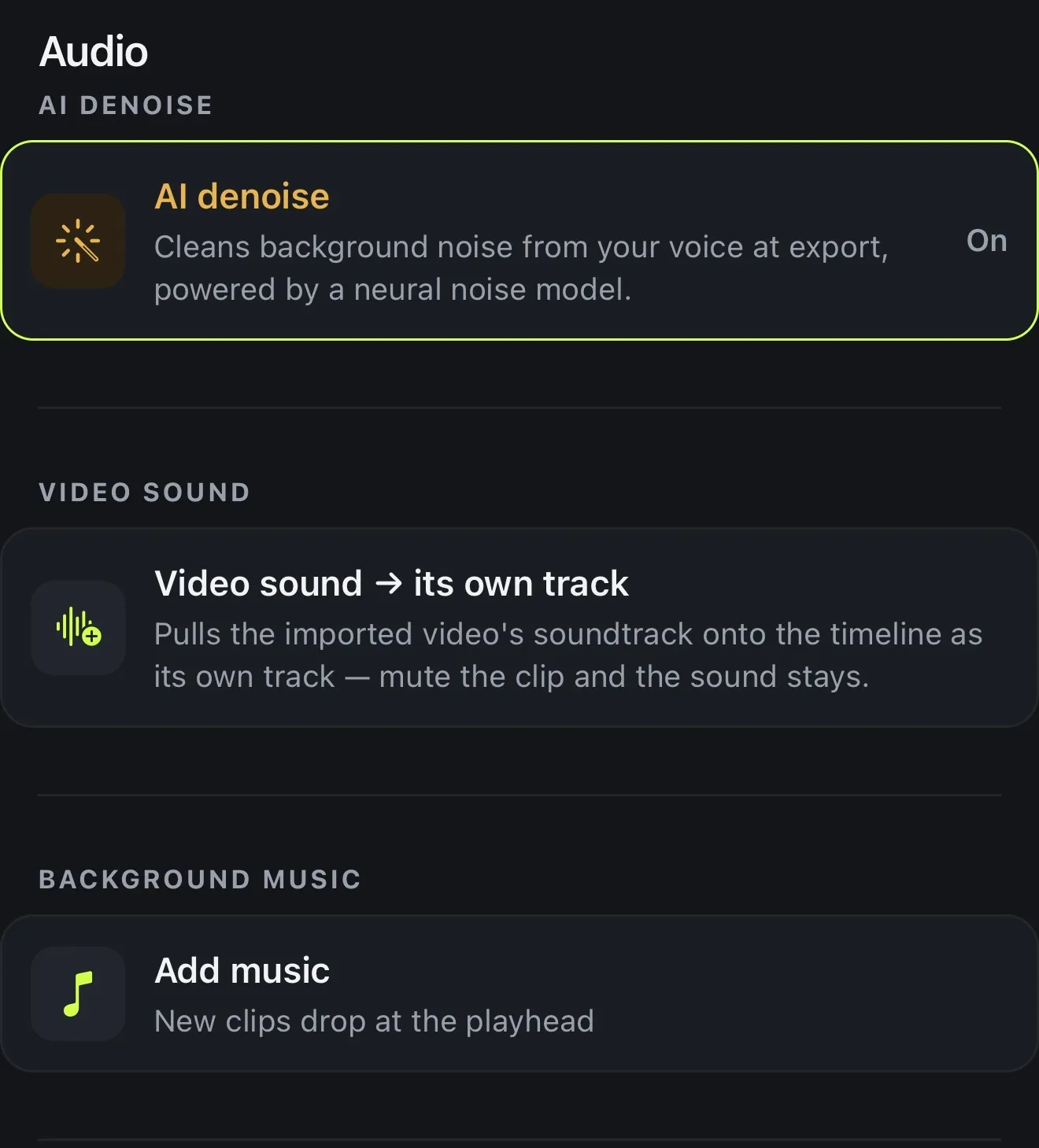
On Basic and Premium, Extract Audio puts the video's own sound on its own track. Enhance on a music track can master it or clean it up, and for a few credits it can turn the vocal up or down, or keep only the music.
- 0–200% per sound
- Music level and Voiceover level for all
- AI level for speech, free
- Extract Audio and Enhance on Basic+
How it works on iPhone
How to edit a video's audio on iPhone
-
Open your project
Open the video whose sound you want to edit.
-
See every sound
The video's own sound, the music and the voiceover each get a lane under the picture, drawn as a waveform.
-
Cut and fit
Select a sound to Split it at the playhead, Loop it, or set its Duration.
-
Set the levels
Open Volume for a level from 0% to 200% and a Fade out, or tap AI level on a video clip.
-
Tidy the lanes
Use a lane's menu to Mute, Hide, Lock or delete it, then export.
FAQ
Questions people ask
Can I edit the audio of a video on iPhone?
Yes. In Voxcene each sound (the video's own sound, music and voiceover) sits on a lane of its own. There you can split it, loop it, set its level and fade it out without touching the picture.
How do I separate the audio from a video?
Use Extract Audio in the Audio panel: the video's own sound goes onto its own track, so you can mute the clip and keep the sound. It's on Basic and Premium.
How do I make speech louder?
Tap AI level on a video clip. Voxcene measures the speech and sets the clip's level so the voice comes through clearly. It's free.
Can I fade audio in and out?
You can fade out, over 1 to 8 seconds or any length you choose, with an Even, Smooth or Quick curve. There's no fade-in control in this version.
Can I mute part of a video's sound?
Split the clip around that part and set the piece's volume to 0%. To bleep or mute swear words, use Censor, which masks the word in the captions too.
Is this a full audio editor?
It's the sound of your video, edited alongside the picture. For multitrack music production you'd still want a dedicated audio app. For getting a video's voice, music and voiceover right, this covers it.