Logo intro templates
Logo intro and outro templates
Put your logo in motion for five seconds. Choose a movement, like a dolly in, a lens flare or a logo turning to metal, and Voxcene films your own mark with it. Use the clip to open or close any video.
for iPhone
- 56 movements
- 5-second clip
- 9:16 · 1:1 · 16:9
- Premium · 80 credits
01 · Movements
56 movements to start from
Each movement is a trained camera move or effect, applied to your logo. The tiles below are the previews the app itself shows: that movement, filmed on the Voxcene mark.
Camera · 32
-
 Static
-
 Super Dolly In
-
 360 Orbit
-
 3D Rotation
All 32: Static · General · Super Dolly In · Dolly In · Crash Zoom In · Super Dolly Out · Dolly Out · Zoom In · Zoom Out · 360 Orbit · 3D Rotation · Crane Up · Crane Down · Jib Up · Jib Down · Tilt up · Tilt Down · Arc Left · Arc Right · Dolly Zoom In · Dolly Zoom Out · Bullet Time · Hyperlapse · Dutch Angle · Whip Pan · Focus Change · Handheld · Fisheye · FPV Drone · Lazy Susan · Overhead · Snorricam
Light & lens · 10
-
 Lens Flare
-
 Innerlight
-
 Glowshift
-
 Datamosh
All 10: Lens Flare · Innerlight · Glowshift · Lens Crack · Super 8MM · VHS · Low Shutter · Dirty Lens · Datamosh · Abstract
Transform the mark · 14
-
 Turning Metal
-
 Diamond
-
 Set on Fire
-
 Powder Explosion
All 14: Turning Metal · Diamond · Disintegration · Melting · Freezing · Set on Fire · Powder Explosion · Paint Splash · Levitation · Thunder God · Sand Storm · Duplicate · Clone Explosion · Invisible
02 · Outro
Use the same clip as an outro
An outro is the last thing people see, usually your logo held long enough to remember. You don't need a second tool for it in Voxcene. The intro you made is an ordinary 5-second project, so export it once and it can close any video.
Save it to Photos, open the video it should end, tap + and choose Clip. It goes in after your footage. You can also choose Video element to lay it over the video wherever you put it, without rebuilding anything. Then add your text or a call to action on top.
- Save to Photos from the project
- + → Clip: added at the end of another video
- + → Video element: plays over the video, no rebuild
- Or post it on its own
03 · Your logo Premium
Made from your own logo
With most templates, your logo gets pasted over someone else's design. Here your logo goes into the shot itself, and a real camera move brings it to life. The light, reflections and motion are made around your mark.
Write a line under How should the scene move? to set the mood, and let the movement set the shot. The price is on the button, and if a run fails you aren't charged for the part that failed. For a whole video made from an idea, see Generate with AI.
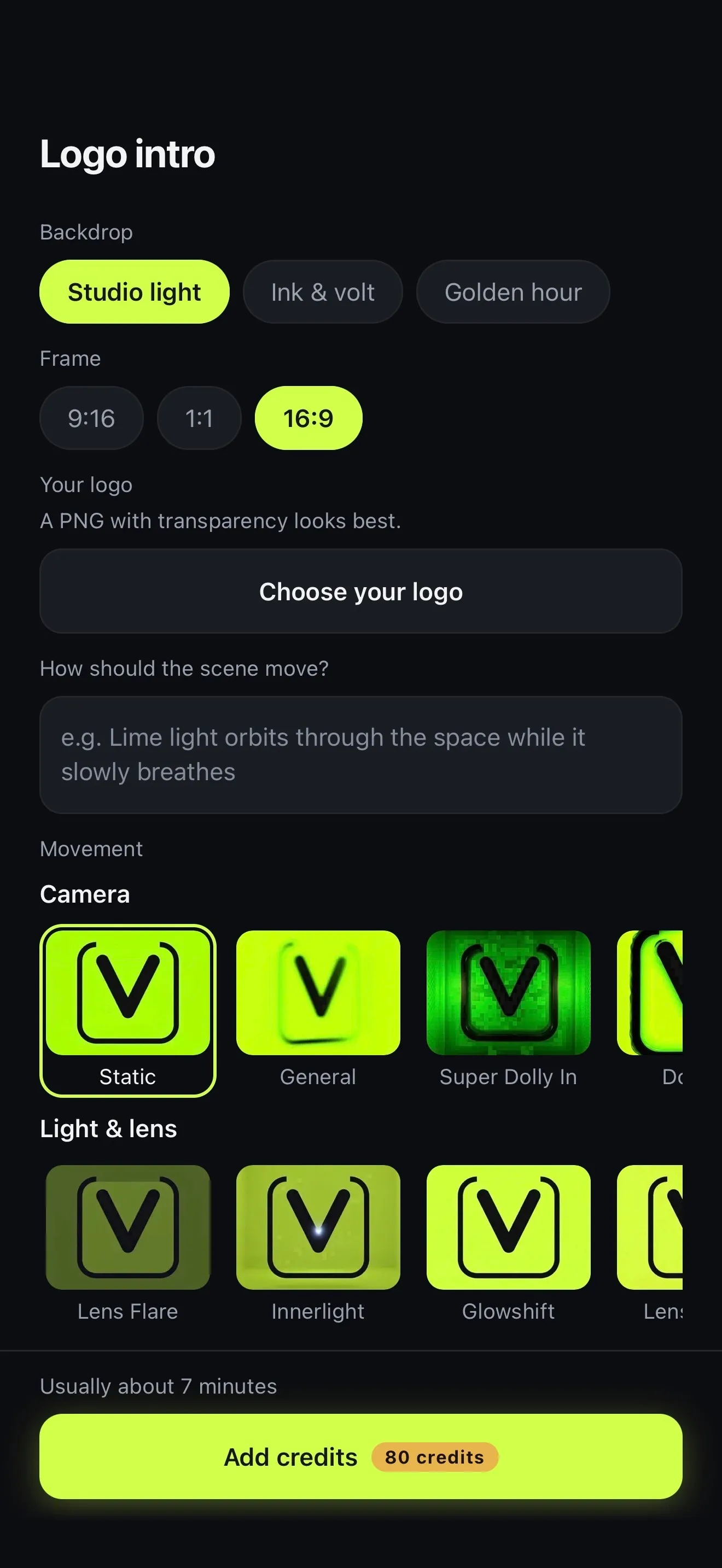
- Backdrop: Studio light, Ink & volt, Golden hour
- Frame: 9:16, 1:1 or 16:9
- Describe the mood in your own words
- Add music: +5 credits, off by default
How it works on iPhone
How to make a logo intro on iPhone
-
Open Logo intro
On the Create tab, tap Logo intro.
-
Set the look
Pick a Backdrop (Studio light, Ink & volt or Golden hour) and a Frame: 9:16, 1:1 or 16:9.
-
Add your logo
Tap Choose your logo. A PNG with transparency looks best.
-
Choose a movement
If you like, describe how the scene should move. Then pick a Movement from Camera, Light & lens or Transform the mark, and tap Add music if you want a short bed under it.
-
Create it
Tap Create intro. A few minutes later the 5-second clip opens as its own project, ready to export.
FAQ
Questions people ask
What is a logo intro?
It's a short clip that puts your logo on screen before (or after) the video itself. Those few seconds tell people whose channel or business this is. Voxcene's are 5 seconds long.
How do I make a logo intro on iPhone?
Open Create → Logo intro and choose a backdrop and a frame. Add your logo, pick one of 56 movements and tap Create intro. The finished clip opens as its own project.
Can I use it as an outro?
Yes. Save the clip to Photos, open the video it should close, tap + and choose Clip, and it's added at the end. Video element lays it over the video instead, without a rebuild. There's no separate outro tool, because the same clip does both jobs.
Will my logo look exactly the same?
Not always, and the app says so. Each movement re-renders your logo as a real, lit object, so expect some change. Static stays closest to your original, while the Transform the mark movements remake it entirely in metal, dust or fire. Try a few and keep the one that suits your brand.
What does it cost?
Logo intro is a Premium tool and uses 80 AI credits per intro, plus 5 if you add music. You'll see the price on the button before you start. If a run doesn't finish, nothing is charged for the part that failed.
What file should my logo be?
A PNG with a transparent background looks best. Your logo goes into the shot itself, so a clean mark gives the movement the most to work with.
What sizes can it make?
Three frames: 9:16 for Reels, TikTok and Shorts, 1:1 for a square post, and 16:9 for YouTube or a website.