For YouTube creators
Edit YouTube videos and Shorts on your phone
Cut the long video in 16:9, caption it in 60+ languages and export it in up to 4K. After that, you can turn the same recording into vertical Shorts without starting the edit again.
for iPhone
- 16:9 and 9:16
- Up to 90 min on Premium
- Up to 4K
- SRT for YouTube
 16:9 · 24:10
01 · Long-form Premium
Long-form edits with AI
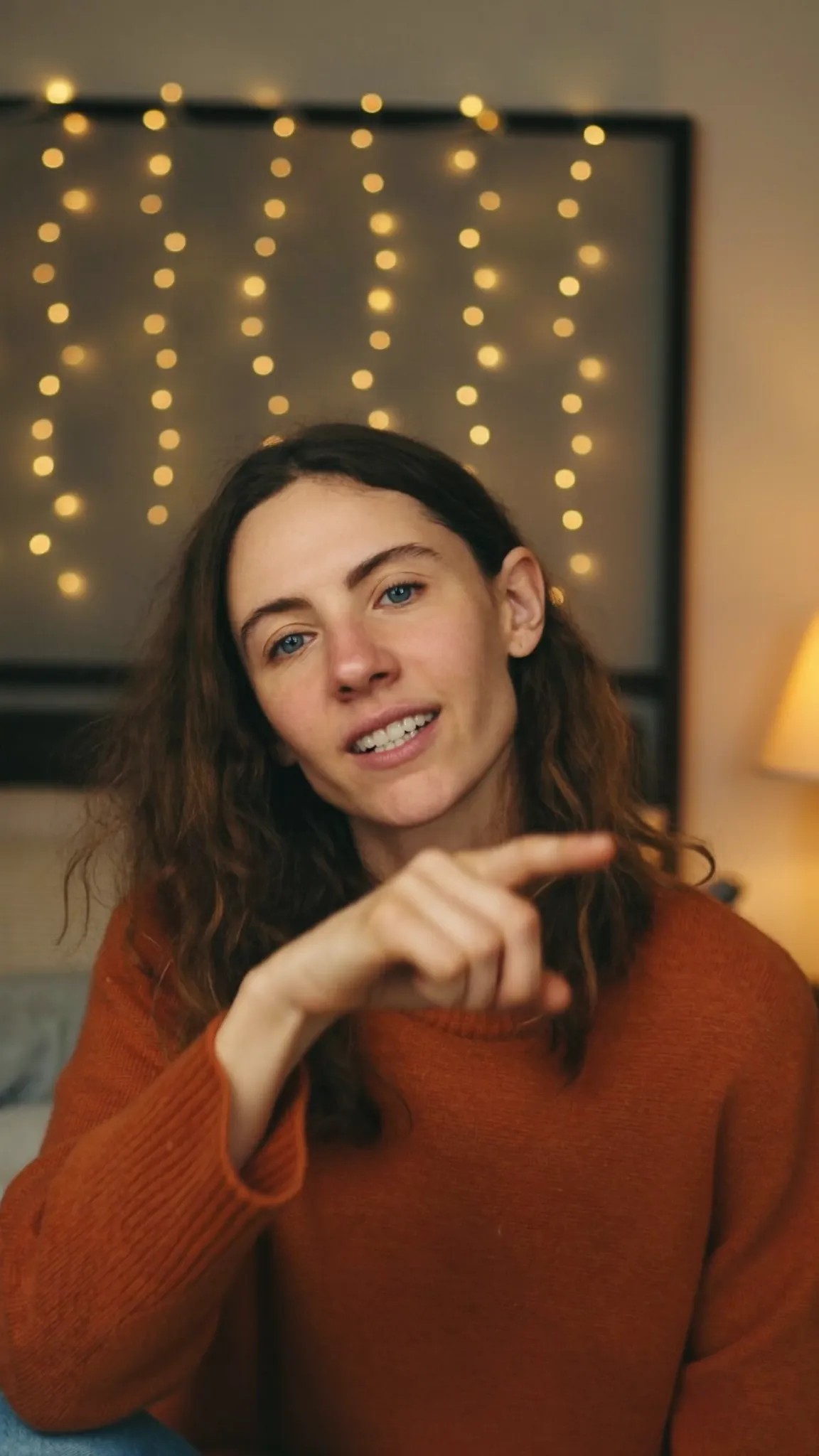
A 20-minute talking video has a lot of air in it. On Premium, AI Studio → AI Video Editor measures the recording and suggests what to do. You can remove the silences and take out the ums, or use Make It Tighter to get a whole edit proposed for a Tutorial (clear and complete) or a Story (keep the rhythm). Nothing changes until you apply it.
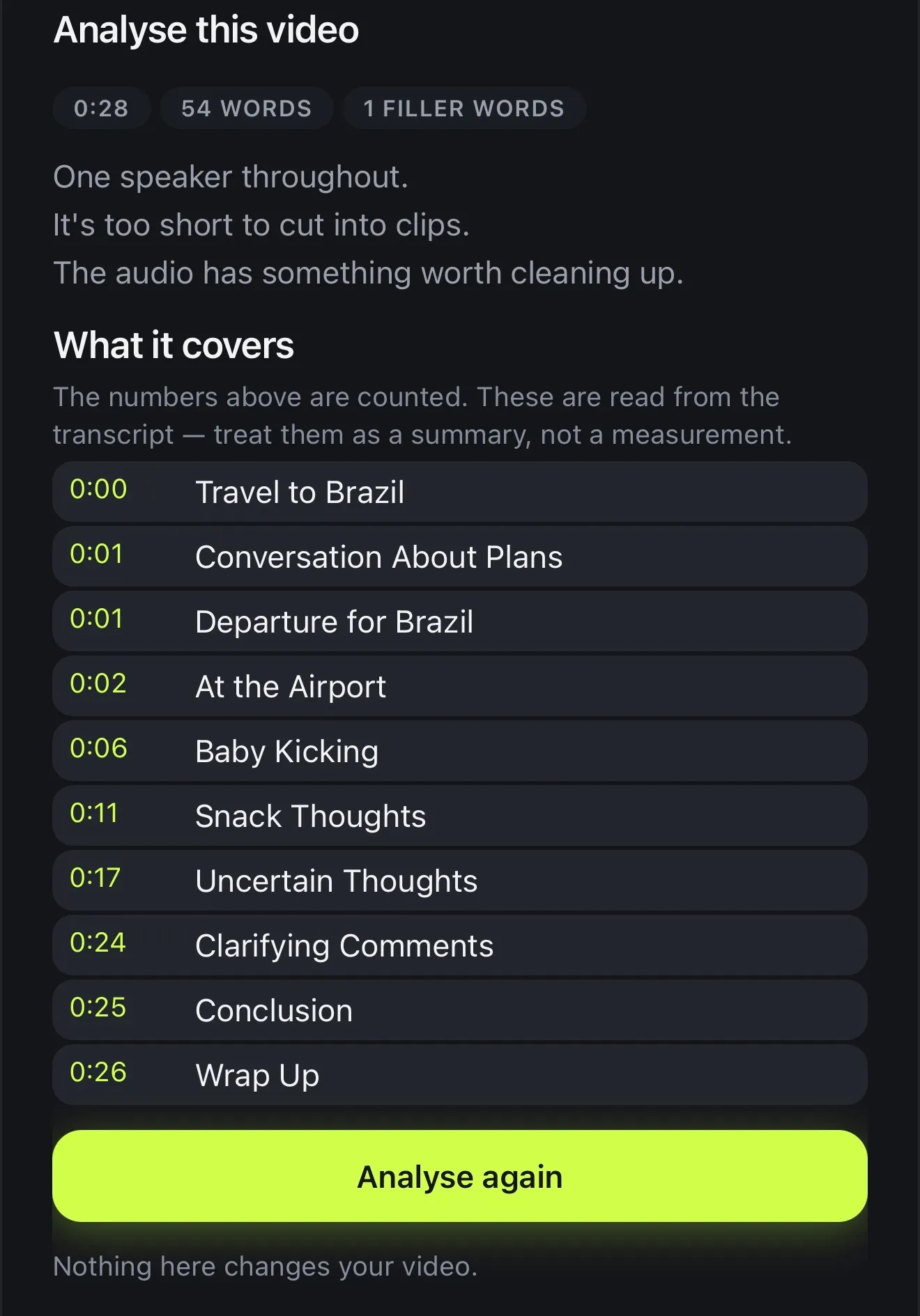
Analyse this video goes through the transcript and lists what the video covers, with times. That gives you a head start on chapters for the description. The app is honest about it, though: the topics are a summary, not a measurement.
- Videos up to 90 minutes on Premium
- Remove Silences and Remove Fillers
- Make It Tighter for a Tutorial or a Story
- Analyse this video: a timed outline of the topics
02 · Shorts
Shorts from your long videos
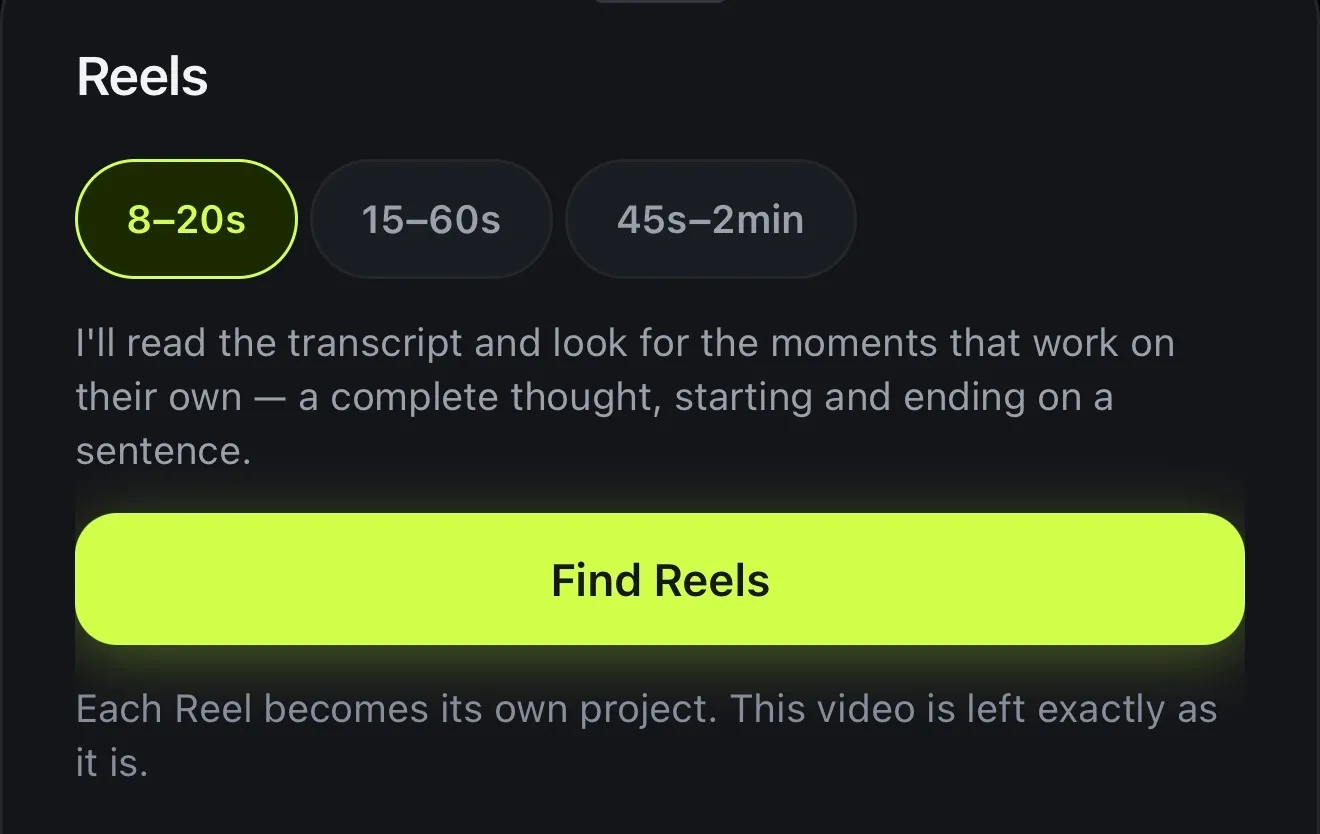
Most long videos have a few Shorts hiding in them. Long Video to Reels reads the transcript and picks moments that make sense on their own, each a whole thought that starts and ends on a sentence. Preview them, nudge any of them a second either way, then create them. Each one becomes a vertical project with your captions and colour, and the long video stays as it was. It's on Premium, for 4 AI credits per minute of the source.
On any plan, you can use Highlight in the Edit panel to find the strongest half-minute and trim a project to it. Before you export, tap the guides button and choose Shorts buttons to see where YouTube's controls will cover the picture.
- Long Video to Reels: up to 12 clips that stand alone
- 8–20s, 15–60s or 45s–2min
- Each Short its own 9:16 project, captions on
- Highlight on every plan: the strongest 30 seconds
03 · Intros
Intros, titles and name tags
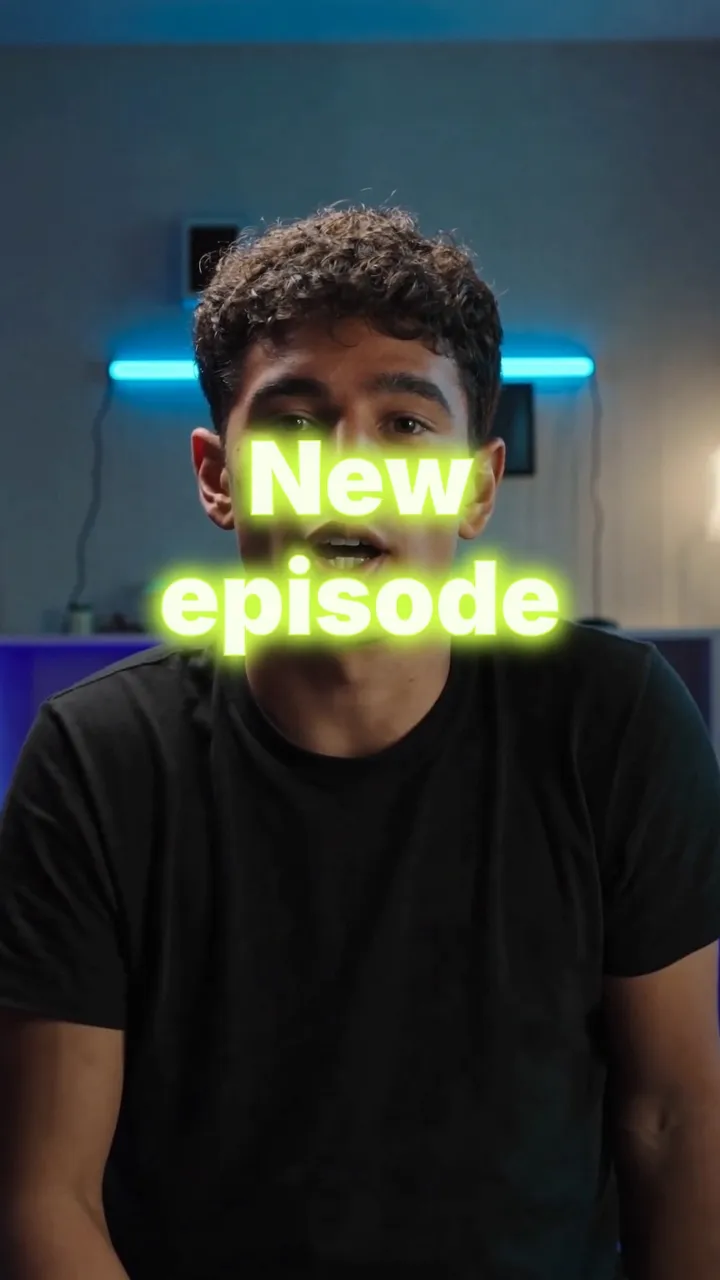
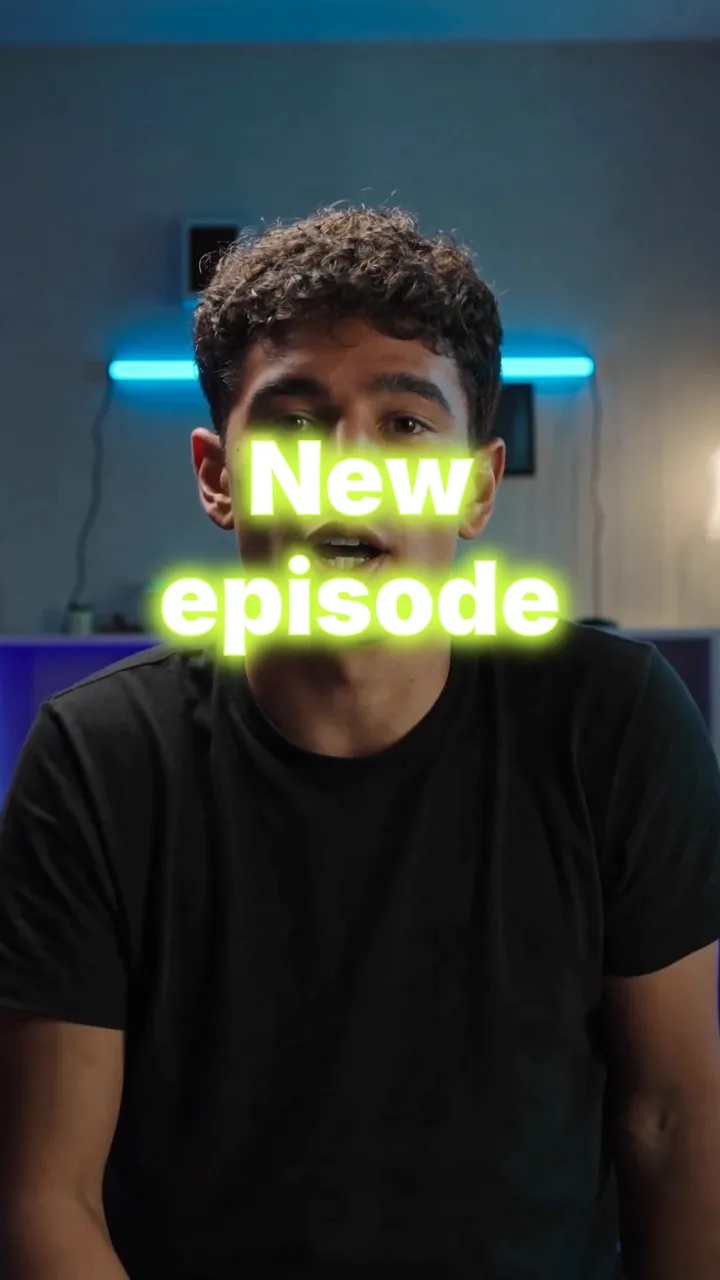
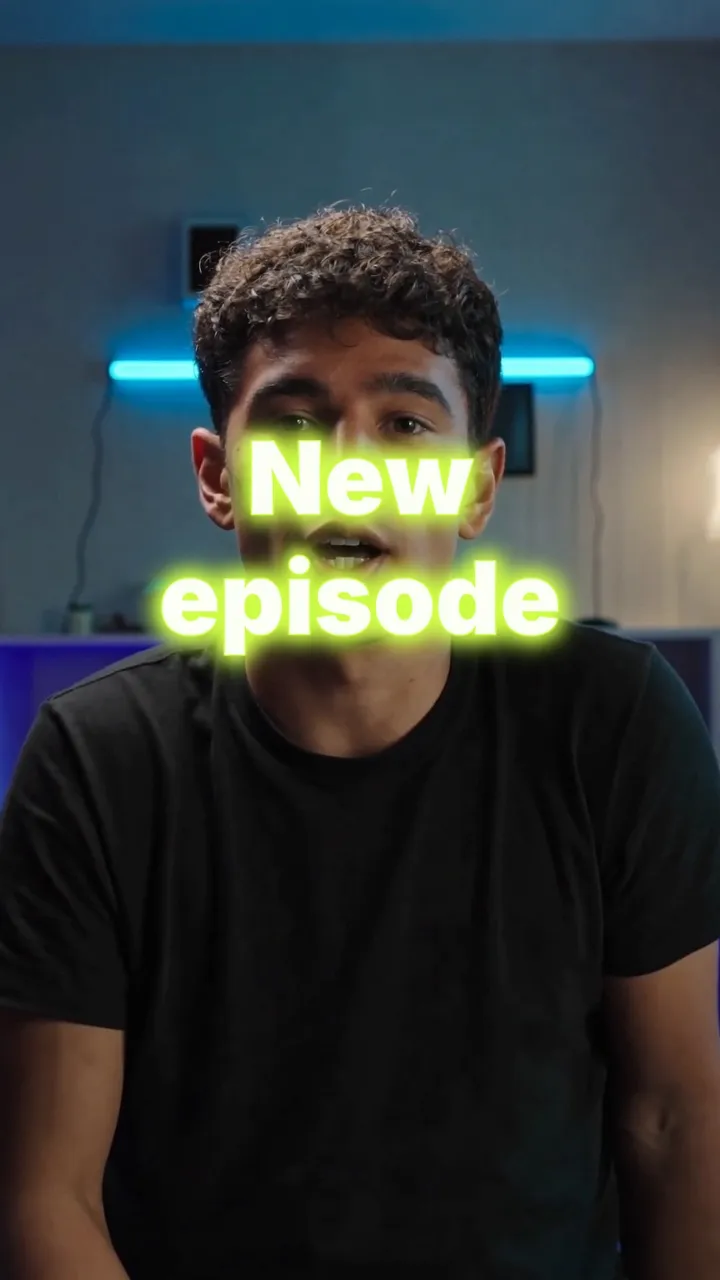
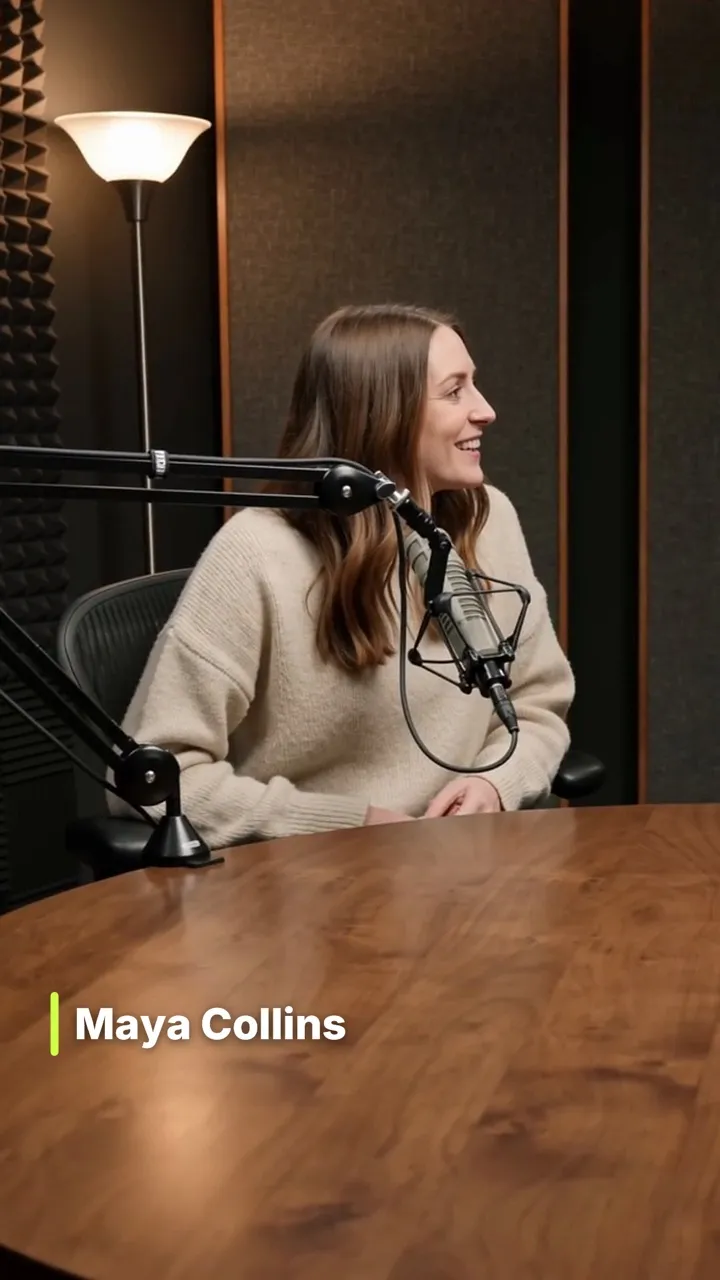
It helps to open on something. Add a Title at the start, begin from the Vlog Intro template, or drop an animated Motion look over your first shot, like a glowing Neon title or a Name tag for a guest. Motion has 30 looks on Basic and all 400 on Premium.
On Premium, Logo intro puts your logo into a moving shot. It's a 5-second sting of its own and costs 80 AI credits. Export it once, then add it as a clip at the start of each video. Thumbnails aren't made in Voxcene in this version.
- Title: styled, at the start
- Vlog Intro template, 16:9, on every plan
- Motion looks: Neon title, Name tag and more
- Logo intro: a 5-second sting, Premium
04 · Subtitles
Subtitles YouTube can read
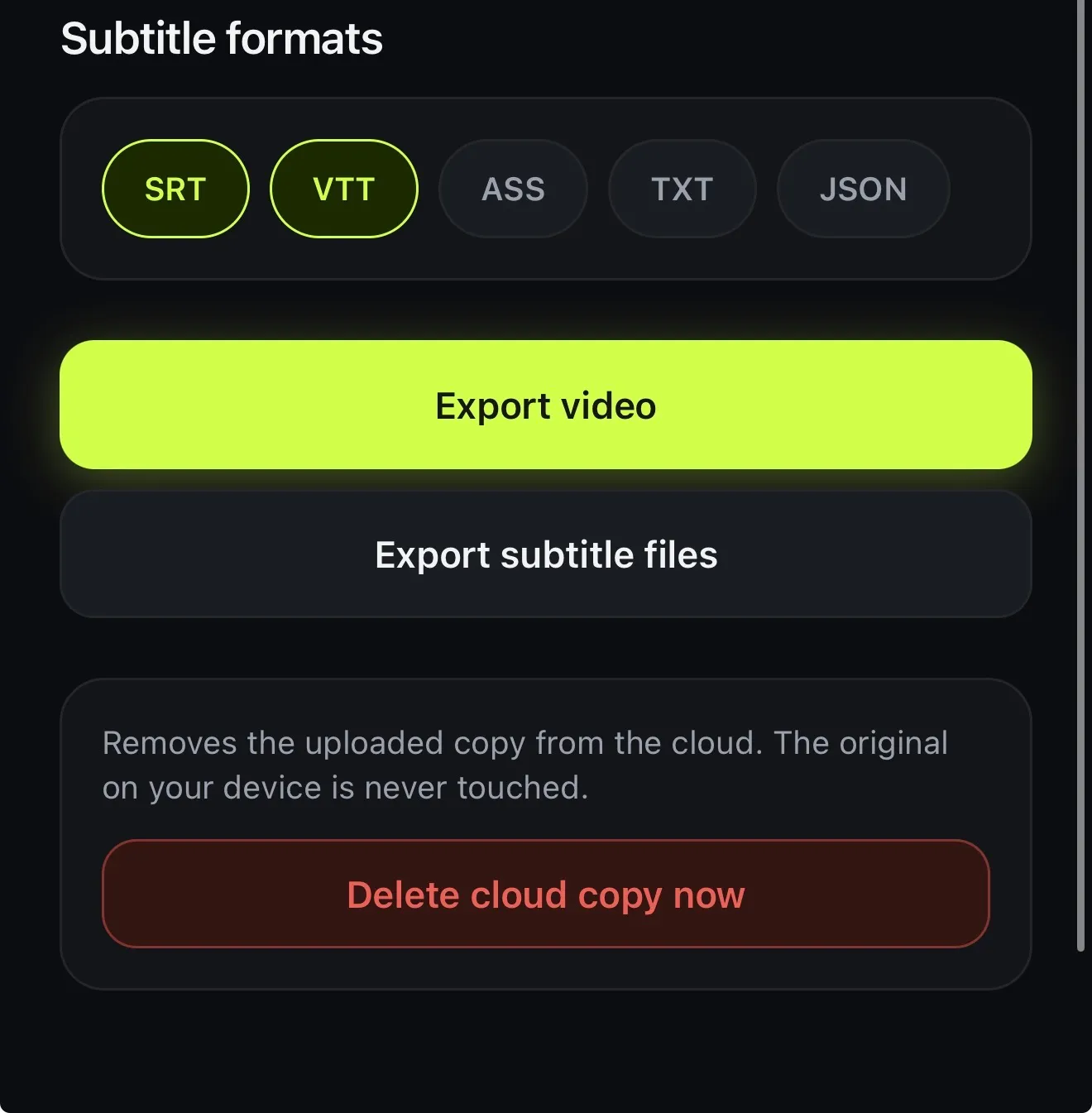
YouTube takes caption files, and Voxcene writes them. Tick SRT or VTT on the Export screen and upload the file in YouTube Studio, where viewers can switch it on and off. If you'd rather have captions that are always on screen, burn them into the video in any of the 143 styles.
To reach viewers in another language, translate the captions (3 AI credits a minute) and export a subtitle file for each language. More in multilingual subtitles.
- SRT, VTT, ASS, TXT and JSON on every plan
- Captions in 60+ spoken languages
- Translate into another language with AI credits
- Burned in, as a file, or both
How it works on iPhone
How to edit a YouTube video and its Shorts on iPhone
-
Import the recording
On the Create tab, tap Import video. Premium takes videos up to 90 minutes, Basic up to 15.
-
Caption it
Choose the spoken language (or Detect automatically) and tap Create & transcribe.
-
Tighten it with AI
Open AI Studio → AI Video Editor and pick Remove Silences, Remove Fillers or Make It Tighter.
-
Export the long video
Tap Export and choose Widescreen at 1080p or 4K. Tick SRT if you want a subtitle file.
-
Make the Shorts
Back in the project, open AI Studio → Long Video to Reels and tap Find Reels. When you're happy with them, tap Create Reels.
FAQ
Questions people ask
Can I edit YouTube videos on an iPhone?
Yes. Voxcene gives you a real timeline on your iPhone for cuts, speed, transitions, colour, music and text. It also captions your speech and exports 16:9 at up to 4K on Premium. It's an app, not an online editor, so your footage doesn't have to go through a laptop first.
How long can my video be?
Up to 60 seconds on the Free plan, 15 minutes on Basic and 90 minutes on Premium. Captioning uses as many transcription minutes as the video is long. Basic includes 120 a month and Premium 600.
How do I turn a YouTube video into Shorts?
Open the long video in Voxcene and tap AI Studio → Long Video to Reels. Pick a length, tap Find Reels, check the suggestions and tap Create Reels. Each Short becomes its own vertical project with your captions. It's part of Premium and uses 4 AI credits per started minute of the long video.
Can I upload Voxcene's captions to YouTube?
Yes. On every plan, the Export screen saves subtitle files as SRT, VTT, ASS, TXT and JSON. Upload the SRT or VTT in YouTube Studio as a caption track. Translated captions export as their own SRT and VTT files too.
Does Voxcene make YouTube thumbnails?
Not in this version. Voxcene edits and exports the video, so make the thumbnail image in your usual app and upload it with the video in YouTube Studio.
Can AI make a YouTube video for me?
A short one, on Premium. Generate with AI turns an idea into a narrated, captioned video of about 20, 35 or 60 seconds, in 16:9, 9:16 or 1:1. That suits Shorts and channel trailers. Long videos still start with your own recording, and AI then helps you cut it.
Is there a free YouTube video editor in Voxcene?
The Free plan edits and captions videos up to 60 seconds and exports at 720p with a watermark, which is enough to try it on a Short. Longer videos and exports without a watermark need Basic or Premium.