Brand kits
Your brand kit, one tap from every video
Save a brand once, with its colours, typeface and logo, and you can stop re-picking them for each video. One tap puts them on your captions, and you'll find your logo in Elements.
for iPhone
- Logo, colours, fonts
- Your font or Google Fonts
- Basic 1 · Premium 5
- One tap to apply
01 · The kit
Logo, colours and fonts
A brand in Voxcene is a short list: a name, a language, colours, fonts and a logo. The useful part is the colours. You can tell each one what it's for (the Caption text, the Highlight on the spoken word, or the Plate behind the line), so when you apply the brand there's nothing to re-pick.
You can add fonts two ways. Use Upload a font to pick one from Files, or Add from Google Fonts to search by name. Either way, the face is checked against the brand's language before it's saved, so a font that can't write your language won't turn your captions into empty boxes. More on that in custom caption fonts.
- Colours with a job: Caption text, Highlight, Plate
- Upload a font: .ttf or .otf, up to 12 MB
- Add from Google Fonts: 1,900+ to search
- Logo: PNG or JPEG, and a PNG stays see-through
02 · Reuse
Saved once, ready in every project
Agencies and freelancers make videos for the same clients again and again. Keep each client as its own brand and it shows up in every project. You don't have to export a style or keep screenshots of hex codes.
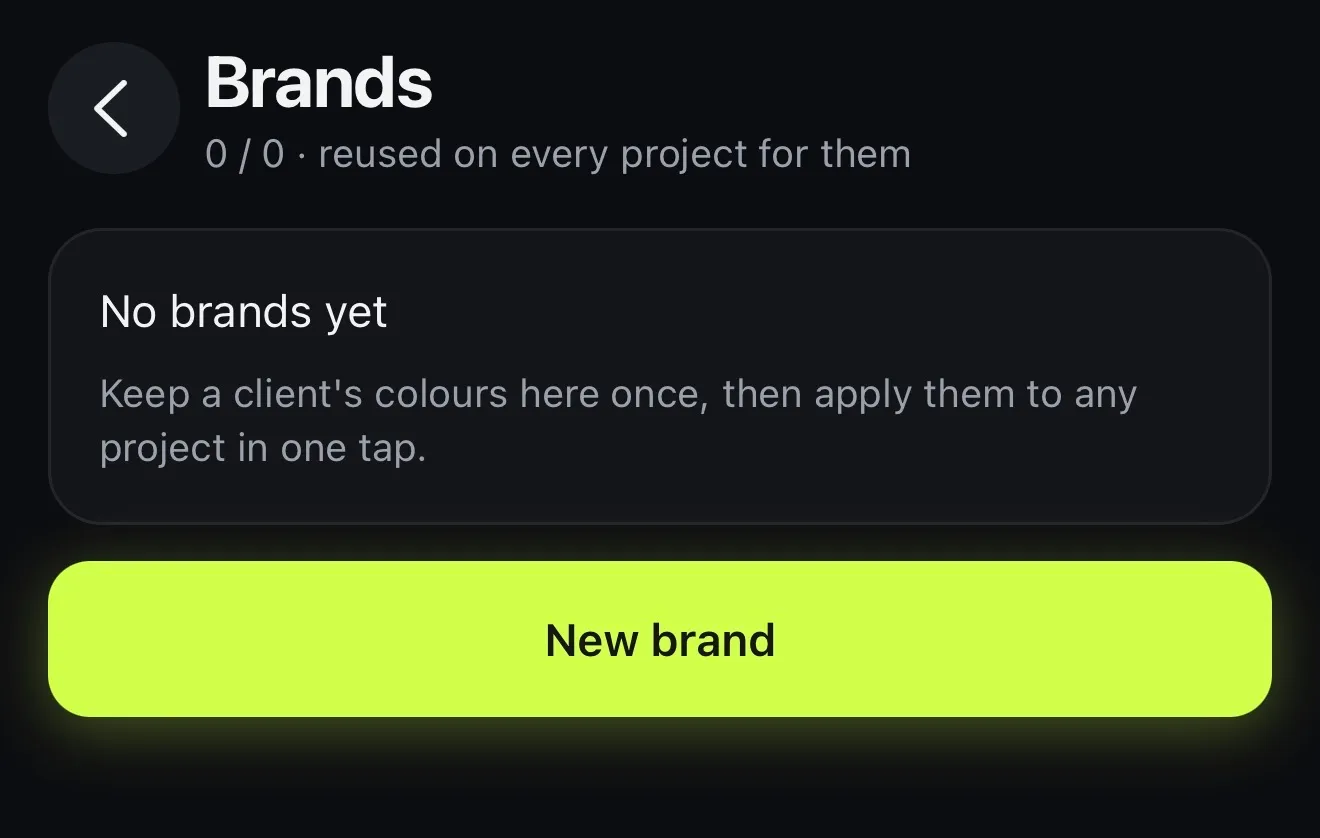
Basic keeps one brand and Premium keeps five. If you delete a brand, nothing you've already made changes. Projects keep their look and only the saved brand goes. Brands are saved to your account, and sharing them with teammates isn't in this version.
- Kept in Profile → Brands
- Offered in every project you open
- Basic: 1 brand · Premium: 5
- Delete one and old videos keep their look
03 · Apply
Apply it in one tap
Open Style and tap Brand. The captions take the brand's colours and its first font together, on whichever caption style you picked. On Premium the same thing sits in AI Studio as Automatic brand template, and it costs no credits.
For the logo, open Elements. It's in the Your brand row, ready to drop on the video. When you colour a shape, the first colours offered are your brand's. For a moving version of the logo, make a logo intro.
- Style → Brand: colours and font onto the captions
- AI Studio → Automatic brand template (Premium)
- Elements → Your brand: your logo
- Brand colours first when you colour a shape
How it works on iPhone
How to set up a brand kit on iPhone
-
Open Brands
Go to Profile → Brands and tap New brand. Name it after the company or client.
-
Set its language
Choose the Primary language. Every font you add is checked against it.
-
Give colours a job
Tap Add a colour and pick it. Then say what it's for: Caption text, Highlight or Plate.
-
Add a font and your logo
Use Upload a font or Add from Google Fonts. Add your logo with Upload a logo and tap Save.
-
Apply it
In any project, open Style and tap Brand. The captions take its colours and typeface, and you'll find the logo in Elements under Your brand.
FAQ
Questions people ask
What is a brand kit in Voxcene?
It's a brand you save once, with its colours, fonts and logo, so videos for that company or client can use it without you picking the same colours again. In the app it lives under Profile → Brands.
How many brand kits can I keep?
Basic includes 1 brand and Premium includes 5. The Free plan doesn't include brands. The Brands screen shows how many of your plan's allowance you have used.
What changes when I apply a brand?
The captions take the brand's colours and its first font. The colour marked Caption text goes on the words, the Highlight on the spoken word and the Plate behind the line. Only the captions change, so your text layers keep their own styling.
Can I use my company's own font?
Yes. Upload a .ttf or .otf file of up to 12 MB, or search Google Fonts from inside the brand. Each face is checked against the brand's language first. If a font would print empty boxes instead of your letters, you find out before it gets anywhere near a video.
Where does my logo show up?
In Elements, under Your brand. You can drop it onto any video and move, size or animate it like any other element. If you upload a PNG with a transparent background, it stays see-through.
Can my team share a brand kit?
Not in this version of the app. Brands are saved to your account and offered in every project you open, but you can't invite teammates to share them yet.
What happens to old videos if I delete a brand?
Nothing. Projects you've already made keep their look. Only the saved brand is removed.