Video layout editor
Turn wide video into vertical layouts
If you filmed it wide, Voxcene can find the cameras in your footage and build a vertical edit with boxes. You can also use it as a split screen video editor: pick a layout yourself, fill the boxes and change the layout as the video plays.
for iPhone
- 17 layouts
- Wide → 9:16
- Timed stretches
- Premium
 16:9 · as filmed Box 1Box 2
01 · Wide → vertical Premium
Wide interview or panel → vertical with boxes
Crop a wide interview to vertical and someone usually ends up out of the shot. Tap Read the layout and Voxcene finds how the cameras are arranged (one shot, two boxes or a four-box call). Then it builds the vertical edit with each person in their own box.
When the footage is a grid, you choose what the top of the frame shows: whoever is talking, or the grid's own boxes. If you change your mind later, tap Read it again.
- Read the layout uses no credits
- Finds one camera, two boxes or a 2×2 grid
- Builds the 9:16 edit for you
- Follow the speaker, or keep the grid
02 · Timing
Timed sections
A conversation changes shape as it goes. One person talks, then two, then someone shares a screen, so the layout can change with it. Each section is a stretch on the timeline's Layout row. Tap Change from here to start a new one at the playhead, or drag its edges.
Edit every stretch at once, or pick one and give just that part a different layout, zoom or framing.
- Stretches, each with its own layout
- Change from here cuts a stretch at the playhead
- Edit every stretch, or pick one
- Drag a stretch's edges on the timeline
03 · Split & corner
Split screen and picture-in-picture
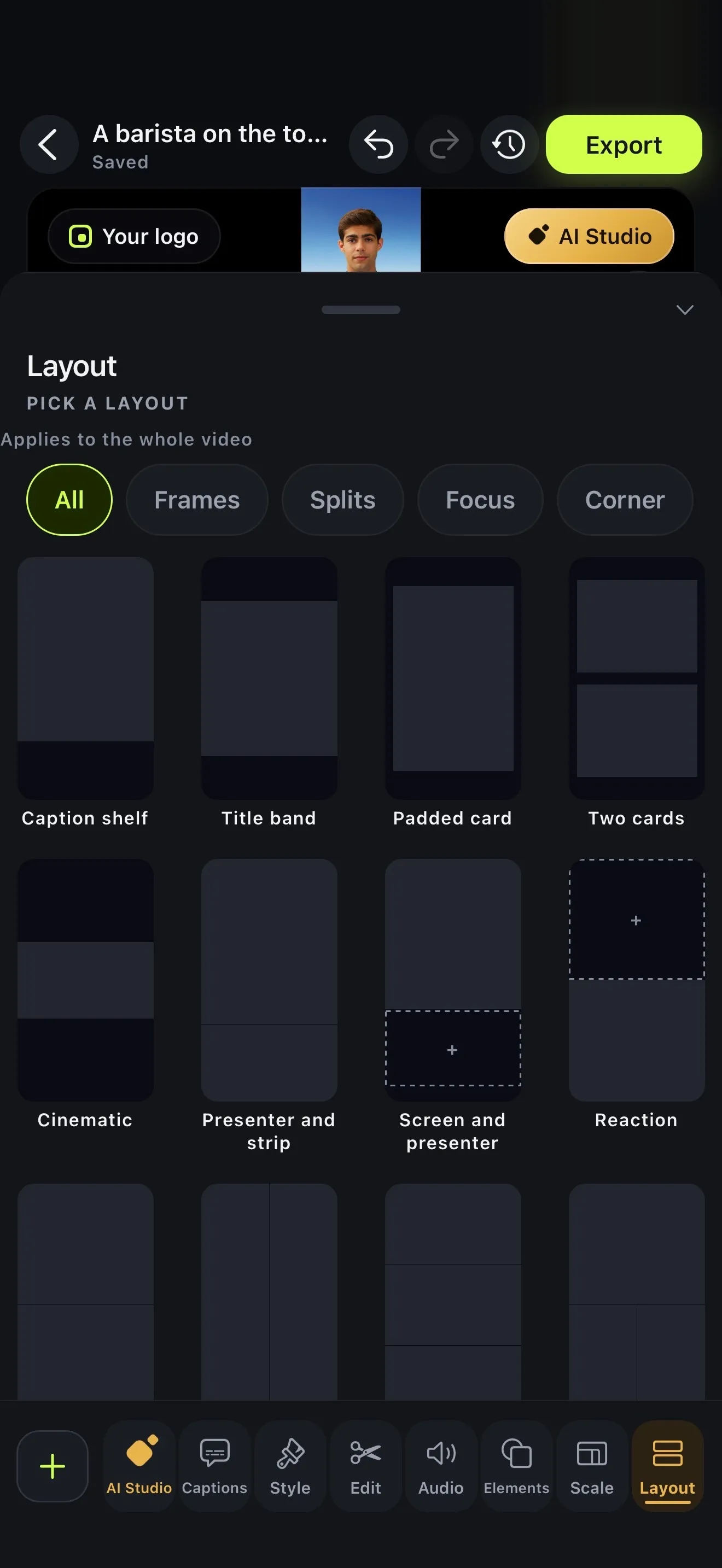
For two videos in one frame, pick a split: stacked, side by side, one big and two small, or four up. Then under Fill you decide what goes in each box. It can be part of this video, another video or a picture from your phone, something already in the project, or nothing at all.
For picture-in-picture, the Corner layouts keep your video full frame with a box in a corner. Inside any box you can pinch and drag, or set Zoom & position exactly. You can also give the stretch a slow push in or pull out.
- Splits: two, three or four boxes
- Corner: your video full frame, one box in a corner
- Fill each box with any video or picture
- Zoom & position inside every box
Splits
- Two stacked
- Side by side
- Three stacked
- Big top two under
- Two up big under
- Four up
- Three columns
- Big left two right
- Big right two left
What goes in a box
- Whole frame
- Follow the speaker
- My video
- My picture
- From this project
- Leave empty
How it works on iPhone
How to make a split screen video on iPhone
-
Open your wide video
Open the interview, panel or call you recorded in 16:9.
-
Tap Layout
Tap Layout at the end of the editor's bottom bar.
-
Read it — or pick one
Tap Read the layout to let Voxcene find the cameras and build the vertical edit, or pick a layout from the gallery.
-
Fill the boxes
Under Fill, choose what goes in each box: part of this video, another video, a picture, or nothing.
-
Time it
Under Timing, tap Change from here to start a new stretch, so the layout can change as the video goes.
FAQ
Questions people ask
How do I put two videos side by side on iPhone?
In Voxcene, tap Layout, pick a split such as Side by side or Two stacked, then under Fill put a video in each box. That can be part of this one or another video from your phone.
Can it turn a 16:9 video into 9:16 automatically?
Yes. Read the layout checks whether your footage is one camera, two boxes or a four-box grid, then builds the vertical edit with the right boxes on screen. You can change any of it afterwards.
Does it follow the person who's talking?
A box set to Follow the speaker follows the part of the picture that's moving, which is usually whoever is talking. You can adjust how steady and how quick it is. It goes by movement, not faces. For podcasts, the Podcast flow also listens to the voices and frames each person's face.
Can the layout change during the video?
Yes. A video can have many stretches, each with its own layout. Tap Change from here to start a new one at the playhead, or drag a stretch's edges on the timeline.
Can I do picture-in-picture?
Yes, with the Corner layouts: your video fills the frame and a box sits in a corner for another video or a picture. The corner box has a fixed size and position, and you pick which corner it sits in.
Is it free?
Creating a layout is part of Premium; Free and Basic can see every layout with a PRO badge. Reading the layout from your footage uses no AI credits.