Add text to video
Add text to video in seconds
Open your video with a title or end it on a call to action. You type the words, choose a size and drag the text to the spot where you want it.
for iPhone
- Titles & text layers
- Size, colour, position
- Fade, Pop, Slide up
- Retime on the timeline
01 · Titles
Big titles in one tap
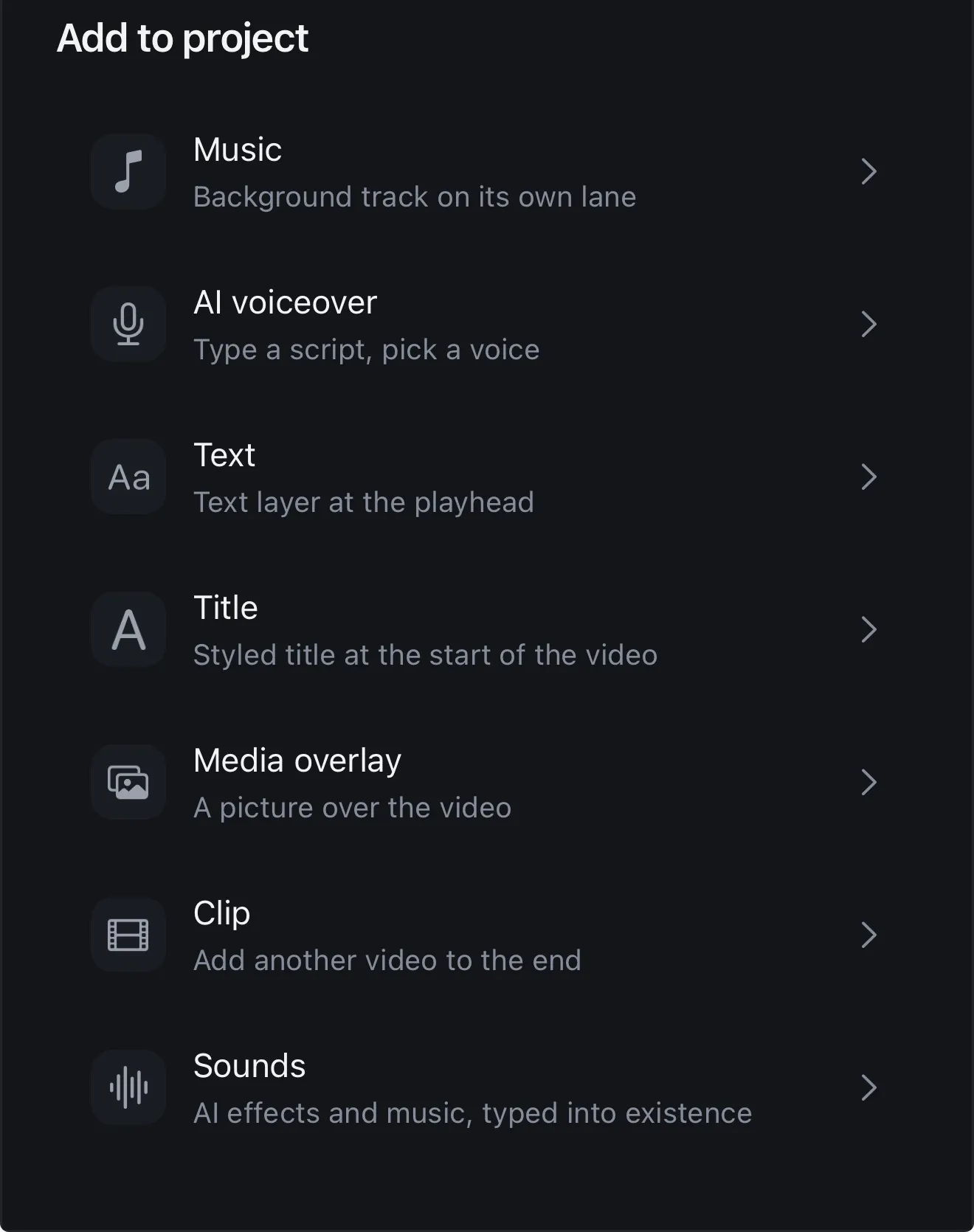
Tap + and choose Title to put a styled heading at the start of your video. It's the hook people read before they decide whether to keep watching.
For a label halfway through, like a price, a name or a “link in bio”, choose Text instead. It appears at the playhead, wherever you are in the video. You can start from a style preset or set it up yourself.
- Title: Headline, Subtitle or Lower third
- Text: at the playhead
- Style presets: Big title, Quote card, Alert and more
- As many layers as you need
02 · Motion Basic 30 · Premium 400
Titles that move, even along a line you draw
Plain text does the job. If you want it to move, Motion animates titles and words over your video, with 30 looks on Basic and all 400 on Premium.
On Premium, Silk banner follows a line you draw on the picture: a satin ribbon unrolls along it and your words appear on it, word by word, turning with its curve.
- Typewriter Your line types itself out, letter by letter.
- Slam title A huge title slams down and shakes the shot.
- Split title Two halves of a title slide in from opposite sides.
- Underlined title A bold title with a line that draws itself under it.
- Split-flap board Every letter clatters through figures and locks in.
- Silk banner A satin ribbon unrolls along the line you draw, carrying your words.
03 · Style
Style, timing and position per layer
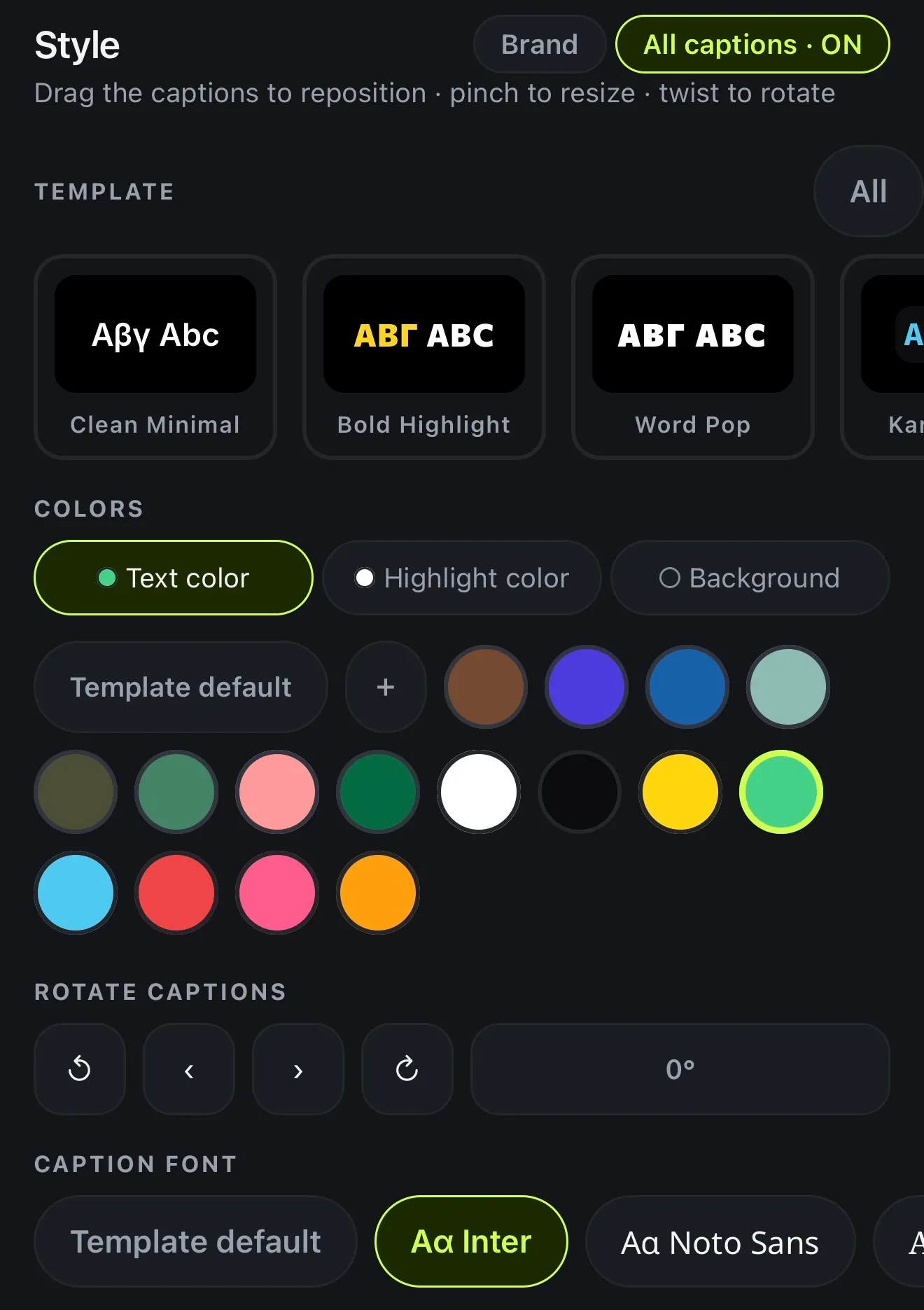
Each text layer keeps its own settings. Pick a Size and a Color, then snap it to Top, Middle or Lower, or drag it on the preview to place it anywhere. If you give it an entrance (Fade, Pop or Slide up), it plays the same way in the export.
Timing lives on the timeline: each layer is a block on the Text lane, so you drag it to move it and drag its edges to set when it appears and disappears.
Captions get even more: 143 styles, then the font, size and colours of each one. See all caption styles.
- Size S, M, L or XL, and a colour
- Top, Middle or Lower, or drag it anywhere
- Animation: Fade, Pop or Slide up
- Rotate by 15° or 1°
- Its own block on the Text lane
How it works on iPhone
How to add text to a video on iPhone
-
Open your project
Open the video you want to write on and move the playhead to where the text should appear.
-
Tap +
Choose Text for a text layer at the playhead, or Title for a styled title at the start.
-
Type and style it
Write your words, then pick a Size, a Color and an Animation (Fade, Pop or Slide up).
-
Place and time it
Choose Top, Middle or Lower, or drag it on the preview. Drag its block on the Text lane to set when it shows.
-
Export
Tap Export. The text is burned into the video, animation included.
FAQ
Questions people ask
How do I add text to a video on iPhone?
Open the video in Voxcene, tap + and choose Text. Type your words, then set the size, colour and position. You can also drag the text on the preview to put it anywhere.
What is the difference between a title and a text layer?
A Title is a styled heading at the start of the video, as a Headline, a Subtitle or a Lower third. A Text layer appears at the playhead, wherever you are in the video, so you can add as many labels and notes as you need.
How do I make text appear and disappear at the right time?
Each text layer has its own block on the Text lane of the timeline. Drag the block to move it, and drag its edges to set when it appears and when it goes.
Can I animate text?
Yes. Each text layer has an Animation (Fade, Pop or Slide up), and it plays in the preview and in the export. If you want more, Motion adds animated title looks: 30 on Basic, all 400 on Premium.
Can I rotate text on a video?
Yes. Select the text on the preview and rotate it in steps of 15° or 1°, or reset it to straight.
Is adding text different from adding captions?
Yes. Captions are written for you from the speech, timed word by word, in 60+ languages and 143 styles. Text layers and titles are words you type yourself, such as a headline, a label or a call to action.