Chat to edit
Edit your video by chatting with it
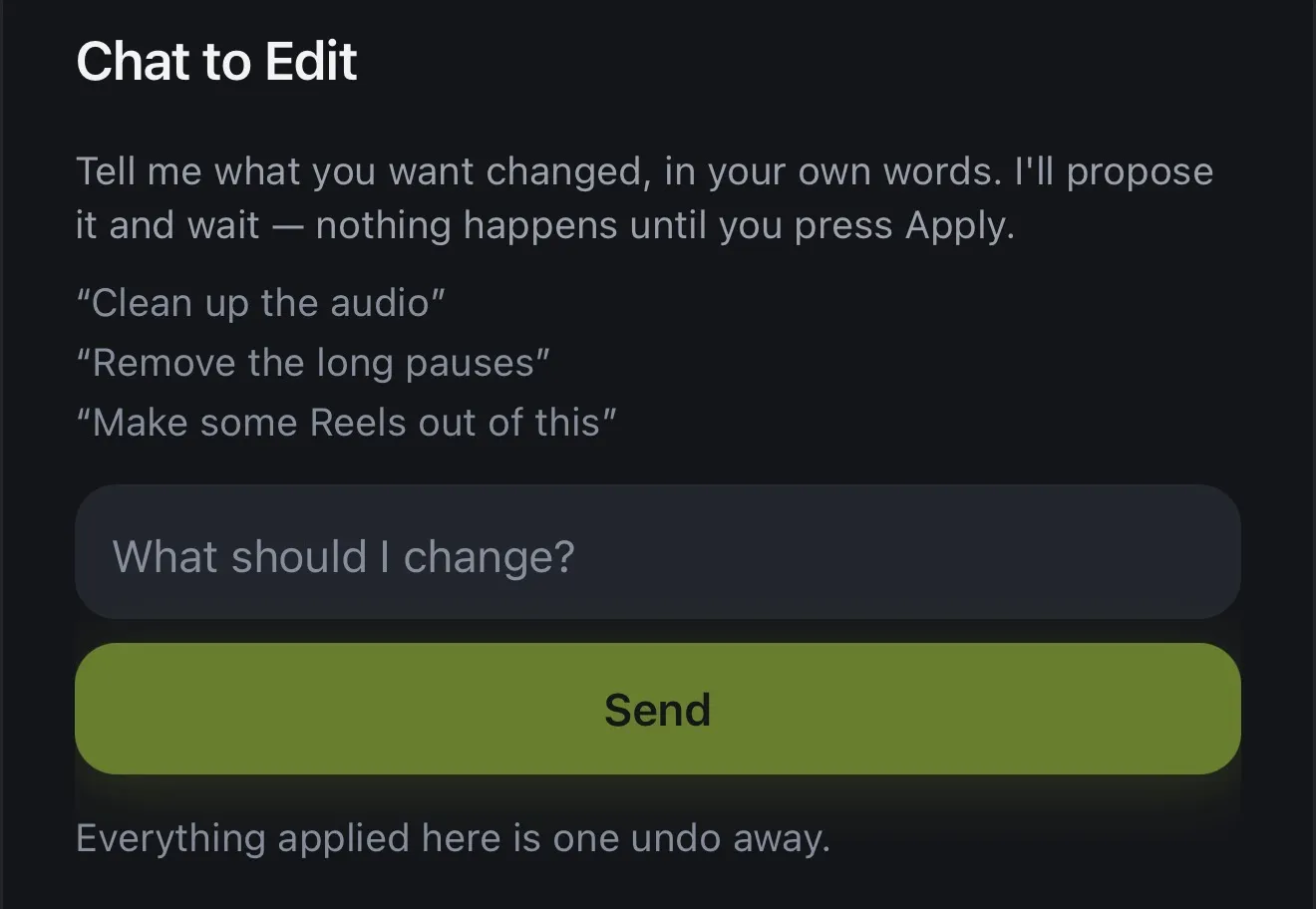
Type the change you want in your own words. Voxcene checks it against your footage and proposes an edit. Nothing happens to the video until you press Apply.
for iPhone
- Your own words
- Proposes, then waits
- One undo away
- Premium
01 · Ask Premium
Type what you want, see the proposal
Open Chat to Edit and type what should change, like “remove the long pauses” or “clean up the audio”. Voxcene turns that into specific changes. Each one sits on its own card with an Apply button, and your video stays as it is until you press it.
If a request has to be adjusted to fit your video, you'll be told. Suggestions you didn't ask for get mentioned, not applied.
- Write it in your own words
- Each change on its own card, with Apply
- Adjusted to fit when your footage needs it
- 1 AI credit per message
02 · Examples
Example prompts
Write it the way you'd brief an editor. Each request turns into one or more of the changes Chat to Edit knows how to make. Five of those can be applied today, and four more are on the way.
- “Clean up the audio”
- “Remove the long pauses”
- “Make some Reels out of this”
- “Get rid of the ums”
Can be applied
Coming soon
03 · Safe
Undo, history and restore
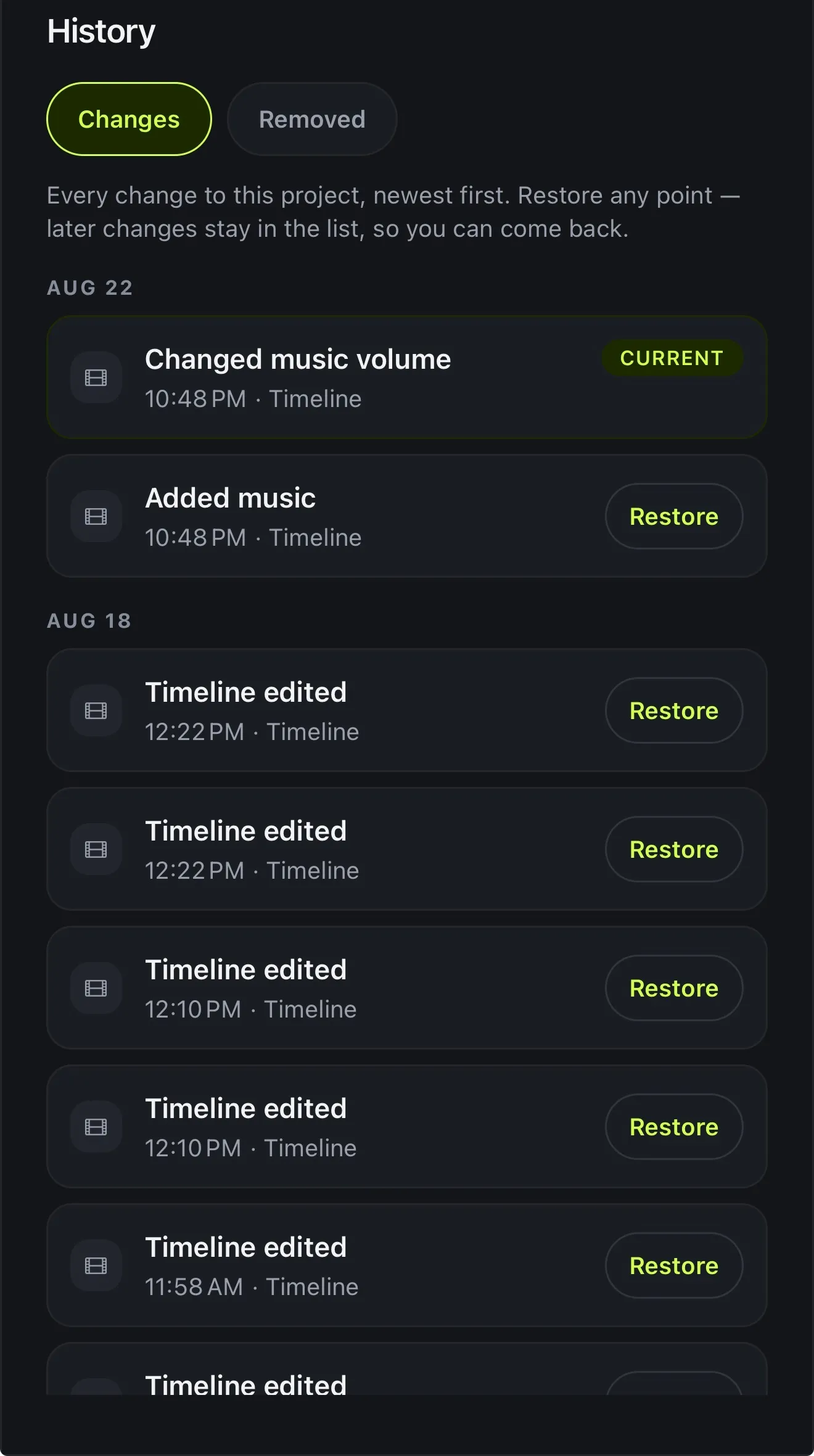
Anything you apply from Chat to Edit can be undone in one step. History keeps a list of all the changes to the project, newest first. When you restore a point, the later changes stay in the list in case you want them back.
- Everything applied is one undo away
- History lists every change
- Restore any earlier version
- Later changes stay in the list
How it works on iPhone
How to edit a video by chatting on iPhone
-
Open your project
Open the video you want to change in Voxcene.
-
Open Chat to Edit
Tap AI Studio, then Chat to Edit.
-
Say what you want
Type it in your own words under What should I change? and tap Send.
-
Read the proposal
Voxcene lists what it would do, one card per change. Nothing has changed yet.
-
Apply — or don't
Tap Apply to make the change. Everything applied is one undo away.
FAQ
Questions people ask
What is text-based video editing?
It means you describe the change instead of doing it by hand. You type “remove the long pauses” and the editor finds the cuts. In Voxcene, Chat to Edit proposes the change, and you decide whether to apply it.
What can I ask it to do?
Right now it can clean up the audio, remove the silences, remove filler words, make the video vertical, and find Reels in it. It also understands requests to add captions, find the best moment, add b-roll or split at a point, but those show as Coming Soon for now.
Will it change my video without asking?
No. It proposes a change and nothing happens until you press Apply. If it has an idea you didn't ask for, it mentions it and leaves the video alone.
Can I undo a change?
Yes. Everything applied from Chat to Edit is one undo away, and History keeps every change to the project so you can restore an earlier version.
Is Chat to Edit free?
It's part of AI Studio in Premium and uses 1 AI credit per message.