Guide · short-form video
How to make a video go viral
Nobody can promise a video will go viral. What you can control is the craft: a strong first second, no dead air, captions and the right frame. This guide covers what matters and how to fix each part on your iPhone, with AI handling the slow work.
for iPhone
- No promises, just craft
- Hook in the first seconds
- Captions for sound-off
- Fixes you approve
Before you post
- The first second says why to stayHighlight · Title
- No pauses or ums left inAI Auto Trim · Filler Removal
- Captions on, for sound-off viewersCaptions
- Vertical 9:16, words clear of the buttonsScale · safe-zone guides
- Sound that carries itScore this video · your music
- It ends when the point landsTrim the tail
A checklist written for this page, with the Voxcene tool for each. Not an app screen.
01 · The feeds
What the algorithms reward
TikTok, Instagram Reels and YouTube Shorts all have the same job, which is to keep people watching. So the videos they push to more people are the ones viewers stay with. People finish them or watch them again, share them with a friend, save them, comment, or follow the creator. When someone swipes away after a second, that tells the feed the opposite.
That's the honest version of “the algorithm”. The exact formula isn't published and it changes, so anyone promising you views is guessing. What you can control is whatever makes a viewer leave early: a slow start, dead air, words they can't hear, a frame that doesn't fit their screen, or an ending that drags.
The rest of this guide takes those one at a time. If you're not sure where your video stands, run Analyse this video first. It counts the long pauses and filler words and checks the sound and the framing, without changing anything.
- People watching to the end
- Watching again, sharing, saving
- Comments and follows
- Nobody outside the platforms sees the formula
You control
- The first seconds
- The pace
- Captions
- The frame
- The length
- The ending
You don't
- The feed's formula
- Who sees it first
- What's in the news
- Luck
A summary written for this page.
02 · The hook
Hooks and opening lines
The first seconds decide whether anyone sees the rest. A strong opening tells the viewer why to stay, and that's its whole job. Cut the “hi guys”, the breath and the camera adjust, and start on the first sentence that matters. If your best line is in the middle, move it to the front.
Good hooks are concrete. That might be a promise (“Three mistakes that ruin your sourdough”), a question (“Why does every café use oat milk?”) or a surprising result shown first. Say it out loud and put it on screen, so people scrolling on mute get it too.
In Voxcene, drag the clip's start to your first strong word. On any plan, the Highlight tile in the Edit panel finds the strongest half-minute. On Premium, Find the Best Moments ranks up to five, free of credits, and Keep only this trims to the one you pick. For the on-screen line, add a Title (styled, at the start) or a Motion look that slams it in. When Edit with AI offers Make It Tighter, it opens AI Edit. Its Hook — tight and fast goal proposes cuts with a reason for each, plus title cards. If you're reading a script, the free Teleprompter helps you land the first line cleanly.
- Start talking in the first second
- Open on your strongest line
- A short promise or question on screen
- Highlight finds your strongest half-minute
03 · Dead air Premium
Cut the pauses and filler words
Viewers leave fastest when nothing is happening. A pause that feels natural while you record feels long on a phone screen, and a run of “um” and “uh” makes a sharp point sound unsure. For most talking videos, tightening these is the biggest single change you can make.
AI Auto Trim finds the silences and lists each one, marked safe, to review, or to keep, before anything is cut. That way a pause you held on purpose stays. Filler Removal does the same for “um”, “uh” and “εεε” in English and Greek, and you can remove them from the captions only or from the video too.
Then look at the ending. Replays count, and a video that stops the moment the point lands is easier to watch twice than one that trails off into “so yeah, that's it”. Drag the clip's end handle to your last word.
- AI Auto Trim lists every silence
- Filler Removal finds the ums in English and Greek
- Only the safe cuts start ticked
- One undo restores the pass
04 · Watchable
Captions, frame and sound
Captions. A lot of people scroll with the sound off, and a talking video without captions loses them. Voxcene transcribes your speech in 60+ languages and times each word, so animated captions can light up word by word as you speak. Pick a style that's easy to read on a small screen.
Frame. Shorts, Reels and TikTok are vertical. In Scale, choose 9:16 and then Fit or Fill. With Fit, a wider video sits on a Blurred copy of itself or a colour instead of black bars. Next, tap the guides button beside the play controls. It shows where the TikTok or Shorts buttons will cover your video, so you can keep captions and titles out of those corners.
Sound. Clear speech matters more than anything under it. If the room is noisy, AI Denoise cleans steady background noise. For energy, add your own music or tap Score this video in the Audio panel. It writes a music bed from your words and the picture, sized to the video.
- Captions in 60+ languages, timed word by word
- 9:16 that fills the phone screen
- Guides show where TikTok and Shorts buttons sit
- Score this video writes a soundtrack to fit
05 · With AI Premium
Let AI make the fixes, then you approve them
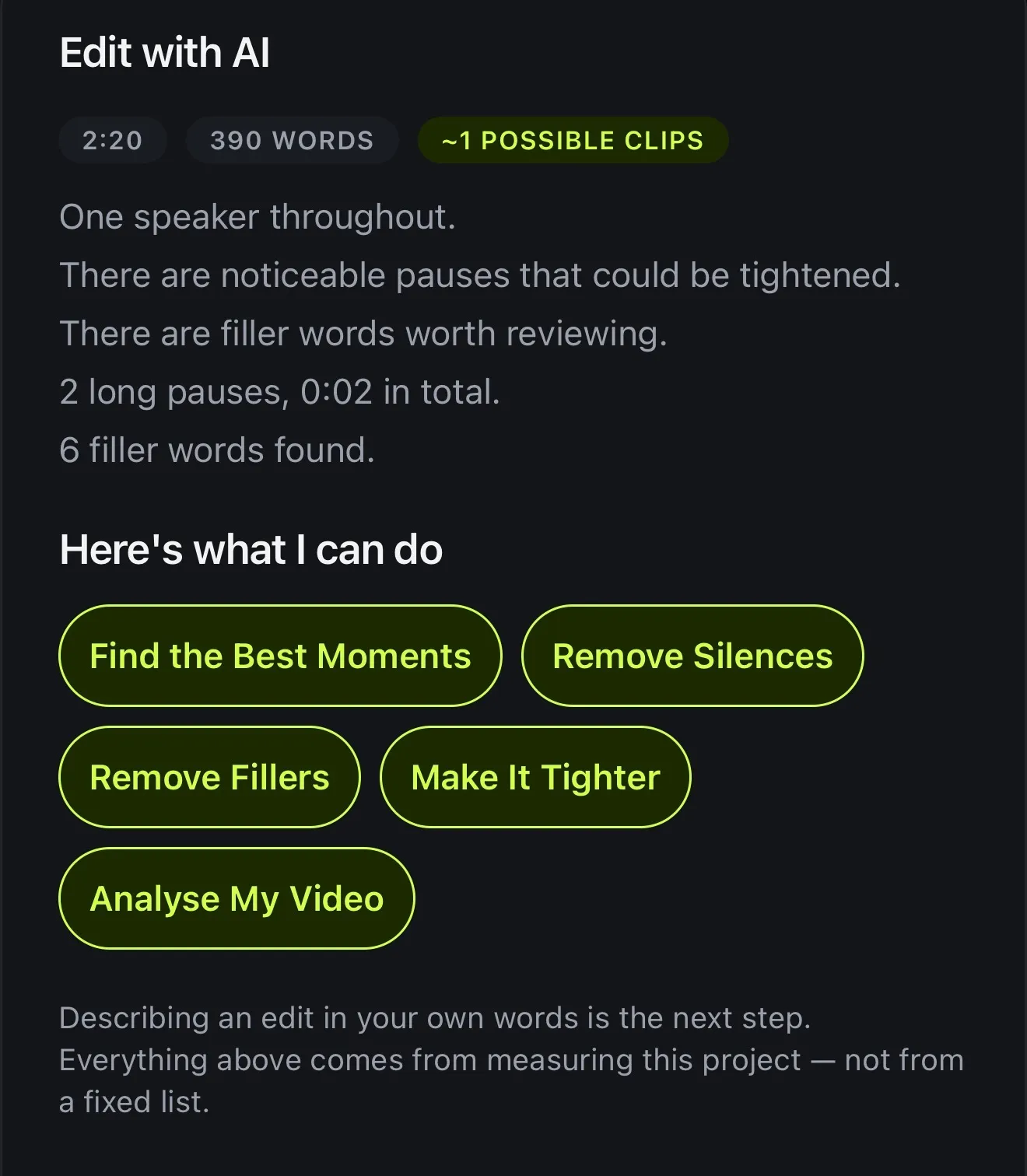
Doing all of this by hand takes a while. In AI Studio, open AI Video Editor. Its Edit with AI sheet measures the video and only offers what it needs: Remove Silences when there are long pauses, Remove Fillers when there are ums, Make It Tighter for both, and Find the Best Moments and Create Reels when there's enough to cut from.
If you'd rather say it in your own words, Chat to Edit takes requests like “Remove the long pauses” or “Make it vertical” and proposes the change. Nothing happens until you press Apply, and every change is one undo away.
One video can also become several posts. Long Video to Reels finds the moments that stand on their own and makes each its own project. After you export, the Next steps sheet can write a title, description and hashtags from what you said, for 1 AI credit.
- Edit with AI measures first, free
- Offers only what this video needs
- Chat to Edit: say it in your own words
- Nothing changes until you apply
How it works on iPhone
How to prepare a video to go viral on iPhone
-
Caption the video
Open your video in Voxcene and let it transcribe. Captions keep sound-off viewers watching, and the AI tools work from them.
-
Fix the opening
Trim the start to your first strong line. The Highlight tile in the Edit panel finds the strongest half-minute. Then add a Title with a short promise or question.
-
Cut the dead air
In AI Studio, run AI Auto Trim for the pauses and Filler Removal for the ums. You see each cut in a list before it's made.
-
Frame it for the feed
In Scale, choose 9:16. Tap the guides button beside the play controls to keep words clear of the TikTok and Shorts buttons.
-
Export and post
Export with the Vertical preset. The Next steps sheet can write a title, description and hashtags from what you said.
FAQ
Questions people ask
How do you make a video go viral?
Nobody can guarantee it. What you can do is remove the reasons people scroll past. Open on your strongest line, cut the pauses and filler words, and add captions for people watching on mute. Frame it vertically and end the moment your point lands. Then post consistently and learn from what holds attention.
Can an app or AI make my video go viral?
No app can promise views. The platforms don't publish how they rank videos, and your topic, timing and audience matter as much as the edit. AI can speed up the craft fixes, though. Voxcene finds the pauses, filler words and strongest moments, and proposes cuts you approve one by one.
How long should a short video be?
As long as the point needs and no longer. Short-video feeds favour videos people finish, so cut anything that doesn't earn its place, like a slow intro, a repeated thought or a long goodbye.
Do captions help a video perform?
They help people follow it. Plenty of people scroll with the sound off, and without captions a talking video says nothing to them. Voxcene captions every word in 60+ languages, on every plan.
What's the best aspect ratio for Reels, TikTok and Shorts?
Vertical 9:16, which fills the phone screen. In Voxcene, choose 9:16 in Scale and use Fit or Fill, with a blurred or coloured background when the footage is wider.
Does Voxcene give my video a viral score?
Not in this version. Analyse this video counts the long pauses, filler words, sound and framing, and Edit with AI suggests fixes based on what it measures. There's no viral score or view prediction, though. (In the Audio panel, “Score this video” writes a soundtrack. It's music, not a rating.)