For video interviews
Edit interview videos the easy way
Interview video editing on your iPhone. Upload the interview, whether it's one camera, a recorded call or a camera per person. Voxcene works out who is talking and cuts to them, takes out the ums, and captions each voice. Then the edit is yours to finish.
for iPhone
- 2–4 people
- Cameras lined up by sound
- Ums out (EN + EL)
- Premium
 16:9 · as filmed Box 1Box 2
01 · Cameras & layouts Premium
Multicam and layouts
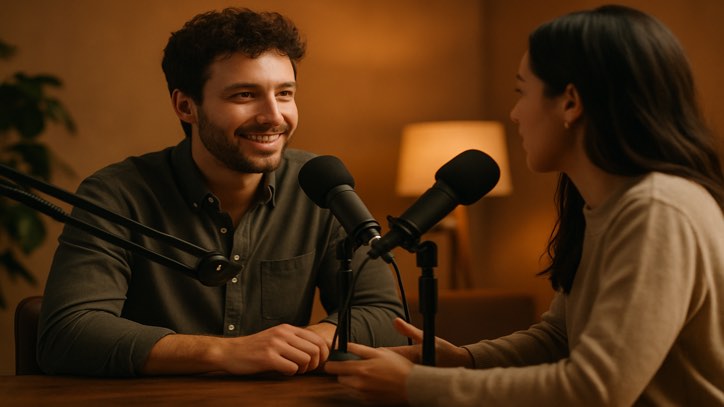
Interviews are conversations, and Podcast is built for them. Upload the interview and say who the interviewer is and who the guest is. It then cuts to whoever is talking, whether you shot one camera on both of you, a call grid, or several cameras lined up by their sound. After the build, a Cameras lane lets you change the camera for any stretch.
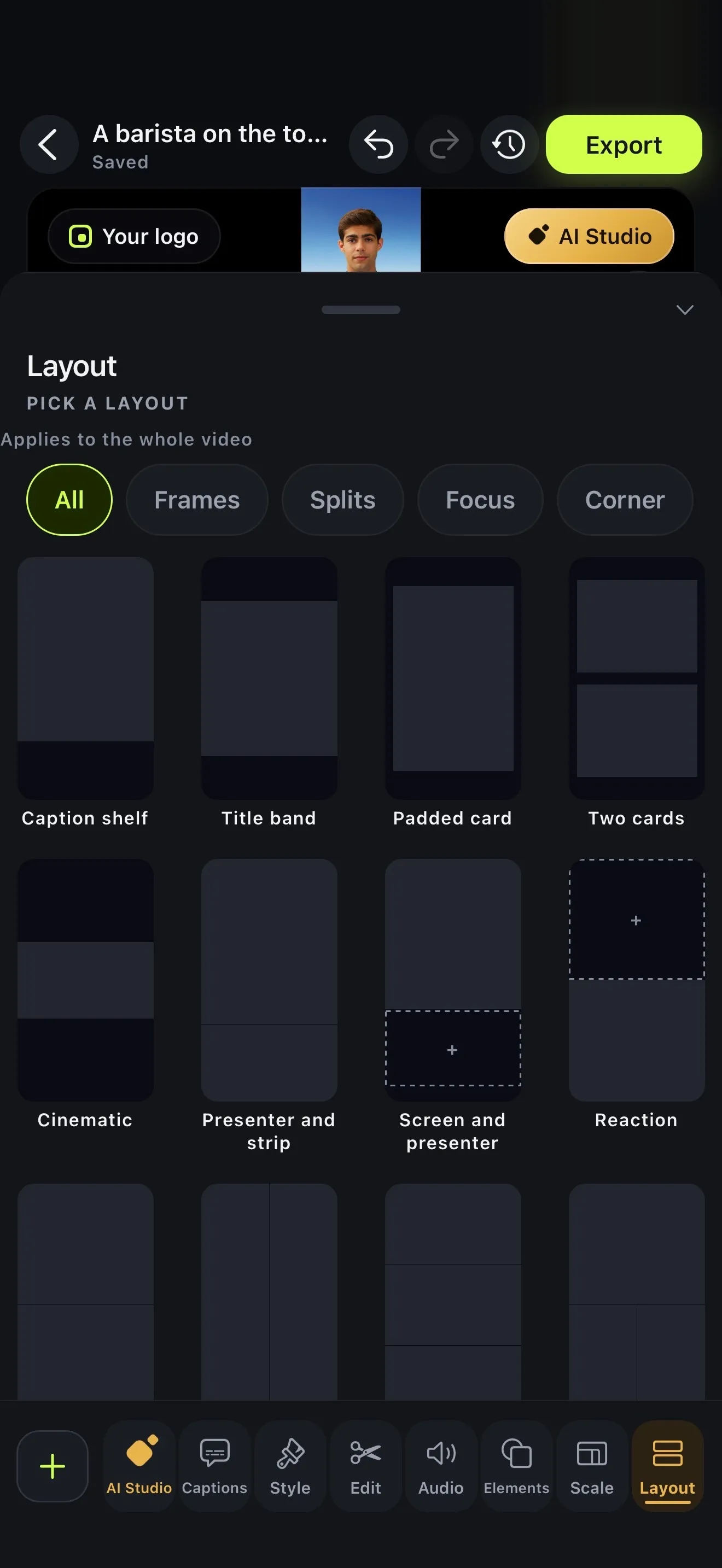
For a vertical clip from a wide two-shot, use Vertical layout on the Create tab. It turns a wide interview or panel into a vertical clip, and Read the layout finds the camera layout in your footage and builds the vertical edit. You can fine-tune it with any of the layouts, such as Two cards, Presenter and strip or Reaction.
- One camera, a video call, or two to four cameras
- Cameras lined up by sound, no clapperboard
- Auto, Speaker view or Side by side
- Read the layout: a wide shot rebuilt as vertical
02 · Fillers Premium
Remove filler words
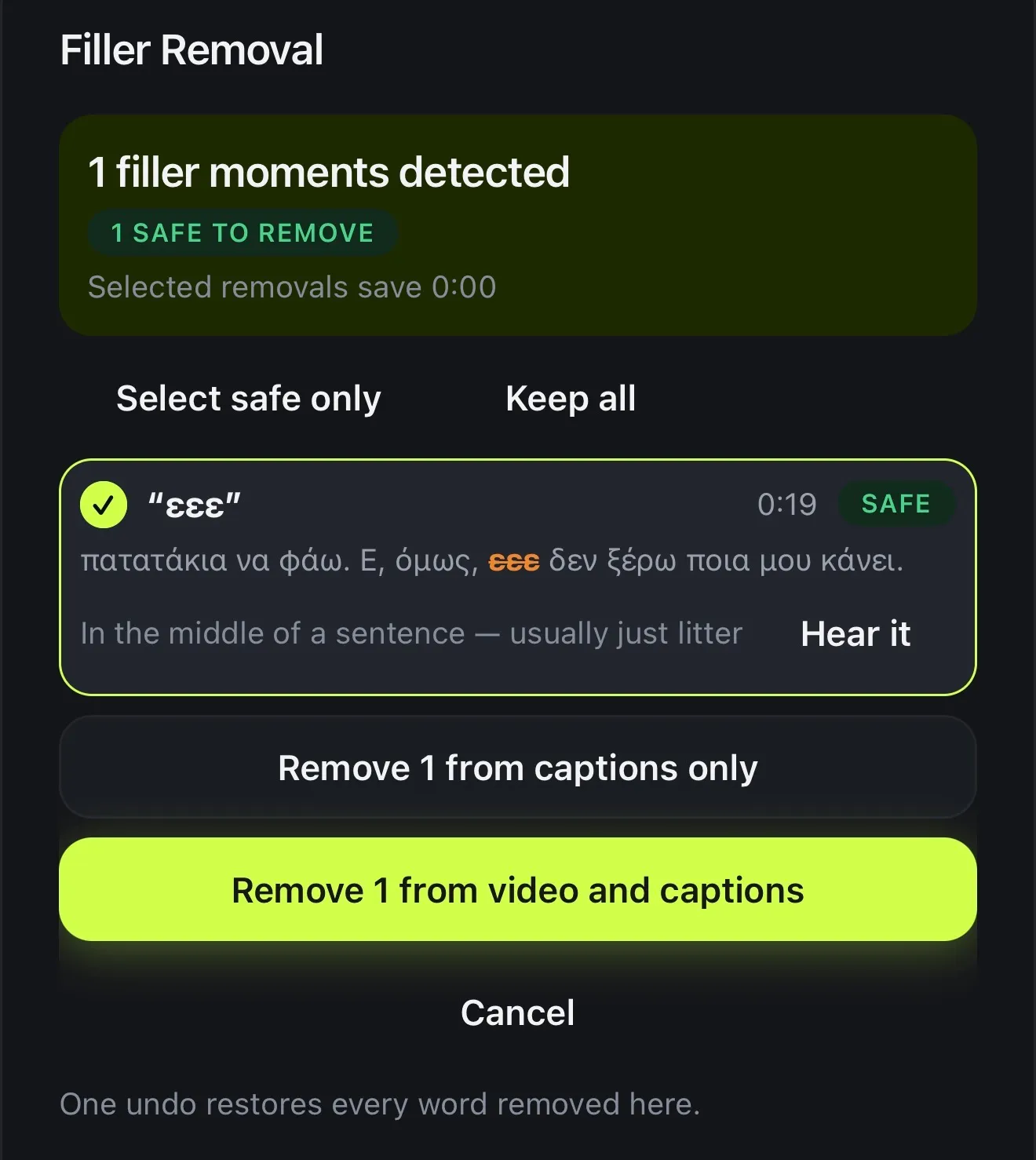
Guests who aren't used to a camera say “um” a lot. Filler Removal finds them and marks each one Safe to cut, worth a Review, or better to Keep. Words that can carry meaning are never ticked for you. Have a listen, then remove them from the captions only or from the video and captions.
For long pauses and slow starts, AI Auto Trim shows each silence before it's cut, for 1 AI credit. You can undo any change, and the captions move with the cut.
- Each um marked Safe, Review or Keep
- Hear it before it goes
- Captions only, or the video too
- English and Greek fillers
03 · Captions & clips
Captions for every voice, clips for every channel
In an interview, viewers need to know who said what. Turn on Colour by speaker and the interviewer's and the guest's words come up in different colours, in any of the 143 caption styles. Recorded in one language for an audience in another? You can translate the captions with AI credits.
One interview can make several posts. Ask Podcast for 3, 5 or 8 clips and it picks moments that stand alone, usually a question together with its whole answer. Each one becomes a vertical project for Reels, TikTok and Shorts. For a longer interview edited as a normal project, Long Video to Reels does the same.
- Colour by speaker: each voice its own colour
- Translate into any of 66 languages
- 3, 5 or 8 vertical clips from one interview
- A question kept with its whole answer
04 · Sound
Clean sound from an ordinary room
Interviews happen in offices, cafés and living rooms. Podcast's Clean the audio pushes the room back while it builds. In any project, AI Denoise lets you choose the strength and compare Before and After first, for 1 AI credit.
It works best on steady noise like a fan, air conditioning or hiss. It cleans the video's own sound and leaves any music you add alone. It reduces noise and keeps the voice, but it won't turn an echoey hall into a studio.
- Clean the audio while the interview builds
- AI Denoise: Light, Balanced or Strong
- Play Before and After
- Steady noise: fans, air conditioning, hiss
How it works on iPhone
How to edit an interview video on iPhone
-
Film the interview
One camera on both of you, a camera each, or a recorded Zoom, Riverside or Meet call.
-
Open Podcast
On Home, tap the Podcast card, which builds interviews too. Choose Wide · 16:9 or Vertical · 9:16.
-
Upload and name the voices
Pick One camera, Video call or Several cameras and upload. Then play each voice and say who it is and where they sit.
-
Choose the look and clean-up
Pick a layout, turn on Colour by speaker, Cut the ums and Clean the audio, and choose your clips.
-
Build and refine
Tap Build my episode. In the editor you can change the camera for any stretch or fix a caption before you Export.
FAQ
Questions people ask
What's the easiest way to edit an interview video on iPhone?
Let the app make the first cut. In Voxcene, upload the interview to Podcast. It tells the voices apart and cuts to whoever is talking, with each person captioned in their own colour and the ums tidied. When it's done, the edit opens for you to refine.
Can it switch between the interviewer and the guest automatically?
Yes. Once you've said who is who, Podcast cuts to whoever is talking, each shot centred on their face. Auto holds a close-up on long answers and shows everyone during quick back-and-forth. Speaker view always shows the speaker, and Side by side keeps both on screen.
I filmed on two cameras. Can Voxcene sync them?
Yes. Choose Several cameras and add each file. Two to four cameras are lined up by their sound, so they can start at different moments and you don't need a clapperboard.
How long can the interview be?
Podcast takes up to 20 minutes for now, with two to four people. A longer interview can still be edited as a normal project (up to 90 minutes on Premium) with captions, filler removal and Layout. You just won't get the automatic cutting between speakers.
Can it remove “um” and “uh” from the interview?
Yes, in English and Greek. Filler Removal marks each one Safe, Review or Keep, and lets you hear it first. You can remove it from the captions only or from the video too. Podcast's Cut the ums does a careful pass while it builds.
Can I put the guest's name on screen?
Yes. Add a text layer at the moment they first appear, on any plan. On Premium, Motion's animated Name tag look adds a clean name bar along the bottom.
What does it cost?
The interview tools are part of Premium. Building an episode in Podcast costs 30 AI credits, and building it again is free. Filler Removal and Layout use no credits, while AI Auto Trim and AI Denoise use 1 credit a video.