Teleprompter app
A teleprompter built into your video editor
Paste your script into the teleprompter, set the speed, and read it over the live camera while you record. When you're done, the take goes into a project, captioned and ready to edit.
for iPhone
- Free to use
- 0.5× to 2× scroll
- Up to 4K
- Straight into editing
Text size
Scroll speed
Countdown
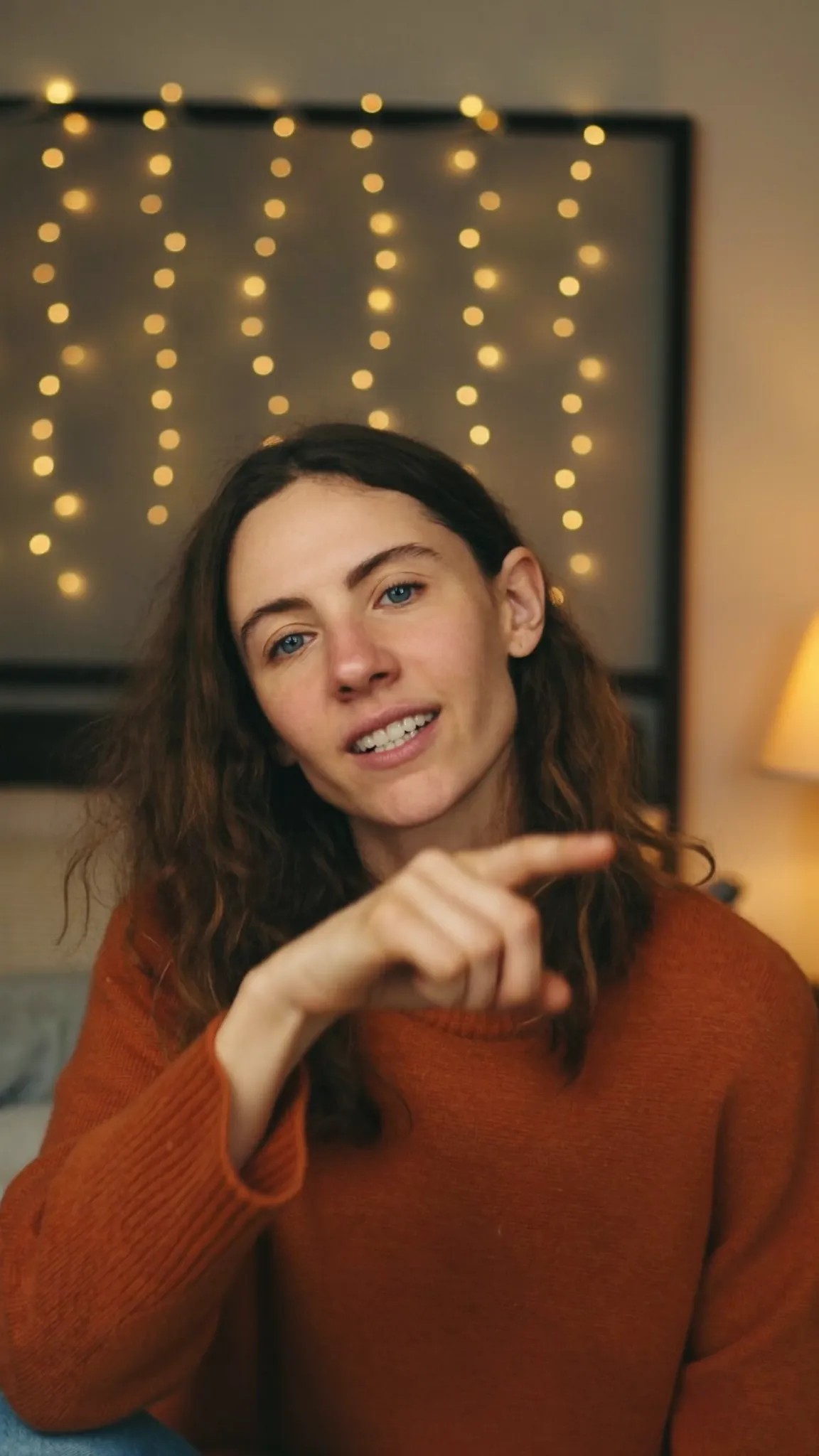
A demo in your browser — no camera, nothing recorded. In the app the script scrolls over your live camera.
01 · Script
Teleprompter app: paste a script and record
Open Teleprompter from the Create tab, paste your script and tap Open camera. The words scroll over the live camera, so your eyes stay near the lens instead of darting down to a page.
Framing guides show where TikTok and Shorts buttons will sit, and a face oval keeps you centred. If you don't have a script, Just record takes you to the camera.
- Paste or write, with no length limit
- Front camera by default, or flip
- Record quality: 4K, 1080p or 720p
- Takes up to 5 minutes
02 · Pace
Scroll speed and text size
Set the scroll to your natural pace, anywhere from a slow 0.5× to a quick 2×, and pick a text size you can read from arm's length. Lines you've read turn green and the ones ahead stay red, so you can tell where you are at a glance.
If you get ahead of it, drag the script up or down. On iOS 18 and later you can pause and carry on, and the take stays one file.
- Scroll speed 0.5× to 2×
- Three text sizes
- Read lines turn green
- Drag the script, or pause on iOS 18+
03 · Edit
Go straight into captions and editing
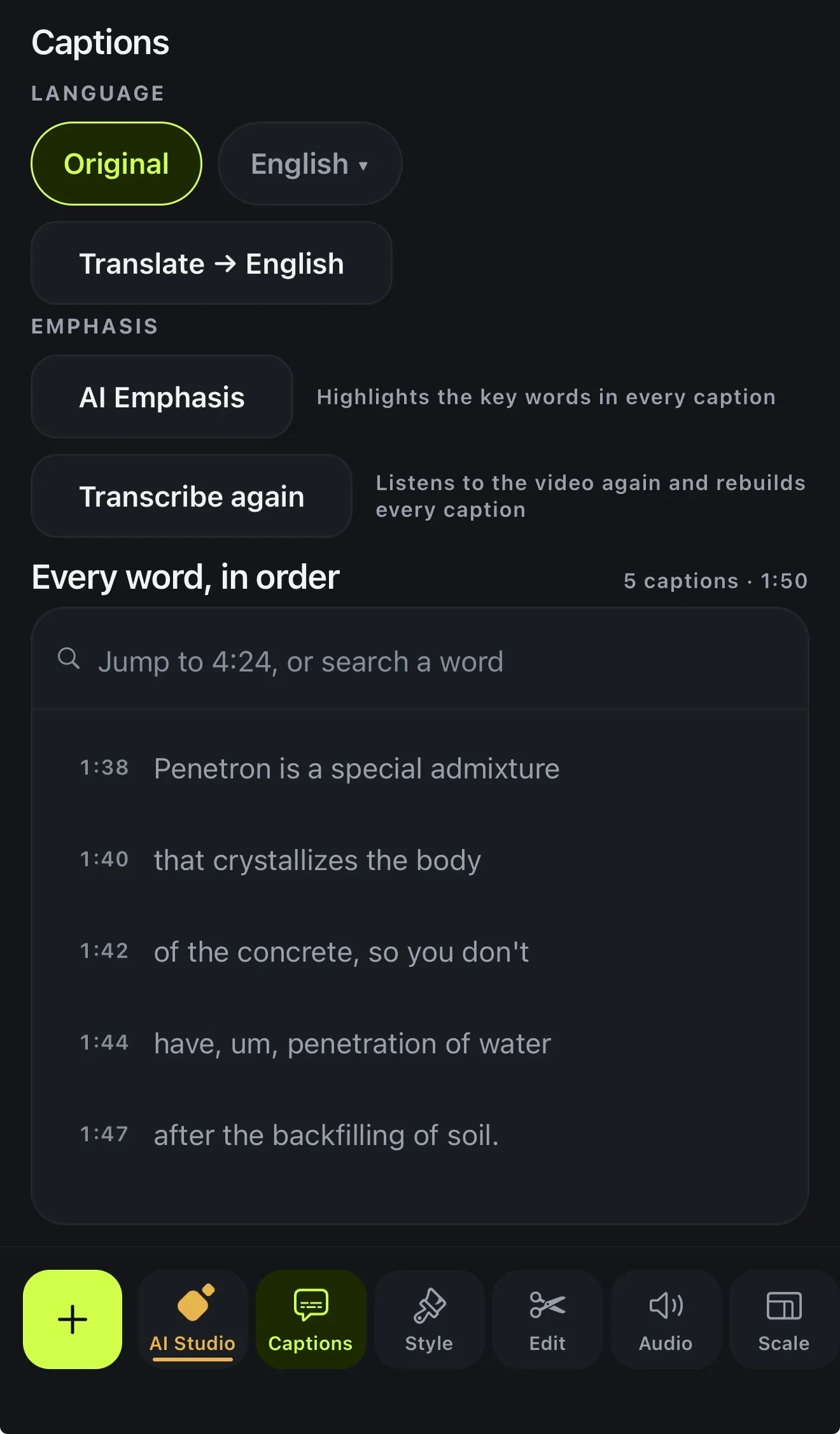
Most teleprompter apps stop once you've recorded. In Voxcene you tap Use this take, name the project, choose the spoken language and tap Create & transcribe. The take is captioned word by word and opens in the editor.
From there you have the whole editor, so you can trim the stumbles, pick a caption style and add music before you export.
- Use this take → a new project
- Create & transcribe: captions timed word by word
- Then trim, style, add music, export
How it works on iPhone
How to use a teleprompter on iPhone
-
Open the teleprompter
On the Create tab, under Videos, tap Teleprompter.
-
Paste your script
Paste or write your script, then set the Text size, Scroll speed and Countdown.
-
Open the camera
Tap Open camera. Pick the camera and the Record quality: 4K, 1080p or 720p.
-
Record
Tap Start recording and read. Drag the script if you get ahead of it, and Pause if you need a breath.
-
Use this take
Tap Use this take (or Retake), name the project, choose the language and tap Create & transcribe.
FAQ
Questions people ask
Is there a free teleprompter app for iPhone?
Yes. Voxcene's teleprompter is free to use on every plan, and recording costs nothing. Captioning the take uses your plan's caption minutes, and projects on the Free plan are up to 60 seconds.
Can I record myself while reading the script?
Yes. The script scrolls over the live camera while you record, with the front camera by default so you can look at the lens and read at the same time.
Can I change the scroll speed and text size?
Yes. Scroll speed goes from 0.5× to 2×, the text comes in three sizes, and you can drag the script up or down if you're running ahead of it.
Does the script follow my voice?
No, it scrolls at the speed you set. Lines you've read turn green and the ones ahead stay red, so you can always see where you are.
How long can a take be?
Up to 5 minutes per take. On iOS 18 and later you can pause and continue, and it stays one file.
Can it write the script for me?
Not inside the teleprompter. Paste in a script you've already written, from Notes, a doc or anywhere else, and read it as you record.