Video colour grading
Pro color grading for video, on your iPhone
Start with a look that previews on your own footage. From there you can open the tools a colourist would use (wheels, an HSL mixer, curves and scopes) on the phone you filmed with.
for iPhone
- 44 looks on your own scene
- Wheels · HSL · Curves
- Waveform & vectorscope
- One clip or all
01 · Looks
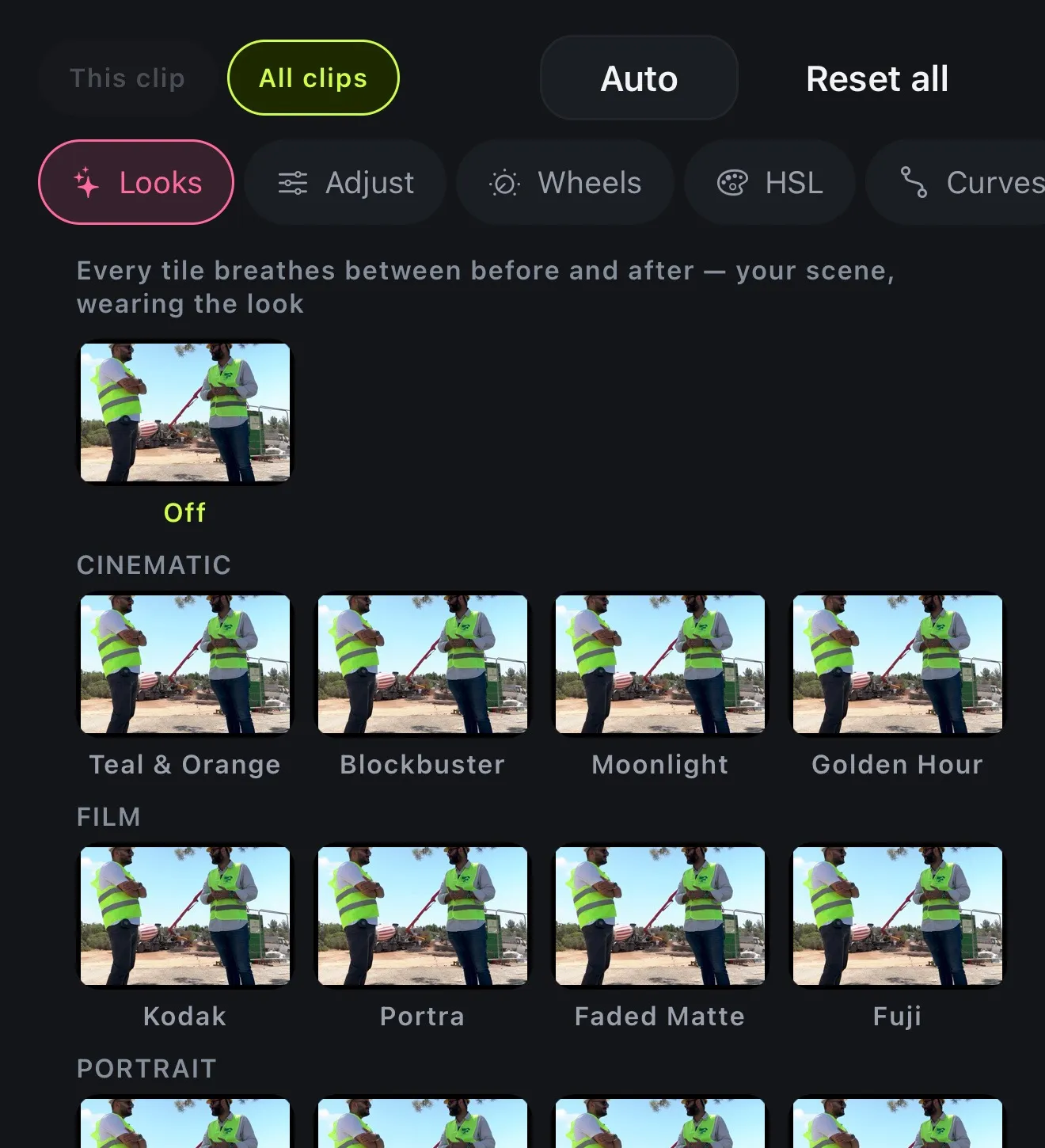
One-tap looks, previewed on your own scene
Most apps preview a filter on a stock photo and leave you guessing. In Voxcene each look tile shows your scene with the look on it, so you can see what you're picking. There's Teal & Orange, Blockbuster, Golden Hour, Kodak, Portra, Fuji, Noir, VHS and more.
Turn a look's Strength down for a lighter touch, then carry on in the tabs beside it. If you make something you like, use Save your own and it stays in your gallery for every project.
- 44 looks: Cinematic, Film, Portrait, Vibrant, Mono, Vintage
- Every tile shows your footage, not a sample
- Strength: dial a look up or down
- Save your own look for every project
02 · Adjust & wheels
Sliders for light, wheels for colour
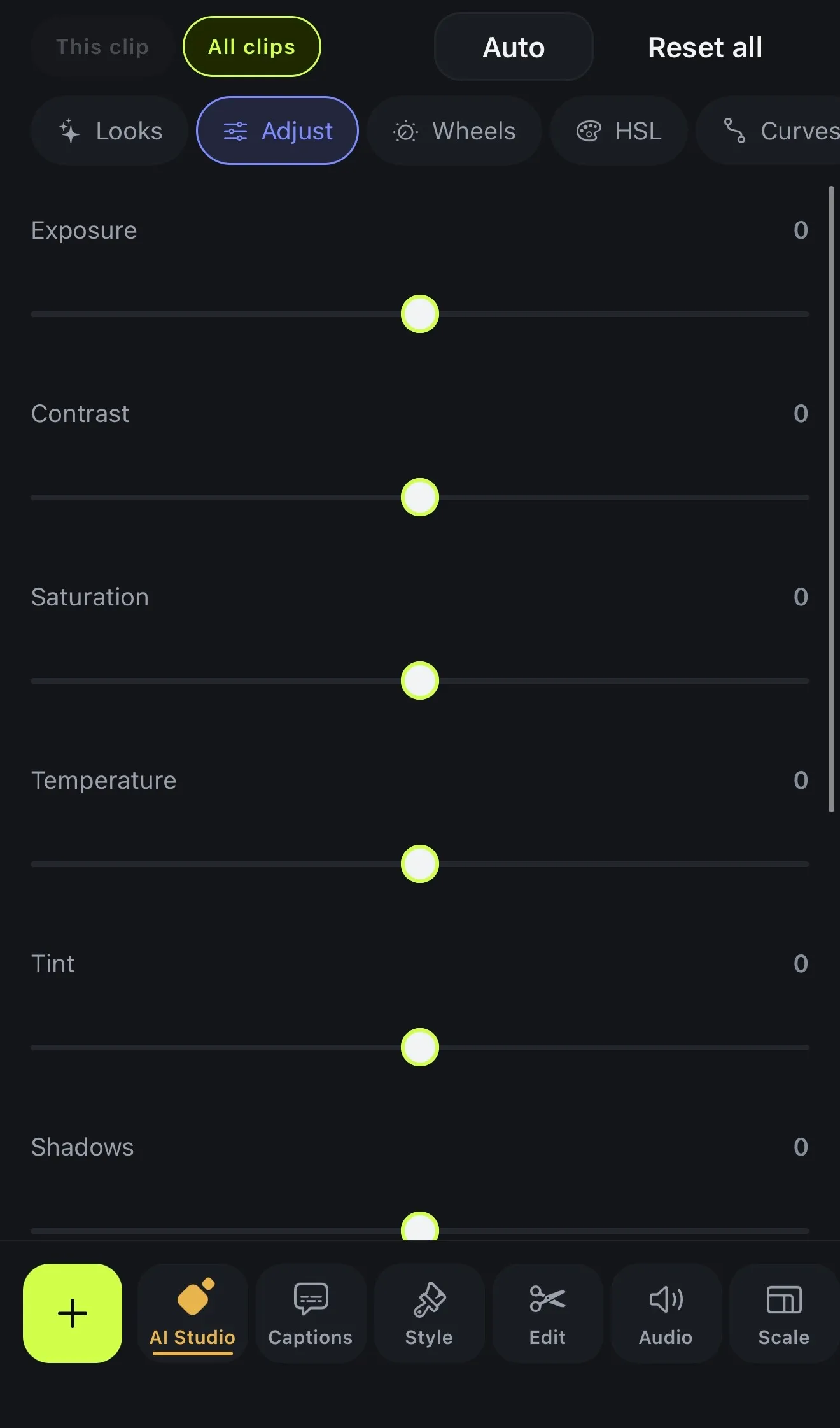
Adjust is the quick pass, with nine sliders covering light, colour and effects. When you hold a control, a one-line hint explains what it does to the picture.
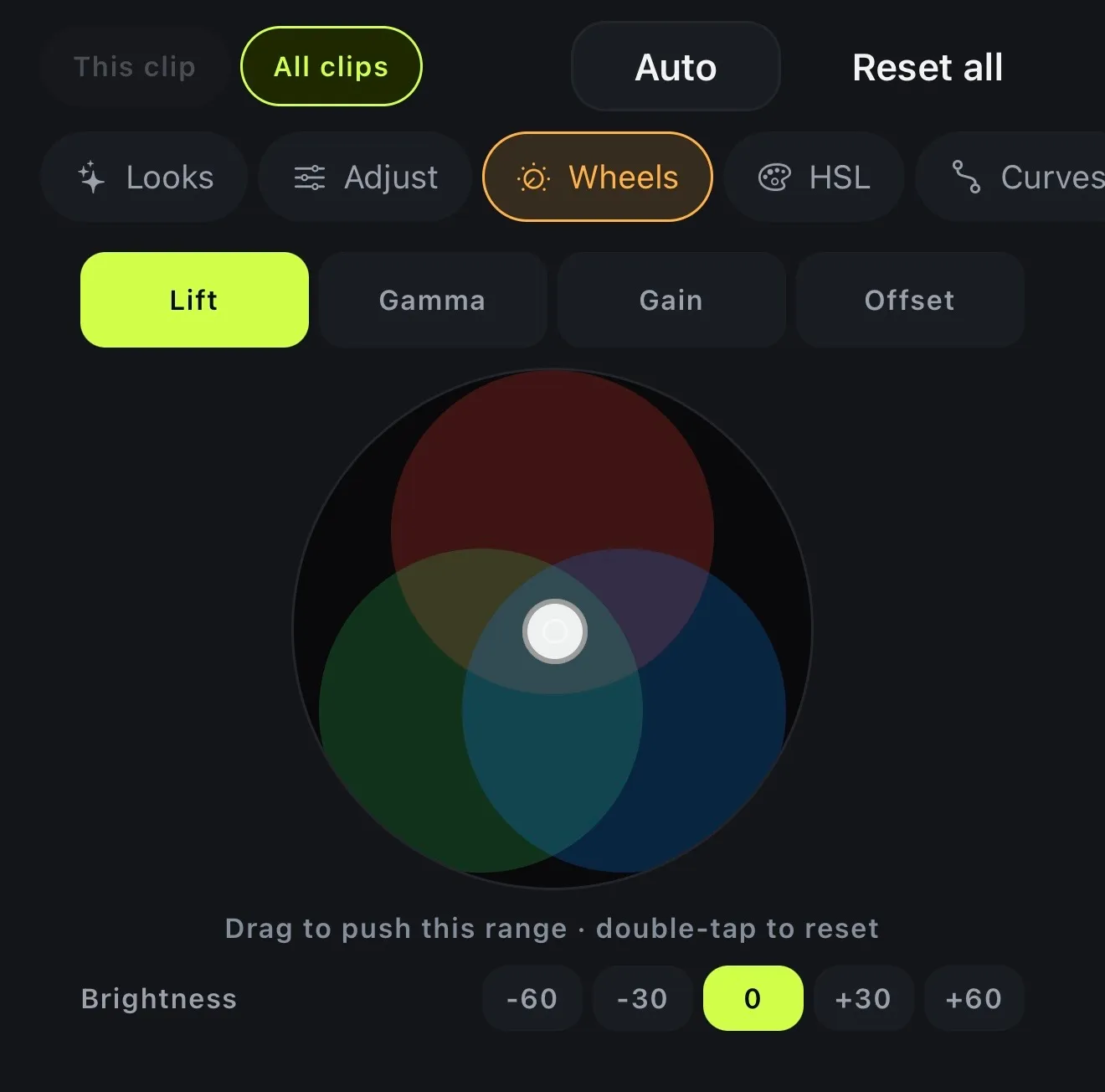
The wheels sit under Color, and they're where a grade gets its mood. Use Lift and Gain to push the shadows towards teal and the highlights warmer, then set the mid-tones with Gamma. Double-tap any wheel to put it back.
- Light: exposure, contrast, highlights, shadows
- Colour: saturation, temperature, tint
- Effects: sharpness, vignette
- Lift, Gamma, Gain and Offset wheels
03 · HSL & curves
Curves and the HSL mixer
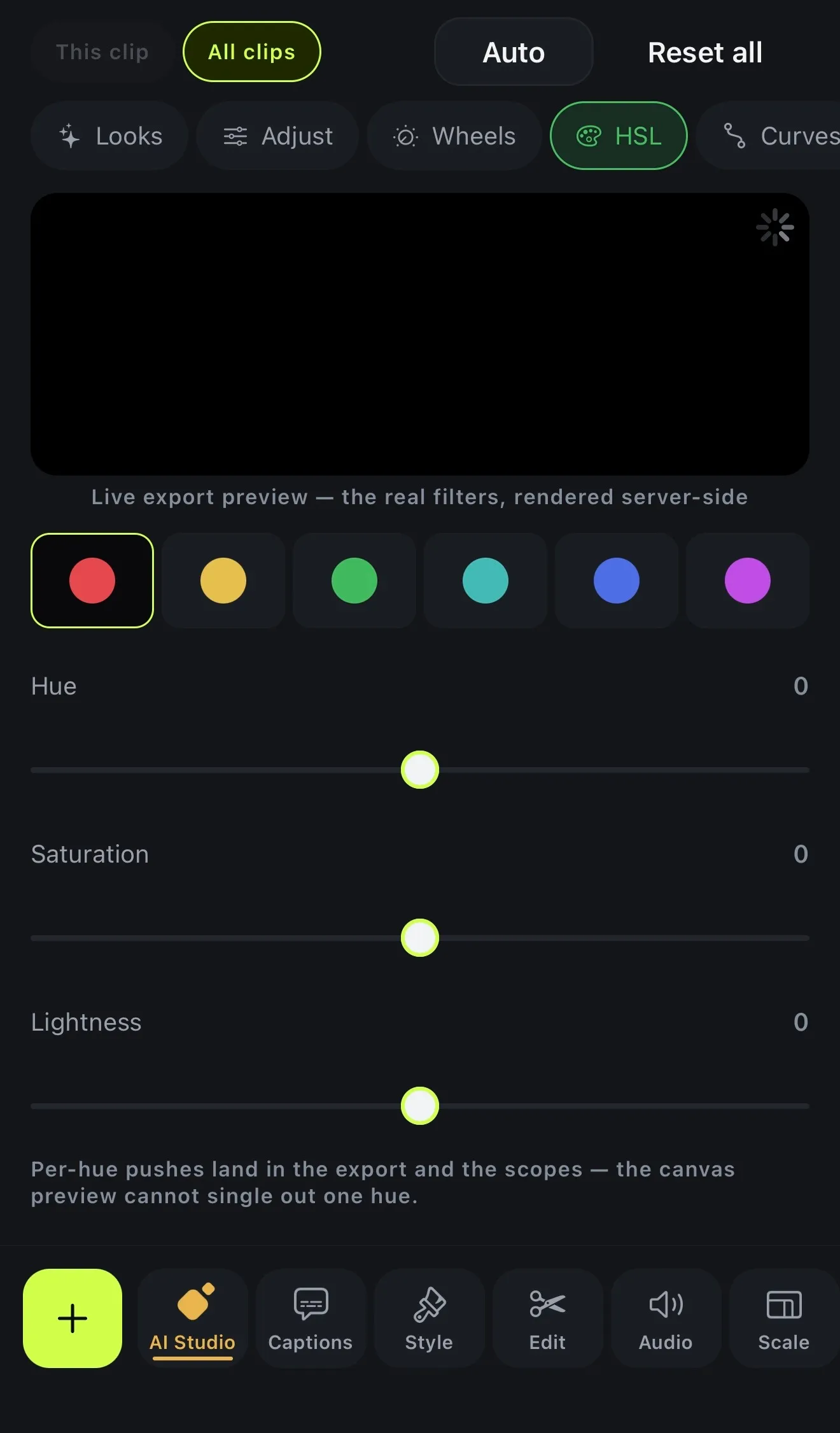
The HSL mixer changes one family of colours and leaves the others alone. You could deepen a blue sky, say, or warm up the yellows in a sunset. Pick a band, then move its hue, saturation and luminance.
Curves bends the tone at the shadows, mids and highlights, either across the whole picture or on the red, green or blue channel alone. Lift the shadows for a faded film feel, or push blue into them for the classic teal look.
- Reds, Yellows, Greens, Cyans, Blues, Magentas
- Hue, saturation and luminance per band
- Master, Red, Green and Blue curves
04 · Scopes
Scopes for exposure and skin tones
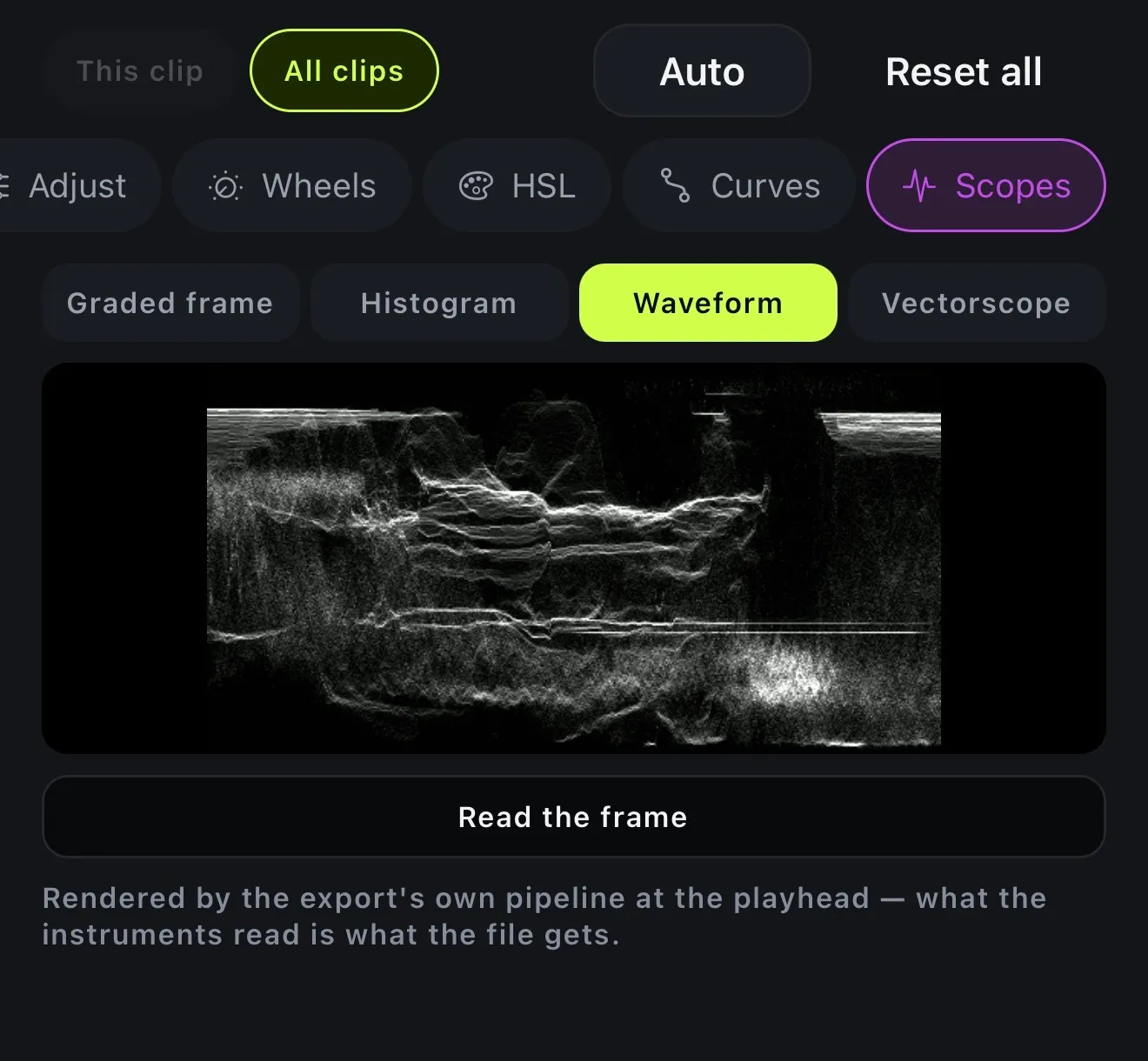
After a while your eyes get used to a screen, but scopes don't. The waveform shows whether highlights are clipping and shadows are crushed. The vectorscope shows where your colours sit, skin tones included, so you can keep faces natural while the rest of the grade moves.
The scopes are drawn at the playhead by the same pipeline that renders your export, so what they show is what ends up in the file.
- Histogram
- Waveform
- Vectorscope
- Rendered at the playhead by the export pipeline
How it works on iPhone
How to colour grade a video on iPhone
-
Open the colour room
In the editor, tap Edit, then Colour.
-
Choose what to grade
Pick This clip to grade one shot, or All clips to grade the whole video at once.
-
Start from a look
Tap a look and see it on your own scene, or tap Auto to have the app set the basic controls from the frame.
-
Fine-tune it
Move to Adjust, Color (the wheels and the HSL mixer) or Curves for the details. Reset all takes you back to the original.
-
Check it and export
Press and hold Hold: before to compare with the original, open Scopes and tap Read the frame to check exposure and colour, then export.
FAQ
Questions people ask
What is colour grading?
Colour grading means changing the colour and light of a video after it's been shot. You might make it warmer or moodier, or turn the saturation down, so each shot looks how you meant it to and the clips sit well together.
Can I colour grade video on my iPhone?
Yes. Voxcene has a full colour room on the iPhone, with 44 looks, nine adjustment sliders, Lift / Gamma / Gain / Offset wheels, an HSL mixer, curves and three scopes. You don't need a computer or any plug-ins.
Can I grade one clip differently from the rest?
Yes. Choose This clip to grade only the selected shot, or All clips to apply the same grade to the whole video.
What do lift, gamma and gain do?
They are the three tonal ranges of a picture. Lift moves the shadows, Gamma the mid-tones and Gain the highlights; Offset moves everything at once. Drag a wheel towards a colour to tint that range, and double-tap to reset it.
Will the export look like the preview?
Turn on Exact frame and Voxcene renders the current frame on the server the way the export will. The scopes are read from a server render too, so what they measure is what the file gets.
Is colour grading free?
Yes. The whole colour room is on every plan, Free included: looks, Auto, sliders, wheels, HSL, curves and scopes.
Can it match the colours of two clips automatically?
Not automatically. Grade one clip the way you like, save it with Save your own, and apply that look to the others. You can also grade with All clips so the same grade goes on every shot.