Auto captions
Auto captions that get every word right
Voxcene turns the speech in your video into captions, timed word by word. It can detect the language for you, and the full transcript is there to check before you post.
for iPhone
- 60+ languages
- Language detected for you
- Timed word by word
- SRT · VTT · ASS
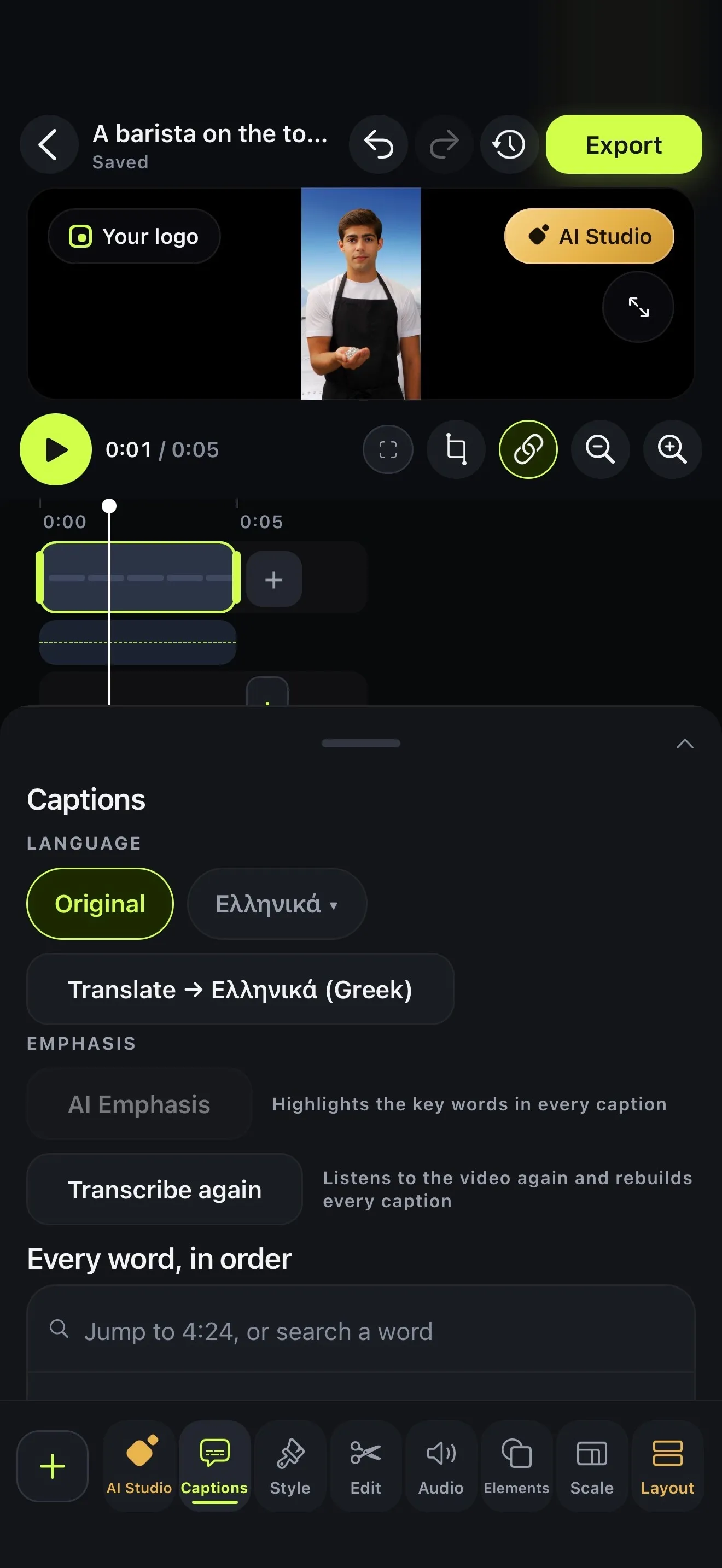
01 · Language
Spoken language detected automatically
When you start a project, pick the Spoken language, or choose Detect automatically. Then the app identifies the language from the audio and writes the captions in it.
If you record in one language for viewers who speak another, you can keep the Original captions or tap Translate to subtitle the video in a second language.
- Detect automatically, or choose it yourself
- 60+ languages
- Greek done right: accents, final sigma, line breaks
- Translate into another language (AI credits)
Detect automatically · 66 spoken languages
- English
- Ελληνικά
- Español
- Français
- Deutsch
- Italiano
- Português
- العربية
- עברית
- हिन्दी
- 日本語
- 한국어
- 中文
- Русский
- Українська
- Türkçe
- Polski
- Nederlands
- Svenska
- Norsk
- Dansk
- Suomi
- Íslenska
- Čeština
- Slovenčina
- Slovenščina
- Hrvatski
- Српски
- Bosanski
- Македонски
- Български
- Română
- Magyar
- Lietuvių
- Latviešu
- Eesti
- Беларуская
- Ქართული
- Հայերեն
- Azərbaycan
- Қазақ тілі
- فارسی
- اردو
- বাংলা
- ગુજરાતી
- ಕನ್ನಡ
- മലയാളം
- मराठी
- ਪੰਜਾਬੀ
- தமிழ்
- తెలుగు
- नेपाली
- ไทย
- Tiếng Việt
- Indonesia
- Melayu
- Filipino
- Jawa
- Kiswahili
- Afrikaans
- አማርኛ
- Cymraeg
- Gaeilge
- Galego
- Català
- Malti
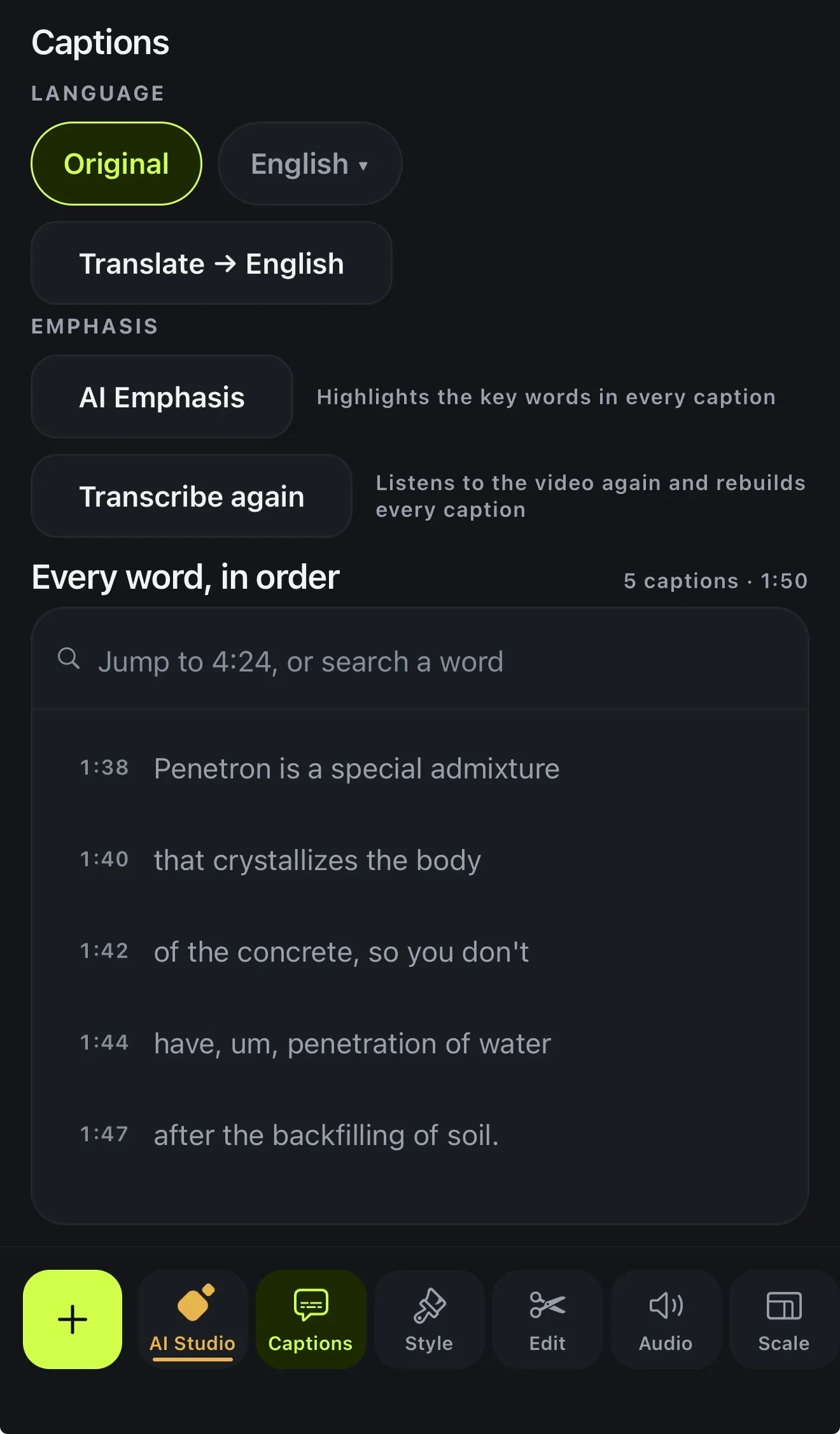
02 · Transcript
Word-by-word timing and the full transcript
Each word shows up on screen as it's spoken. Under Every word, in order you get the whole transcript with its times, and you can search for a word or type a time like 4:24 to jump straight to it.
Tap a word to fix a name or a spelling. Split a long caption before any word, or merge two short ones. AI Emphasis picks out the key words in each caption so they stand out.
- Every caption listed with its time
- Search a word or jump to a time
- Edit word, split before a word, merge with the next
- Transcribe again rebuilds every caption
03 · Style & export
Edit, style and export
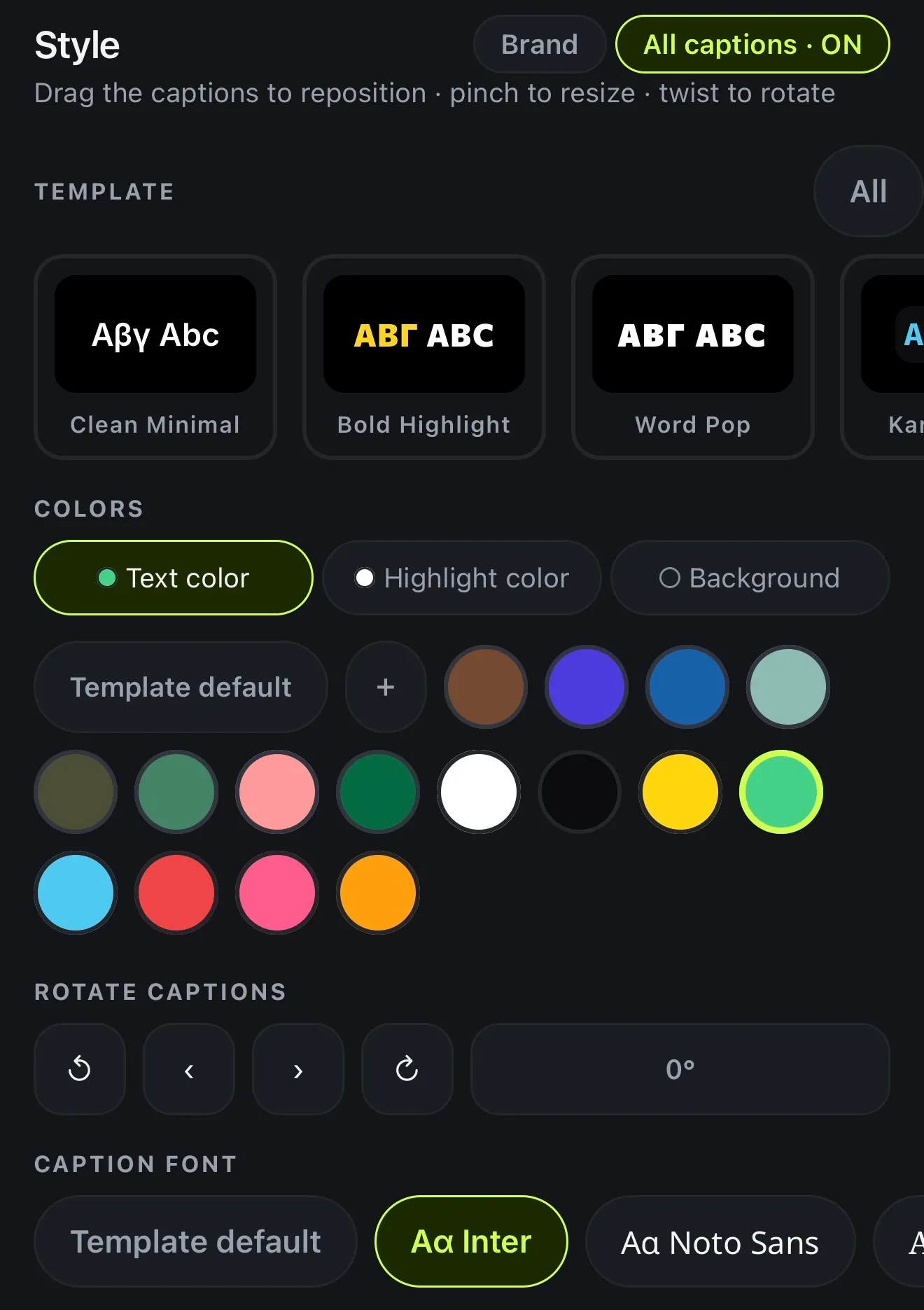
Pick one of 143 caption styles, which range from a quiet line at the bottom to words that pop as they're said. Then choose the font and the colours. See them all on animated caption styles.
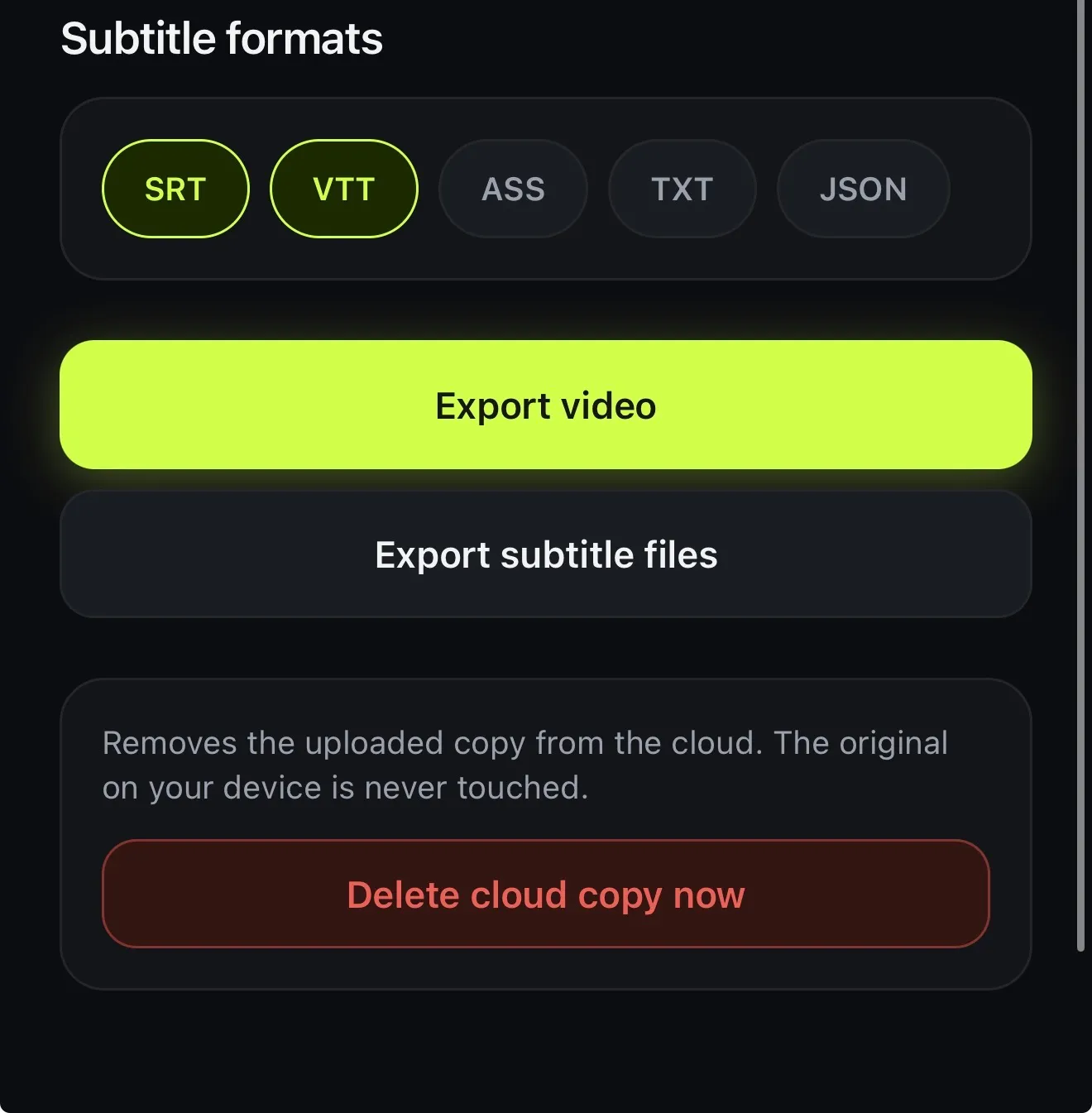
Export the video with the captions burned in, or export the captions themselves as subtitle files for YouTube, a player or a translator.
- 143 caption styles
- Burned into the video, or as subtitle files
- SRT, VTT, ASS, TXT or JSON
04 · Short-form
Captions for TikTok, Reels and Shorts
A lot of people scroll with the sound off, so on TikTok and Reels the captions carry most of the message. Drag them where you want them on the preview, pinch to resize and twist to rotate.
The guides button shows where TikTok's and Shorts' own buttons will sit, so your captions don't end up under them. Need it vertical? Resize to 9:16 before you export.
- Drag, pinch and twist captions on the preview
- TikTok and Shorts button guides
- 9:16 in one tap
How it works on iPhone
How to add auto captions to a video on iPhone
-
Open your video
Start a project from a video in your Photos.
-
Set the language
Pick the Spoken language, or Detect automatically. Voxcene writes the captions and times them word by word.
-
Check the words
Open Captions and read Every word, in order. Tap a word to fix it, search for one, or jump to a time.
-
Style them
Tap Style and pick one of 143 caption styles, then the font and colours.
-
Export
Export the video with the captions burned in, or export subtitle files (SRT, VTT, ASS, TXT or JSON).
FAQ
Questions people ask
How do I add captions to a video automatically?
Start a project from the video in Voxcene and pick the spoken language, or let it detect the language for you. It transcribes the speech and places every caption on the timeline, timed word by word. Check the words, pick a style and export.
Which languages can it caption?
60+ languages, 66 of them today. You can choose the spoken language yourself, or pick Detect automatically and Voxcene identifies it from the audio. Greek is set properly, with its accents, final sigma and line breaks.
How accurate are the captions?
Speech recognition is good but not perfect, so read the captions before you post. Voxcene lists each caption with its time under Every word, in order, which means checking a whole video takes a minute. Tap any word to fix it.
Is the caption generator free?
You can try it free: the Free plan includes 3 minutes of captions and 4 caption styles. Basic includes 120 minutes a month and all styles; Premium includes 600 minutes a month.
Can I export the subtitles as SRT?
Yes, on every plan, Free included. As well as burning the captions into the video, you can use Export subtitle files to get them as SRT, VTT, ASS, TXT or JSON through the share sheet, for YouTube, Vimeo or any other player.
Can it bleep swear words?
Yes, in English and Greek. The Censor tool finds strong language and bleeps or mutes it, with the word masked in the captions too.
Can I translate the captions?
Yes. Speak one language and caption in another with Translate, which uses AI credits. See animated caption styles for how they look.