Video templates
Video templates you can make your own
Pick a ready-made edit with the cuts, music, transitions and titles already in place, and swap in your own clips. Voxcene cuts them to the template and opens a normal project that you can change however you like.
for iPhone
- 10 templates
- 4 free on every plan
- Reel · Story · Square · Landscape
- Clips or photos
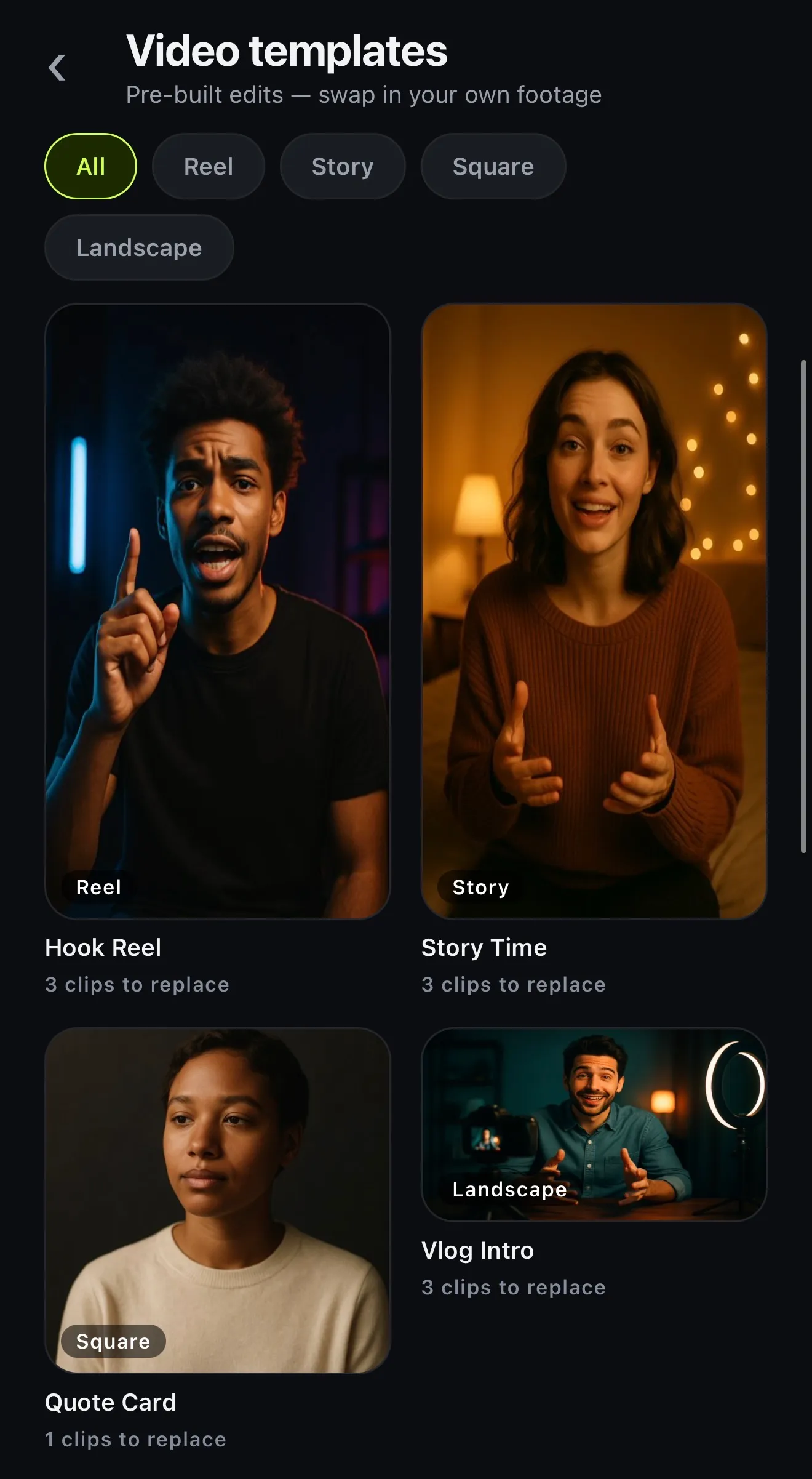
The gallery
Browse by shape: Reel, Story, Square, Landscape
Ten templates ship in the app. Reel and Story are vertical 9:16, Square is 1:1 and Landscape is 16:9. Four are free on every plan, one in each shape, and the ones marked PRO open on Basic and Premium.
-
Hook Reel
Grab them in the first two seconds
Your hook → The story → Call to action
-
Story Time
A beginning, a middle, a cliffhanger
Set the scene → What happened → The twist
-
Quote Card
One line, beautifully staged
Calm background
-
Vlog Intro
Cold open, title, tease
Cold open → Title shot → Today's tease
-
Tutorial Opener
Three steps, numbered and clear
What you'll learn → Step 1 → Step 2 → Step 3
-
Before / After
The transformation, side by side in time
Before → After
-
Day In The Life
Four moments, morning to night
Morning → Midday → Afternoon → Night
-
Product Drop
Tease it, reveal it, sell it
The tease → The reveal → Price & CTA
-
Podcast Clip
The best minute of the conversation
The moment → Outro card
-
Soundbite Cut
Box the interview, blur the rest, hit hard
The hook → The point → The reaction → The kicker
Each card is drawn from the template catalogue in Voxcene 1.2: the placeholder card the template starts with (shown in English, though the app writes it in English and Greek) and its parts to scale underneath. A drawing, not a render of the template.
Browse by platform
01 · Inside
What's inside a template
A template is a finished edit with gaps in it. The timing is set and the music is chosen. Each cut already has its transition and its sound, such as a hit on a hard cut or a whoosh on a crossfade. Your clips fill the gaps.
Six of the ten cut exactly on the beat of their own track, because the tempo was measured from the music rather than guessed (see templates that cut to the beat). Each template also brings a colour look (Vivid, Warm or Film) and its own titles, like "WAIT FOR IT" on Hook Reel and "EPISODE 01" on Vlog Intro. It also sets the caption style your words take on when you caption the video. If you're talking to camera, start with the talking templates.
- Music, with the cuts on its beat
- A transition and a sound on every cut
- Punch-in zooms on alternate clips
- A colour look, titles and a caption style
Hook Reel · 0:11 · 9:16
02 · Use it
How to use a template
Tap a template to open it. You'll see what it's for, how many clips it needs, how long it runs and the mood of its music: Phonk, Lo-fi, Upbeat, Percussion, Ambient or Cinematic.
Then choose how to start. Use my clips asks for your media part by part, each named in the template's own words, and builds the edit with them. Start with placeholders builds it right away with the template's cards in place, and you swap each one with Replace in the editor. Either way, nothing is spent until you pick a clip, so browsing doesn't cost you a project.
- Use my clips: choose your media first
- Start with placeholders: fill it in later
- A clip or a photo for each part
- Capture now records straight into a part
03 · Fill it
Fill it with your clips
Each part takes your clip from its first frame and cuts it to the part's length, so trim a clip in Photos first if the good moment comes later. A photo becomes a moving shot with a slow push in or out. A clip shorter than its part isn't stretched or frozen, and that part just runs shorter. Leave a part empty and it keeps its placeholder card until you replace it.
What opens is an ordinary project. You can replace a clip, rewrite a title, change the music, pick another caption style or regrade it. Everything the video editor does works here, from transitions to auto captions.
- Each clip plays from its first frame
- Photos get a slow drift, not a freeze
- Your clip's own sound stays in
- Then it's an ordinary project
04 · Plans
Four free, all ten on paid plans
The four free templates cover every shape. The six marked PRO open on Basic and Premium: Tutorial Opener, Before / After, Day In The Life, Product Drop, Podcast Clip and Soundbite Cut.
On the Free plan, each template you build is one of your three projects that month, and exports are 720p with a watermark. Basic exports at 1080p with no watermark; Premium goes up to 4K.
- Free: Hook Reel, Story Time, Quote Card, Vlog Intro
- Basic and Premium: every video template
- No AI credits: templates are free to build
- Each build counts as one project
How it works on iPhone
How to use a video template on iPhone
-
Open the templates
Tap the Templates tab, then Video templates. Filter by Reel, Story, Square or Landscape.
-
Pick a template
Tap one to see what it's for, how many clips it needs, how long it runs and the mood of its music.
-
Tap Use my clips
Each part is named in the template's own words, like Your hook — 2.3s or The story — 5.6s. Tap a part and choose a video or a photo.
-
Build it
Tap Build. Voxcene shows Cutting your clips to the template and opens the finished project in the editor.
-
Make it yours and export
Rewrite the titles, caption it, change the music or replace a clip. Then tap Export.
FAQ
Questions people ask
Are Voxcene's video templates free?
Four of them are: Hook Reel, Story Time, Quote Card and Vlog Intro, one in each shape. The other six carry a PRO badge and open on the Basic and Premium plans. Templates don't use AI credits.
How do I edit a video template on iPhone?
Open the Templates tab, tap Video templates and pick one. Tap Use my clips, choose a video or photo for each part and tap Build. Voxcene cuts your clips to the template and opens an ordinary project, where you can change the text, music, captions or any clip.
Can I use photos instead of videos?
Yes. Every part takes a clip or a photo. A photo becomes a moving shot with a slow push in or out, so it doesn't sit frozen while the music plays.
Which part of my clip does the template use?
The start. Each part plays your clip from its first frame for that part's length, so if the moment you want comes later, trim the clip in Photos first. A clip shorter than its part isn't stretched. That part just runs shorter.
Can I change the music in a template?
Yes. After the build it's a normal project, so you can lower, remove or replace the track. Keep in mind that the template's cuts were timed to its own track. With a new song, Read the music → Cut my clips there can cut your clips on its beat instead (1 AI credit per track).
Are there templates for TikTok, Reels and Shorts?
Yes. Six of the ten are vertical 9:16 (the Reel and Story ones), which is the shape all three apps use. Square suits an Instagram post and Landscape suits YouTube. The editor's guides also show where TikTok's and Shorts' buttons will cover your video.
Can I save my own edit as a template?
Not in this version. You can save a caption look with Save as my style, and brand kits keep your colours and fonts. A whole edit can't be saved as a new video template, though.