AI b-roll generator
B-roll that matches what you say
Voxcene goes through your transcript and marks the sentences that would land harder with something to look at. You fill each one with your own photo or a picture made for that line.
for iPhone
- Marked from your words
- Your photo or generated
- Small to full frame
- Premium
01 · From your words Premium
Generated B-roll from your words
Open Generated B-roll and Voxcene marks the sentences in your transcript that need something to look at, such as a product, a place or a number.
For each line, add one of your own photos or generate a picture made for that sentence. You can skip any you don't need. As the sheet puts it, every one of these is optional.
- Marks sentences in the transcript
- Your photo: free
- A generated picture: 5 credits
- Every one is optional
02 · Your own
Insert B-roll, blank clips or AI shots
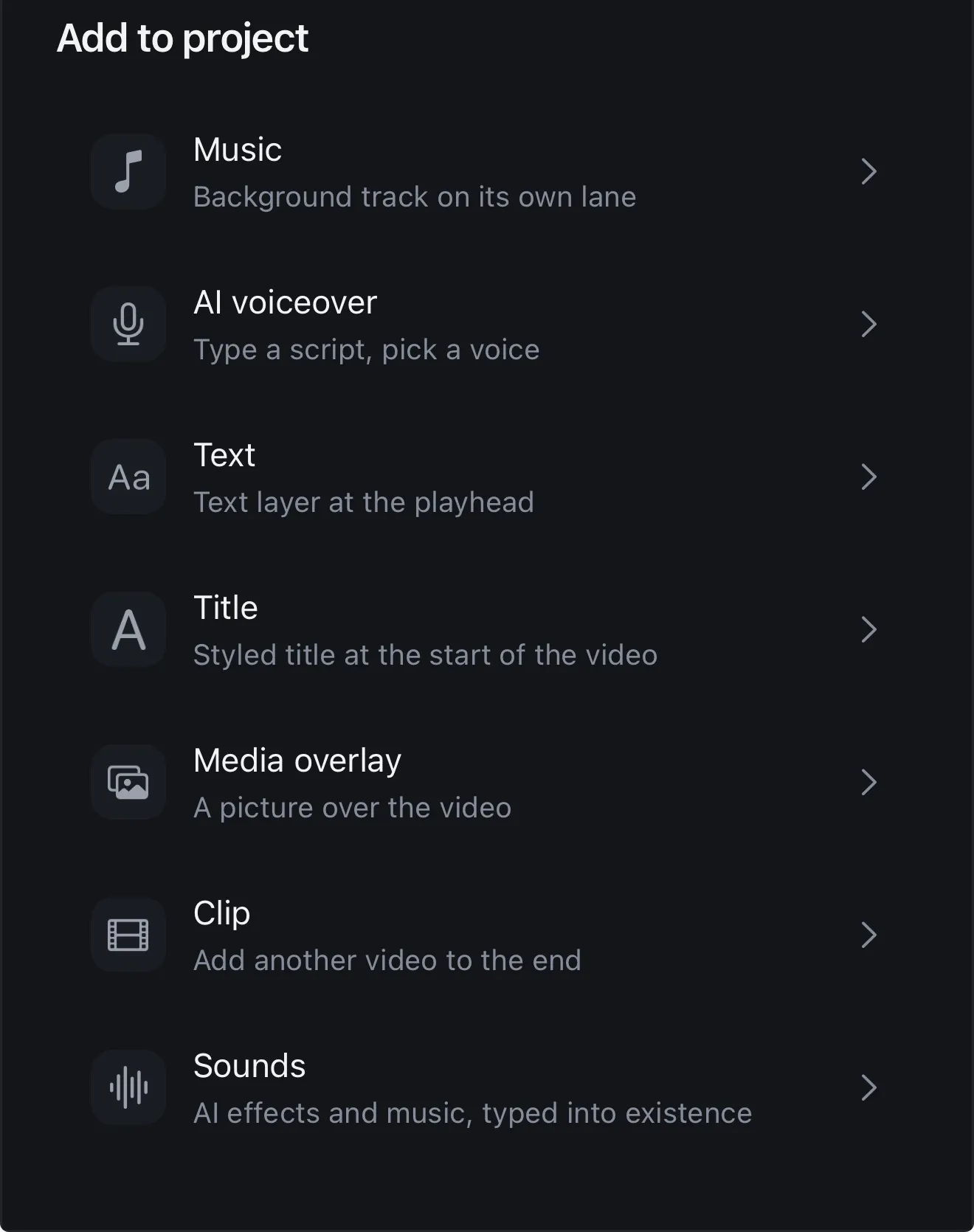
Have your own footage? Tap + and add a Photo over the video, or open a clip lane and drop in a video cutaway from your phone. A Blank clip gives you a clean colour or gradient for a title or Motion.
If you need a moving shot you don't have, Generate with AI on Premium can make One AI shot. That's a single generated clip, made from a description or a photo, as its own project.
- + → Photo: a picture over the video
- A clip lane for your own video cutaways
- Blank clip: a clean ground for titles
- One AI shot: a generated clip, as its own project
03 · Stock or made
Your own pictures vs generated
Voxcene doesn't come with a stock library. Usually the best b-roll is your own anyway, like your product or your shop, and adding it costs nothing.
When you don't have the shot, generate a picture for that exact sentence. It appears with a slow zoom, so it moves with the video instead of sitting still.
- Your photos and clips: free
- Generated picture: 5 AI credits
- No stock library built in
- Up to 30 pictures per video
How it works on iPhone
How to add b-roll to a video on iPhone
-
Caption the video
Open your video. B-roll is placed from what's said, so transcribe it first.
-
Open Generated B-roll
Tap AI Studio, then Generated B-roll. It marks the sentences in your transcript that a picture would help.
-
Pick a size
Under Size on screen, choose Small, Medium or Fill frame.
-
Fill each moment
For each line, tap Photo to use one of yours, or Generate to make one. Skip any you don't need.
-
Done
Tap Done. Each picture sits over its sentence with a slow zoom, and you can move or remove it like any picture.
FAQ
Questions people ask
What is b-roll?
B-roll is the footage or pictures you cut to while someone keeps talking, like the product they mention or the place they describe. It keeps a talking video moving and shows what words alone can't.
How does Voxcene know where b-roll should go?
It reads your transcript and marks the sentences that would land harder with something to look at. You see every marked line and decide which ones get a picture.
Is the generated b-roll a video clip?
It's a picture, made for that moment, shown with a slow zoom so it doesn't sit still. For your own video b-roll, add a clip from your phone on a clip lane.
Does Voxcene have free stock footage?
No, there's no stock library built in. You can use your own photos and clips for free, or generate a picture for 5 AI credits.
What does it cost?
Generated B-roll is part of AI Studio in Premium. Marking the moments costs 2 AI credits, and each generated picture costs 5. Using your own photos costs nothing.
How many pictures can I add?
Up to 30 pictures per video, and every one is optional.