Podcast video editor
Turn a podcast recording into an edited show and clips
A podcast editor for the video version of your show. Upload the conversation and Voxcene cuts to whoever is talking, with each voice captioned in its own colour and the ums taken out. You get the episode back along with vertical clips for Reels.
for iPhone
- 2–4 people
- Cuts to whoever talks
- Clips for Reels
- Premium · 30 credits
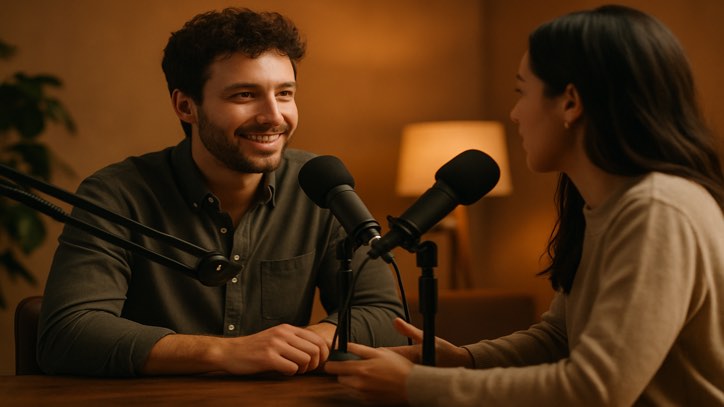 Episode · Wide 16:9
It started as a conversation we wanted to keep.
Clip 1 · 0:60 So how did it all start?
Clip 2 · 0:30 With one microphone and a lot of patience.
Clip 3 · 0:90 And the first episode?
01 · Cameras Premium
Line up several cameras by their sound
If you filmed on two or three cameras, add each camera's video and Voxcene lines them up by their sound. Each angle then shows the same moment, even if you started the cameras at different times. With a Zoom, Riverside or Meet call, each person's box becomes their shot.
More on multi-camera editing.
- One camera, a video call, or several cameras
- Two to four cameras, lined up by sound
- No clap, no countdown
- Camera 1's sound is the episode's
As filmed — every camera started at a different moment
02 · Faces
Find faces and switch between speakers
Voxcene tells the voices apart, and then you confirm who is who. Play each voice, give it a name and tap which part of the picture is theirs. A rough tap is enough, because the app finds the face inside and centres each shot of that person on it. That works with one camera, a call grid or several cameras.
If one person came out as two voices, join them with Same person as. If a “voice” is really music or an ad, tap Not a person? and it's hidden.
- Voices told apart automatically
- Each shot centred on the speaker's face
- Same person as: merge a split voice
- Not a person? Hide music or an ad
Who is who?
Play each voice, give it a name, and tap which box is theirs.
Roughly is enough: each shot is centred on the face inside it.
An illustration of the Who is who step.
Record the conversation. Get the episode.
Upload the recording. Voxcene hears who is talking, cuts to them, and colours each voice’s captions — then opens the finished edit in the editor.
Everyone · quick back-and-forth With one microphone and a lot of patience.
A close-up on long answers, everyone during quick back-and-forth.
Always whoever is talking.
Everyone, all the time.
Five steps, then the editor
- 1 Upload One camera, several cameras, or a Zoom, Riverside or Meet call.
- 2 Finding who speaks It tells the voices apart. You can leave meanwhile.
- 3 Who is who Play each voice, name it, tap which box is theirs.
- 4 How it should look Layout, captions coloured by speaker, cleaner audio.
- 5 Build Cut, captioned, and open in the editor.
2–4 people · episodes up to 20 minutes for now · one flat price per episode, in Premium.
04 · Clean & caption
Clean audio and colour-coded captions
Conversations ramble, so the clean-up is careful. An “um” is only cut when there's a pause on either side, and long pauses get shortened rather than removed, so the talk still has room to breathe. Clean the audio pushes the room noise back and keeps the voices.
Pick a caption style and turn on Colour by speaker: each voice's words come up in its own colour, so viewers with the sound off still know who's talking.
- Cut the ums: only with a pause either side
- Shorten long pauses: never removed outright
- Clean the audio
- Colour by speaker
How should it look?
Captions
Clean-up
05 · Clips
Cut clips for Reels
A single recording can give you a week of posts. Ask for 3, 5 or 8 clips and Voxcene picks the moments that stand on their own, keeping each question together with its whole answer. Each one becomes a vertical project for Reels, TikTok and Shorts.
Each clip is a normal project, so you can change a cut, a caption or the colour and then export. Start with 3 clips of 60 seconds. If you want more, you can build again for free.
- None, 3, 5 or 8 clips
- 30, 60 or 90 seconds each
- Always vertical 9:16
- A question kept with its whole answer
Clips
Length
Each clip is its own project in Projects.
How it works on iPhone
How to edit a podcast video on iPhone
-
Open Podcast
On Home, tap the Podcast card. Name the episode and choose Wide · 16:9 or Vertical · 9:16.
-
Upload the recording
Pick One camera, Video call or Several cameras, say how many people talk, and choose the video from your phone or Files.
-
Say who is who
Play each voice, give it a name, and tap the part of the picture (or the camera) that belongs to that person.
-
Choose how it looks
Pick a layout and a caption style, turn on Colour by speaker and the clean-up, and choose how many clips you want.
-
Build my episode
Tap Build my episode. The episode and every clip open as projects you can edit and export.
FAQ
Questions people ask
What is the best podcast video editor for iPhone?
Look for one that does the cutting for you. Voxcene detects who is talking and cuts to them, then captions and cleans up the conversation. It also makes vertical clips for Reels, TikTok and Shorts, all on your phone.
Can I record the podcast inside the app?
No. Record it the way you already do, whether that's a phone or camera on a tripod, a video call, or a camera per person. Then bring the video in from your phone or from Files.
How long can an episode be?
Up to 20 minutes for now, with two to four people talking. The app checks before uploading, so no credits are spent on an episode that's too long.
How does it know who is talking?
From the voices. The app separates the speakers in the audio, then you name each one and tap which part of the picture is theirs. After that, each shot is framed on that person.
What does it cost?
Podcast is part of Premium. Building an episode costs 30 credits, and rebuilding it with different settings is free. Transcription minutes count against your plan as usual.
Can I have both a wide and a vertical version?
Yes. Choose Wide 16:9 or Vertical 9:16 when you upload, and switch the episode to the other shape later in the editor for free, then export each one. The clips are always vertical.
Do the clips have captions?
Yes. The episode and every clip use the caption style you picked, and you can colour each speaker's words differently.