Video trimmer & cutter
Trim and split video on iPhone
Split at the playhead and delete what you don't need, or drag a clip's edges to tighten it up. Your captions follow along with each cut.
for iPhone
- Split at the playhead
- Drag to trim
- Cut single words
- Export just one part
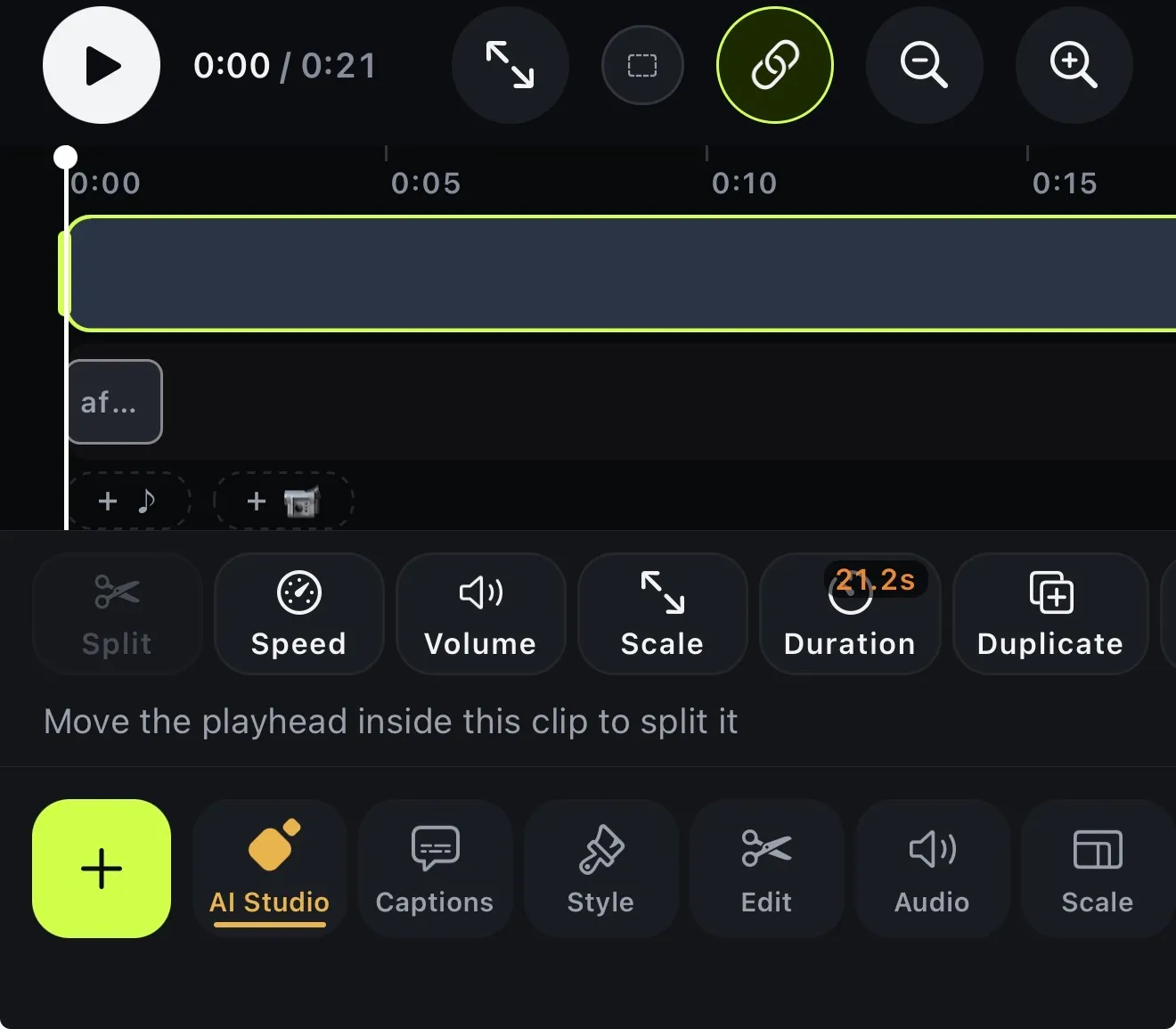
01 · Split
Split at the playhead and delete parts
Move the playhead inside a clip and tap Split: one clip becomes two at that point. Select the piece you don't want and tap Delete, and the video closes the gap. For small trims, drag the clip's start or end handle instead.
With a talking video it's often easier to cut by what was said. Tap a word in the captions and choose Cut this word from the video. The picture and the captions are cut together, so they stay in sync.
- Split snaps to a sentence end when one is close
- Delete, and the rest closes up
- Drag a clip's edges to trim
- Cut a single word from the captions
02 · Sound
Split or extend a sound
Music and voiceovers sit on their own lanes under the picture, so you can cut them without touching the video. Select a sound and tap Split. Then you can drop the chorus and keep the intro, or move half of it later in the video.
If a track ends before your video does, Loop repeats it to fill the gap. A sound you made with AI can be Extended instead, with new music that carries on from where it stops.
- Split a sound at the playhead
- Loop a track to fill the video
- Extend an AI-made sound (uses credits)
- Set any sound's duration
03 · Auto trim Premium
Remove pauses automatically
AI Auto Trim looks for dead air in the speech: the seconds before you start talking and after you finish, plus long pauses between sentences. Before anything is cut, you get the full list, along with how confident it is about each one.
Tap Select safe only, preview the result, then cut. The captions move with the shorter video, and if you change your mind, one undo puts it all back.
- Silence before you start, after you finish, and in between
- Every cut marked Safe, Review or Keep
- Select safe only, or pick one by one
- One undo restores everything
04 · Export a part
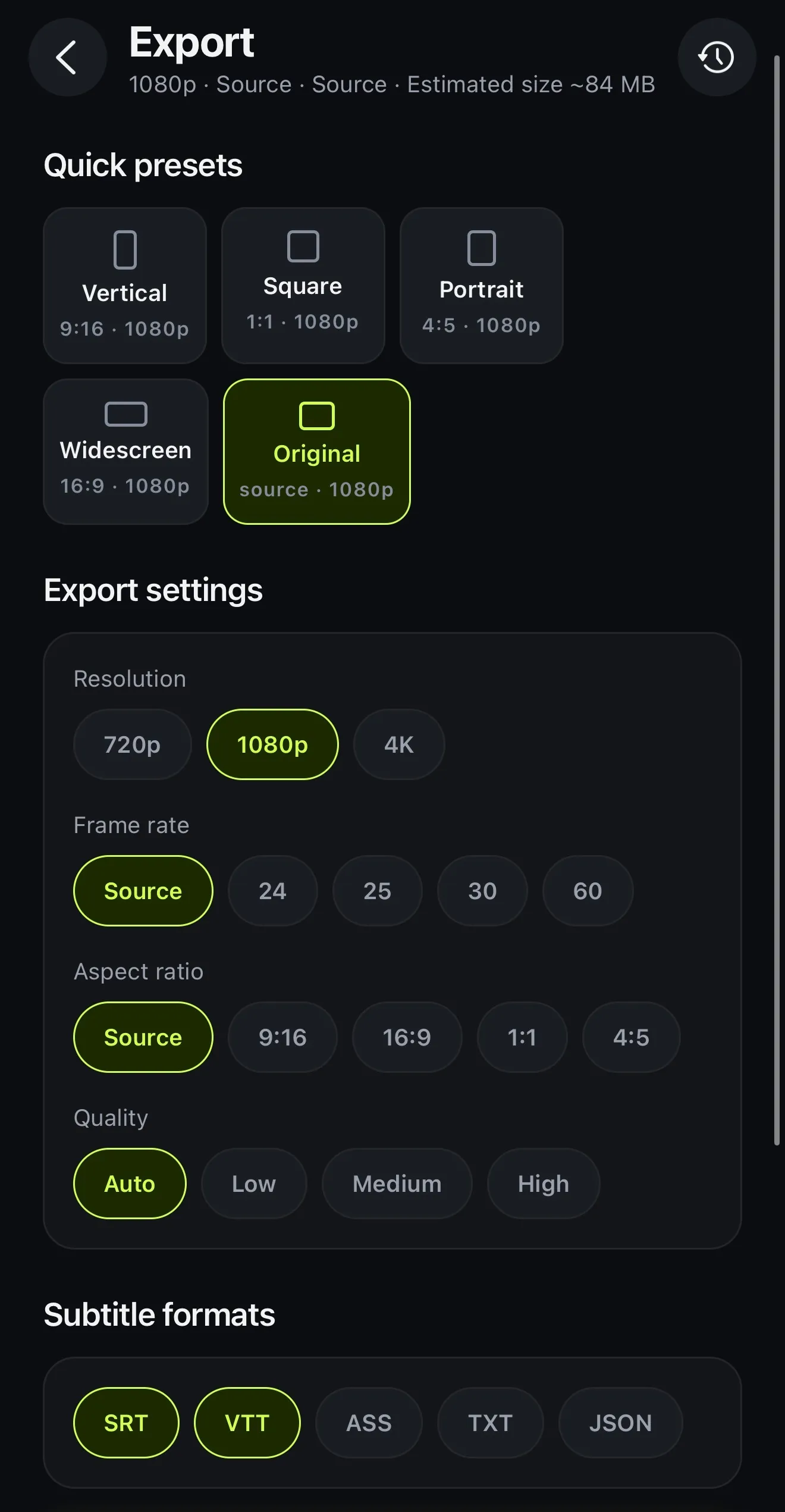
Export one clip or a range
Need only the best thirty seconds? Select a clip and tap Export clip, or tap Range above the timeline, scrub to each edge, Set start and Set end, then Export range.
The part becomes a project of its own and starts exporting right away, captions included. The full video is not changed, so you can cut as many pieces from it as you like.
- Export clip: one clip, or several selected
- Export range: Set start, Set end
- Becomes its own project; the original stays as it was
How it works on iPhone
How to trim and split a video on iPhone
-
Open your video
Start a project from a video in your Photos, or open one you already have.
-
Place the playhead
Scrub the timeline to the moment you want to cut. The playhead has to sit inside the clip.
-
Split the clip
Tap the clip, then Split. It becomes two clips at that point, snapped to the end of a sentence if one is close.
-
Delete the part you don't want
Tap the unwanted piece and Delete. The rest of the video closes the gap.
-
Tighten and export
Drag a clip's edges to fine-tune it. On Premium, AI Auto Trim can remove the pauses for you. Then tap Export.
FAQ
Questions people ask
How do I trim a video on iPhone?
In Voxcene, tap the clip on the timeline and drag its start or end handle inwards. For an exact cut, move the playhead, tap Split, then select the part you don't want and tap Delete. To cut out a middle section, split at both edges of it and delete the piece in between.
What is the difference between trimming and splitting?
Trimming removes footage from the start or end of a clip. Splitting cuts one clip into two at the playhead, so you can delete, move or change either half on its own, including its speed, volume, scale or colour.
Can I cut a single word out of a video?
Yes. Tap the word in the captions and choose Cut this word from the video. The picture and the captions are cut together, so they never drift apart.
Can I remove silences and pauses automatically?
Yes, with AI Auto Trim in Premium. It finds the dead air before you start speaking, after you finish and in long gaps in between. You see each cut, marked Safe, Review or Keep, before anything is removed.
Can I save just one part of a video?
Yes. Select a clip and tap Export clip, or mark a Range with Set start and Set end and tap Export range. The part becomes its own project and starts exporting; the original video doesn't change. The part you pick needs speech in it, because the export carries its captions over.
I cut too much. Can I get it back?
Yes. Undo steps back one change at a time. Removed lists the pieces you cut so you can put any of them back, and History keeps every change to the project so you can restore an earlier version.
Is it a free video cutter?
Voxcene is free to download, and splitting, deleting and trimming work on the Free plan for videos up to 60 seconds. Basic and Premium take longer videos and export without a watermark.