Video translator
Translate your video's captions into any language
You can film in one language and caption in another. Voxcene translates each caption where it sits, keeping its timing and style, and it can show the original and the translation together.
for iPhone
- 66 languages
- Timing kept
- Bilingual captions
- Dub it too
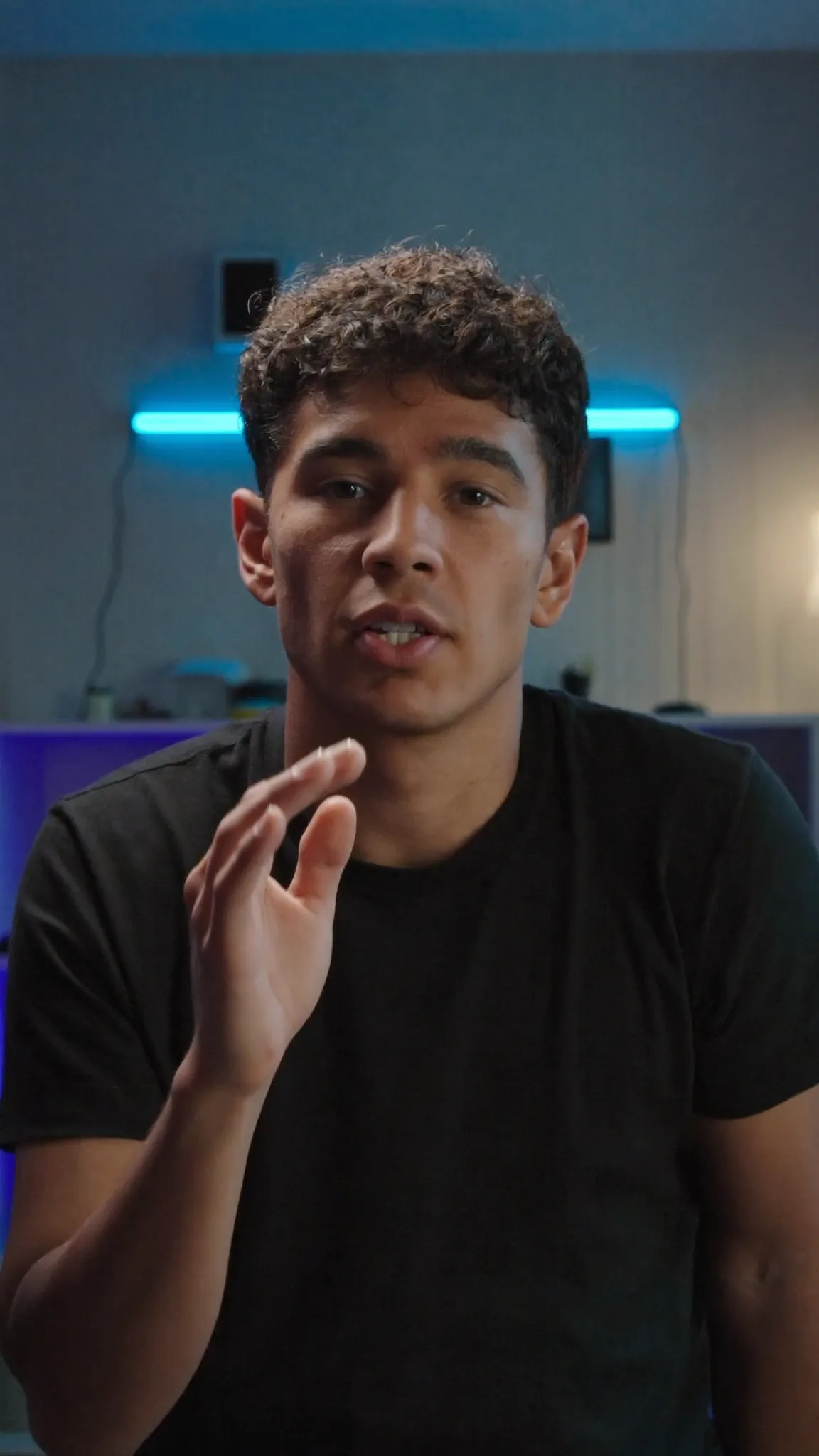 English
This is the part nobody tells you
Language
Switch the caption language, as the app's Original, translation and Bilingual chips do. Lines written for this page.
01 · One tap
Translate captions in one tap
Caption the video in the language it's spoken in, then open Language in the Captions panel, pick the language and tap Translate. Each caption is translated where it sits and keeps its timing and style, so nothing needs re-syncing.
If you translate into more than one language, the project keeps each one. Switch back to a language you've already made and it shows right away, and you don't pay for it again.
- Captions → Language → Translate
- Every line keeps its timing
- Switch back to Original any time
- 3 AI credits a minute
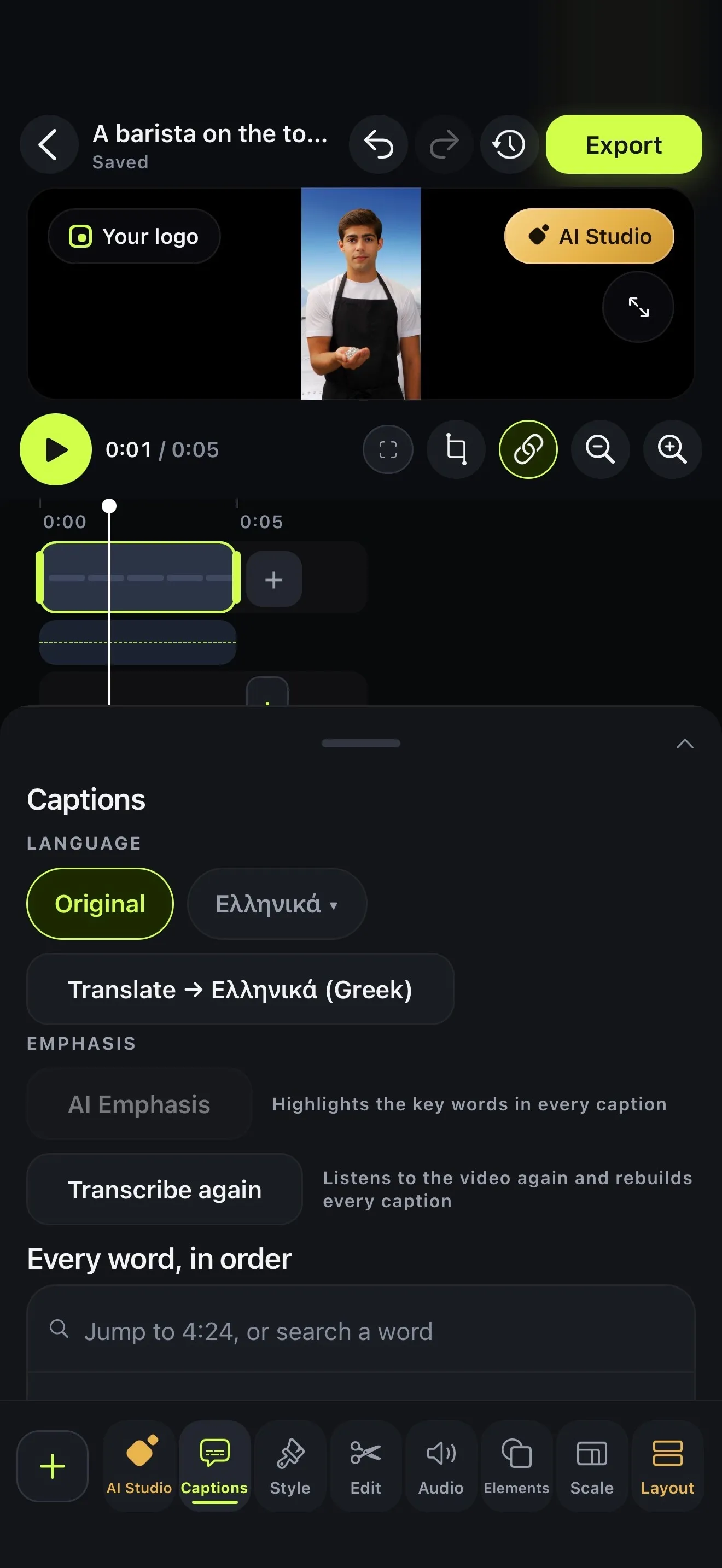
02 · Both languages
Original, translated or both on screen
You choose what viewers see: the Original captions, the translation, or Bilingual, which puts the original line on top and the translation underneath. Under Translation style you can give the translation its own colour and a smaller size, so the two lines don't fight for attention.
It's worth reading the whole video in both languages before you post. The transcript lists each line and a tap shows its translation. You can also show all of them at once.
- Original · translation · Bilingual
- Translation style: its own colour and size
- Check every line in both languages
- Translated SRT and VTT with the export
Translate into any of these
- English
- Ελληνικά
- Español
- Français
- Deutsch
- Italiano
- Português
- العربية
- עברית
- हिन्दी
- 日本語
- 한국어
- 中文
- Русский
- Українська
- Türkçe
- Polski
- Nederlands
- Svenska
- Norsk
- Dansk
- Suomi
- Íslenska
- Čeština
- Slovenčina
- Slovenščina
- Hrvatski
- Српски
- Bosanski
- Македонски
- Български
- Română
- Magyar
- Lietuvių
- Latviešu
- Eesti
- Беларуская
- Ქართული
- Հայերեն
- Azərbaycan
- Қазақ тілі
- فارسی
- اردو
- বাংলা
- ગુજરાતી
- ಕನ್ನಡ
- മലയാളം
- मराठी
- ਪੰਜਾਬੀ
- தமிழ்
- తెలుగు
- नेपाली
- ไทย
- Tiếng Việt
- Indonesia
- Melayu
- Filipino
- Jawa
- Kiswahili
- Afrikaans
- አማርኛ
- Cymraeg
- Gaeilge
- Galego
- Català
- Malti
03 · Further Premium
Go further with AI dubbing
Captions let people read along, and a dub lets them listen. On Premium, Dub into another language speaks the translation in a natural voice, line by line, in time with your edit. Your music and room sound stay underneath.
- Speaks your translated captions
- Each line starts where yours does
- Original sound kept underneath
How it works on iPhone
How to translate a video's captions on iPhone
-
Caption the video
Open your video in Voxcene and caption it in the language you spoke.
-
Pick the language
In Captions, under Language, tap the language chip and choose from the Subtitle language list.
-
Translate
Tap Translate → and the language. Each caption is translated where it sits and keeps its timing.
-
Choose what shows
Switch between Original, the translation, or Bilingual for both lines at once. Set the translation's colour and size under Translation style.
-
Export
Export the video with the captions burned in. Translated SRT and VTT subtitles go out alongside the originals.
FAQ
Questions people ask
How do I translate a video's captions on iPhone?
Caption the video in Voxcene, open Captions → Language, choose the language and tap Translate. Each caption is translated in place and keeps its timing.
Which languages can I translate into?
Any of the 66 languages Voxcene captions. That includes English, Spanish, French, German, Italian, Arabic, Hindi, Japanese, Chinese, Greek and plenty more.
Can I show both languages at once?
Yes. Bilingual puts the original line on top and the translation underneath, and Translation style sets the translation's colour and size.
Can I edit the translated words?
Not in the current version. You can read every translated line next to the original, but to change the wording you'd edit the original captions and translate again.
What does translating cost?
Translation uses AI credits: 3 credits per minute of video. The Free plan's 20 starting credits cover a few minutes; Premium includes 600 credits a month. Basic has no AI credits, so translation needs Free credits or Premium.
Can the translated captions be spoken too?
Yes, that's what dubbing does. On Premium, AI dubbing speaks your translated captions in a natural voice, and each line starts where yours does.
Can I translate a YouTube video?
Voxcene translates the captions of videos you edit in the app, such as your own recordings and footage from your Photos or Files. It doesn't download videos from YouTube.