Background remover
Remove the background from a photo for your video
Pick a photo of a person, a pet or a product. Voxcene removes the background, and whatever is left becomes a see-through cut-out you can put on your video.
for iPhone
- Person, pet or product
- See-through background
- Straight onto your video
- Premium
01 · Cut out Premium
Portrait, pet and product cut-outs
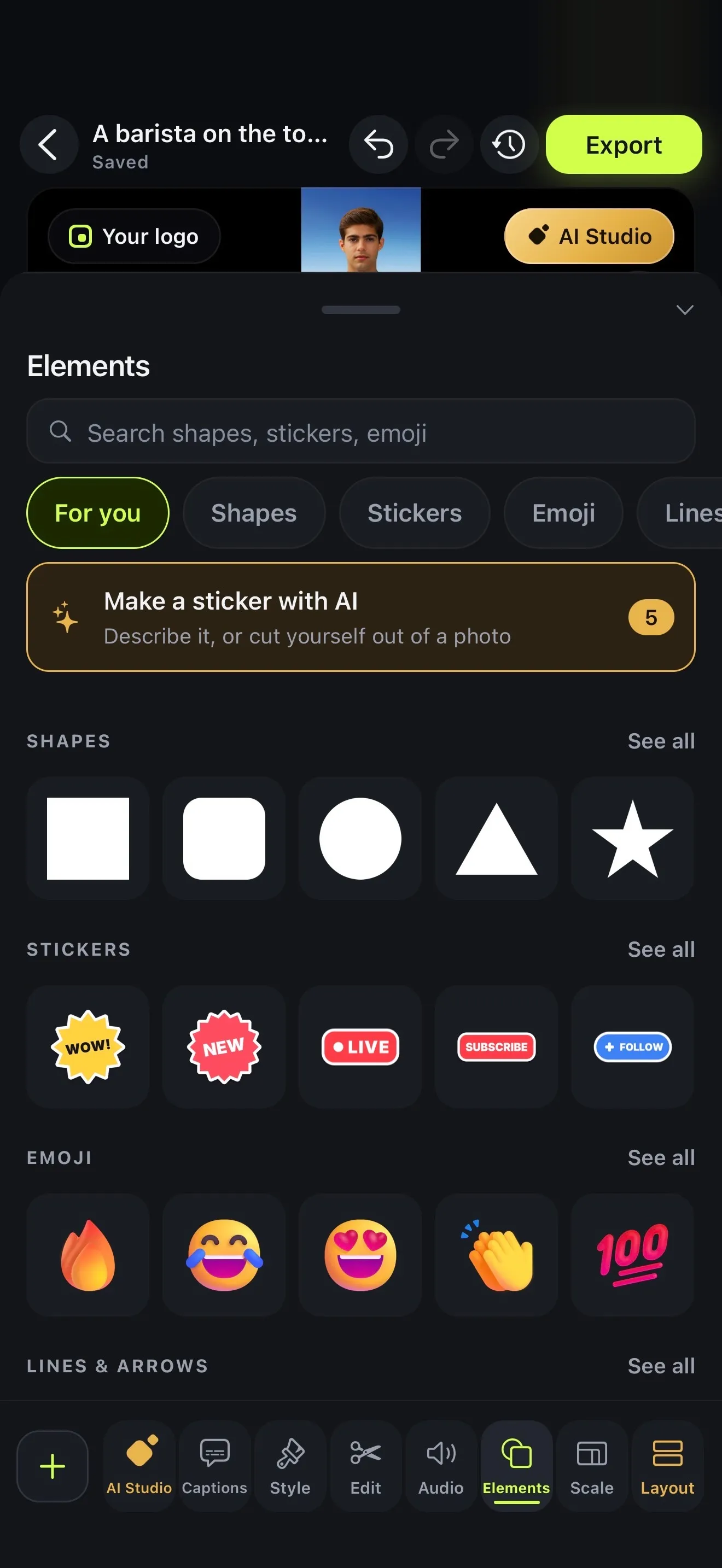
Most background removers give you a file and stop there. Voxcene's is made for putting the subject on a video. Open Elements, tap Make a sticker with AI and choose Cut out from a photo.
Pick a photo of yourself, your dog or the product you sell. Once the background is gone, the result is trimmed close around the subject and shows up under Your tries on a see-through background. You can cut out a few and keep the best one, since each try stays in Your stickers.
- A person, a pet or a product
- Background taken away, subject kept
- Trimmed to the subject
- Every try kept in Your stickers
02 · On the video
A see-through cut-out, ready for your video
Tap a cut-out and it goes on your video like any other sticker. With no background around it, it looks like part of the scene rather than a photo pasted on top. Think of a product next to you while you talk about it, or your pet in the end card.
The rest happens in four tabs. In Arrange you size, move, turn, flip and layer it. Motion gives it an entrance and a slow zoom while it's on screen, and Timing sets when it appears and how long it stays. One video can hold up to 30 pictures and elements.
- Transition: Fade in, Pop in, Zoom in and more
- While it's on: Still, Slow zoom in, Slow zoom out
- Timing: At the playhead, To the end, Whole video
- Opacity, Turn, Flip, Size, Move and Layer
03 · Behind it
A new background: your footage, a colour or a gradient
Once the subject is out of its photo, it can sit in front of anything on your timeline. Put it over your own footage, or add a Blank clip in a plain Colour or Gradient and build a title card or a product shot around it with text and Motion.
When you export, the cut-out is baked into the finished video, at whatever size and quality your plan exports.
- Your own video behind the subject
- Blank clip: a Colour or a Gradient
- Text and Motion around it
- Exported with the video
04 · Fair use
Asks first, and charges only for a real cut-out
The cut-out is made by Voxcene's AI, not on the phone. The first time you use an AI tool, you'll see Use AI partners?, and nothing leaves your iPhone until you allow it. If you change your mind later, you can switch it in Settings.
If a photo has no clear subject to lift out, the app tells you and you aren't charged. The cut-out is a separate picture, so your original photo is never changed.
- Nothing is sent until you allow it
- Part of Premium
- No subject found, nothing charged
- Your original photo stays as it is
How it works on iPhone
How to remove a photo's background on iPhone
-
Open your project
Open the video you're editing. The cut-out goes onto this project's video.
-
Open Elements
In the editor's bottom bar, tap Elements, then Make a sticker with AI.
-
Cut out from a photo
Tap Cut out from a photo, then Pick a photo of a person, a pet or a product.
-
Place it
The cut-out appears under Your tries with a see-through background. Tap it to put it on the video.
-
Arrange and time it
Use Arrange to size, move and turn it, Motion to give it a Transition, and Timing to set when it shows.
FAQ
Questions people ask
How do I remove the background from a photo on iPhone with Voxcene?
Open a project, tap Elements, then Make a sticker with AI and Cut out from a photo. Pick a photo of a person, a pet or a product: the background is taken away and what is left becomes a see-through sticker you can put on your video.
Can I save the cut-out as a transparent PNG?
Not in this version. In Voxcene 1.2 a cut-out is a sticker for your video: it is kept in the project under Your stickers and leaves the app as part of the video you export, not as a separate image file.
Can Voxcene remove the background from a video?
No. It cuts subjects out of still photos only. It does not remove or replace the background behind moving footage. There is no green-screen or video background removal in this version.
I meant the background noise in my video. Can Voxcene remove that?
Yes, that is a different tool. AI Denoise in AI Studio pushes back steady background noise, like air conditioning, a fan or distant traffic, behind the voice in your video's own sound. See the background noise remover.
Which photos work best?
A photo with one clear subject: a person, a pet or a product that stands apart from what is behind it. If nothing can be lifted out of a photo, Voxcene says so and you are not charged.
Is the background remover free?
Cut out from a photo is part of Premium. Any credit price shows on the button before you tap, and a photo with nothing to lift out is never charged. Voxcene itself is free to download.