AI video effects
AI video effects for your photos and clips
Film a still photo with a trained camera move, or use AI to re-film a clip you shot. To finish any video there are hundreds of hand-built looks, from glitch and VHS to film burn and light leaks, and each one previews on your own footage.
for iPhone
- Effects for photos
- Genjutsu for clips
- 400 Motion looks
- 44 colour looks

Effects One photo, one trained camera move

Genjutsu Your own clip, reimagined
01 · AI Premium
Two AI effects: a photo filmed, a clip re-filmed
Effects starts from a photo. You frame it and pick a movement from a gallery of looping previews, such as a dolly, an orbit, a crash zoom, VHS, fire or ice. What you get back is the picture filmed as a five-second clip. See image to video for the whole flow.
Genjutsu starts from footage you shot. It keeps your clip's movement, camera and timing and rebuilds the rest from pictures you choose. It can also swap a single thing, like a car or an outfit. That's AI video restyling.
- Effects: one photo → a 5-second clip
- Over 100 trained camera moves
- Genjutsu: your clip, recast or with one thing swapped
- Price on the button before you start
02 · Motion
Animated looks
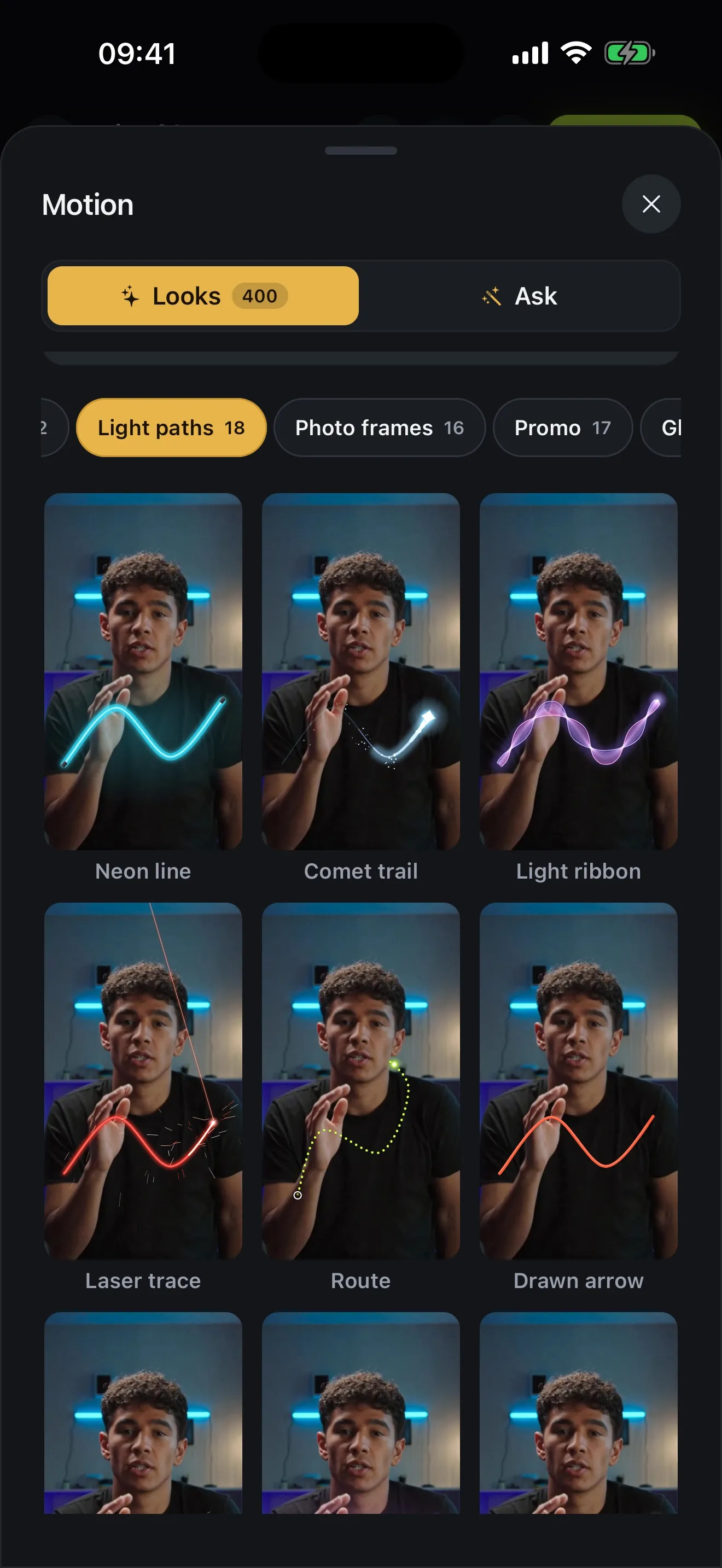
Not every effect needs AI. Motion holds 400 animated looks, drawn on top of your video by Voxcene's own engine. There are light sweeps and lens flashes, glitches and particles, and transitions, frames and titles too. Each tile previews on your footage, and the one you pick lands at the playhead.
Because they aren't generated, they cost no credits and come out the same every time. Move, pinch and time them like any layer. More on the motion graphics page.
- 400 looks on shelves: Light, Transitions, Titles and more
- Every tile plays on your own footage
- Basic: 30 looks · Premium: all 400
- No credits: drawn by Voxcene, not generated
03 · Retro
Retro, glitch and film styles
For the look of old tape and film, start in the colour room: VHS, Super 8, Eighties and Sepia sit beside 40 more looks, free on every plan. After that, add some movement from Motion. Glitch jump makes the shot stutter and tear, and RGB split gives it a colour jolt. Film burn or Light leak washes light across the frame.
For a photo, the AI gallery has lens and film movements of its own. The tiles here are real renders: Light & lens movements from the logo intro maker, filmed on the Voxcene mark.
- Colour looks: VHS, Super 8, Eighties, Sepia
- Motion: RGB split, Glitch bars, Film burn, Old film
- AI movements: VHS, Super 8MM, Datamosh, Lens Crack
- Mix them: a grade, then a glitch on the cut
-
 Datamosh
-
 Lens Crack
-
 Dirty Lens
-
 Low Shutter
Motion looks
- Glitch jump
- RGB split
- Glitch bars
- Film burn
- Old film
- Light leak
- Retro TV
- Synthwave
- Glitch title
- Glitch captions
Colour looks · every plan
- VHS
- Super 8
- Eighties
- Seventies
- Sepia
- Instant
04 · Which one
AI effects vs manual looks
Use an AI effect when you want footage you don't have: a still photo that moves like a crane shot, or your clip recast somewhere new. It takes a few minutes and spends AI credits, and every run is a little different.
Use a look when the footage is right but the feel isn't. Colour looks and Motion looks apply straight away and preview on your own scene. You can undo them with a tap, and they use no credits and involve no waiting.
- AI makes a new clip; looks change the one you have
- Looks apply right away, the same every time
- AI takes minutes and AI credits
- Either way, you export a normal project
How it works on iPhone
How to add VHS, glitch and film effects to a video on iPhone
-
Open your video
Open a project in the editor, with your clip on the timeline.
-
Give it a film look
Tap Edit, then Colour, and pick a look such as VHS, Super 8 or Eighties. It previews on your own footage.
-
Add a moving effect
Tap AI Studio, then Motion. On the Light shelf, pick RGB split, Film burn or Glitch bars and add it at the playhead.
-
Or use AI
For an AI effect, go to Create → AI videos. Effects films a photo with a trained camera move, and Genjutsu re-films a clip you shot.
-
Export
Tap Export. Every look and effect is rendered into the file.
FAQ
Questions people ask
What are AI video effects in Voxcene?
There are two. Effects takes one photo and turns it into a 5-second clip with a trained camera move. Genjutsu takes a clip you shot and re-films it from reference pictures. Both are on the Premium plan and use AI credits.
Does Voxcene have a VHS filter?
Yes, three ways. The colour room has a free VHS look for any clip. Motion adds moving glitches like RGB split and Glitch bars. And the AI Effects gallery includes a VHS movement for photos.
How do I add a glitch effect to a video?
Open the editor, tap AI Studio → Motion and pick Glitch jump, RGB split or Glitch bars. Each one previews on your own footage and lands at the playhead. Motion is on Basic (30 looks) and Premium (all 400).
Are Motion looks made with AI?
No. Motion's looks are drawn by Voxcene's own engine, so they cost no credits and look the same every time. The exception is Ask, where you describe what should move. That uses AI and is on Premium, at 60 credits a message.
Can I apply an AI effect to my own video?
Yes, with Genjutsu. Pick a clip of 3 to 30 seconds and up to six reference pictures, then recast the whole scene or swap one thing in it. It costs 20 AI credits a second at 480p, or 30 at 720p.
Are the colour looks free?
Yes. The colour room and its 44 looks, including VHS, Super 8, Eighties and Sepia, are on every plan, Free included.