Image to video AI
Turn one photo into a moving shot
Choose a photo and pick a camera move from a gallery of moving previews. Voxcene films your picture as a five-second clip, framed for Reels, a square post or widescreen, and opens it ready to edit.
for iPhone
- One photo → 5 s clip
- Trained camera moves
- Over 100 movements
- Premium

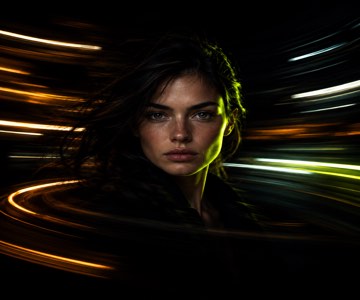 The photo
01 · One photo Premium
5-second camera moves from a single photo
Effects turns one of your photos into a short moving shot. After you choose the photo, you frame it (drag to move, pinch to zoom) in the shape the clip should be: vertical for Reels and TikTok, square for a post, or wide for YouTube.
Next you pick a movement. Each one is a camera move the model was trained on, so it behaves like a real camera rather than a move described in a prompt. The price is on the button before you start, and you can leave while it films. The clip turns up in your projects, open in the editor.
- Frame it first: Original, 9:16, Square or 16:9
- A movement the model was trained on
- Five seconds, usually ready in about 7 minutes
- 90 credits; +5 with music
02 · The gallery
Effects to choose from
The gallery is the main event. Each movement plays a short looping preview, so you choose by watching instead of guessing what a name means. You can search by name, and when you tap a tile its description appears underneath.
Some are classic camera moves: dolly, crane, orbit, whip pan, drone. Others are lens and film treatments like Lens Flare, VHS and Super 8MM, or transformations that remake the picture in metal, ice or fire. If you want a moving logo instead of a photo, the logo intro maker uses the same kind of movement.
- Over 100 movements, each with a looping preview
- Search by name
- From a gentle dolly to fire and ice
- The chosen one's description under the grid
Pick a movement
- Dolly In
- Crash Zoom In
- 360 Orbit
- Bullet Time
- FPV Drone
- Earth Zoom Out
- Hyperlapse
- Whip Pan
- Lens Flare
- Super 8MM
- VHS
- Turning Metal
- Set on Fire
- Freezing
- Levitation
- Disintegration
A few of the movements, named as the app names them. The gallery is loaded live, so the list can change.
03 · Use it
Use it as B-roll or an opener
The clip arrives as a normal project, so everything in the editor works on it: add a title, a colour look or music, then export it.
To use it as an opener, start from the effect's project and tap + → Clip. Your main video goes in right after it. For B-roll, export it, then in the other project add it with + → Video element and it plays over your footage straight away.
- Opens as its own project
- Caption it, grade it, add text
- + → Clip adds it at the end of another video
- + → Video element plays it over your footage
04 · More Premium
More ways to bring a photo to life
Want to say what happens instead of picking a move? Open Generate with AI, switch to One AI shot, tap Start from a photo and describe the shot, for example “steam rising, slow push-in, warm morning light”. You get one continuous clip from your picture, with no script or narration.
For a whole narrated video built from your photos, add up to four under Your photos and turn on Make the pictures move. The camera moves but the picture stays yours, and a voice, music and captions go on top.
- One AI shot: Start from a photo, describe the shot
- 5 to 30 seconds, by look
- Generate with AI: up to 4 of your photos
- Make the pictures move: the picture stays yours
How it works on iPhone
How to turn a photo into a video on iPhone
-
Open Effects
On the Create tab, under AI videos, tap Effects.
-
Choose and frame a photo
Tap Choose a photo, then frame it: Original, 9:16, Square or 16:9. The shape you choose is the shape of the clip.
-
Pick a movement
Under Pick a movement, watch the looping previews (or use Search movements) and tap the one you want.
-
Add music if you like
Tick Add music for a short instrumental bed written for this clip. It adds 5 credits.
-
Make the clip
Tap Make the clip. It usually takes about 7 minutes; then tap Open in editor.
FAQ
Questions people ask
How do I turn a photo into a video with AI?
In Voxcene, open Effects, choose a photo, frame it and pick a movement from the gallery. Tap Make the clip and you get a five-second clip of your photo, opened as a project you can edit.
What is a trained camera move?
It's a movement the AI model learned from real footage, not one described to it in words. So a dolly, an orbit or a crash zoom moves the way a real camera would. You pick one by watching its preview instead of writing a prompt.
How long is the clip?
An Effects clip is five seconds. For a longer single shot, use One AI shot in Generate with AI with Start from a photo: 5, 10 or 15 seconds, or 30 with the Long shot look.
Is image to video free?
No. Effects is part of the Premium plan and costs 90 AI credits a clip, plus 5 if you add music. Premium includes 600 AI credits a month. If a run fails, nothing is charged for the part that failed.
Will my photo look exactly the same?
Not exactly. The model films your picture as if it were a real scene, so light, depth and small details can shift. Dramatic movements change more than gentle ones, so watch the preview before you choose.
Does the clip have sound?
Only if you want it. Tick Add music and a short instrumental bed is written for the clip. Without it the clip is silent, so you can add your own music or voiceover in the editor.
Can I use the clip in another video?
Yes. Export it, then in any project tap + and add it as a Clip at the end, or as a Video element that plays over your footage.